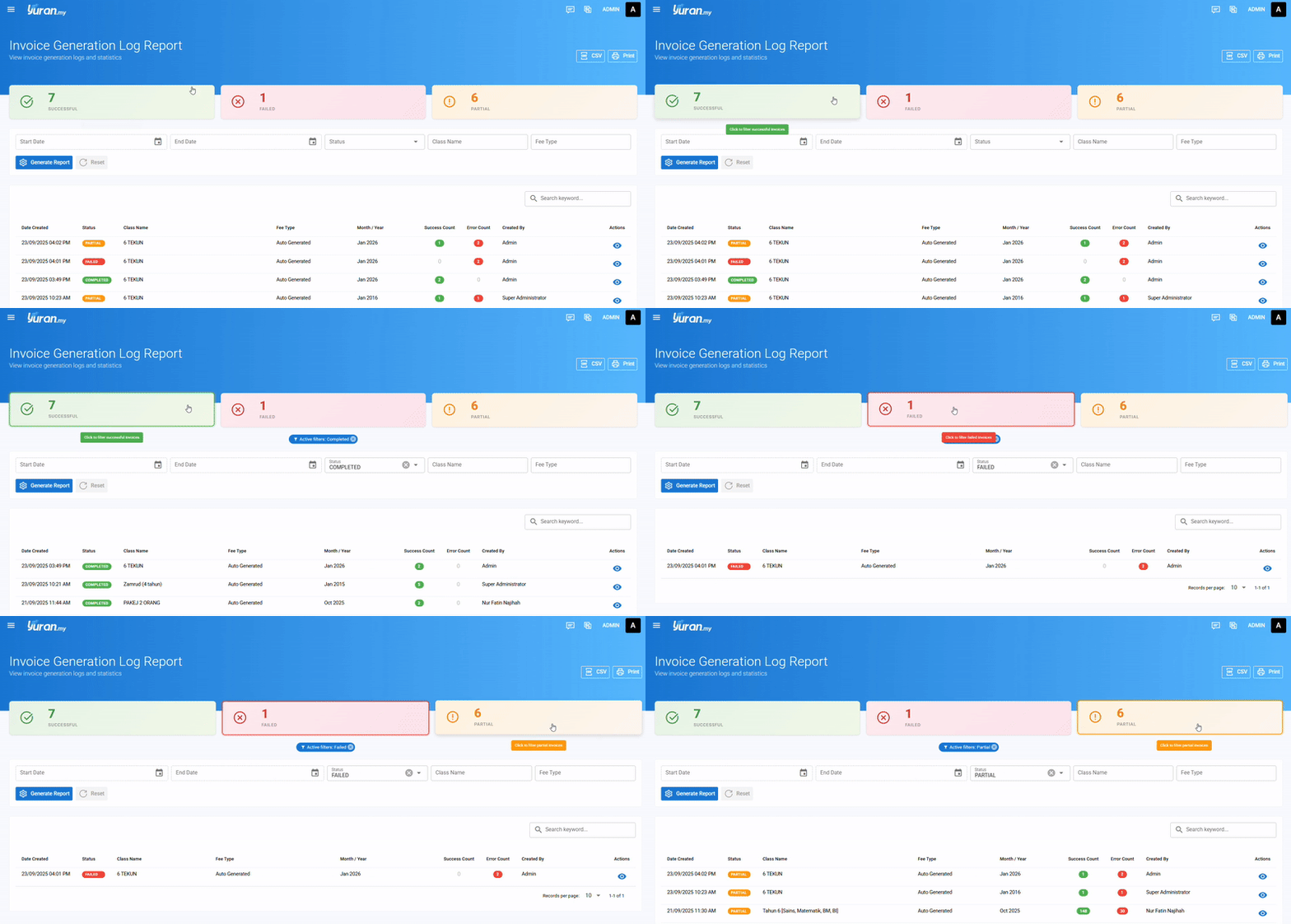

18.0 Auto Generate Billing
Auto Generate Billing is a feature in Invoice menu. Its purpose is to generate invoice in bulk typically for student in the entire class instead of generating the invoices one by one.
18.1 How to Generate Invoice in bulk
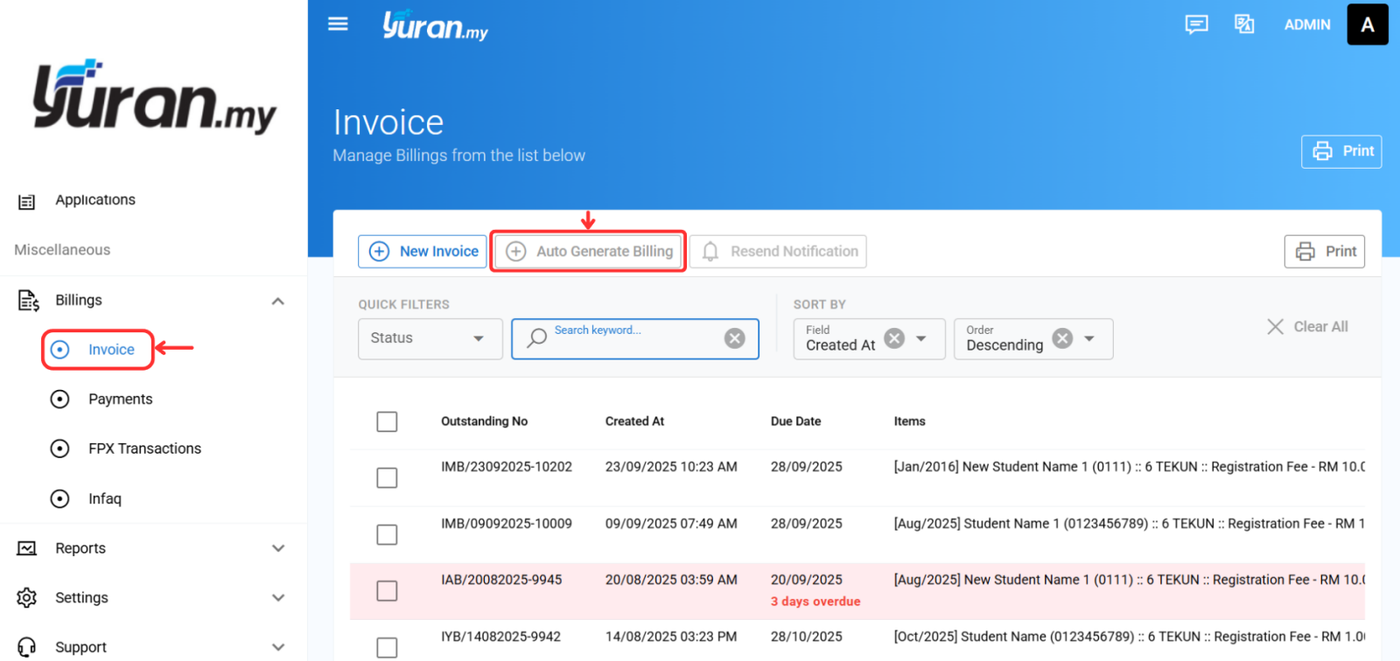
Step 1: Go to Billings -> Invoice . Click Auto Generate Billing
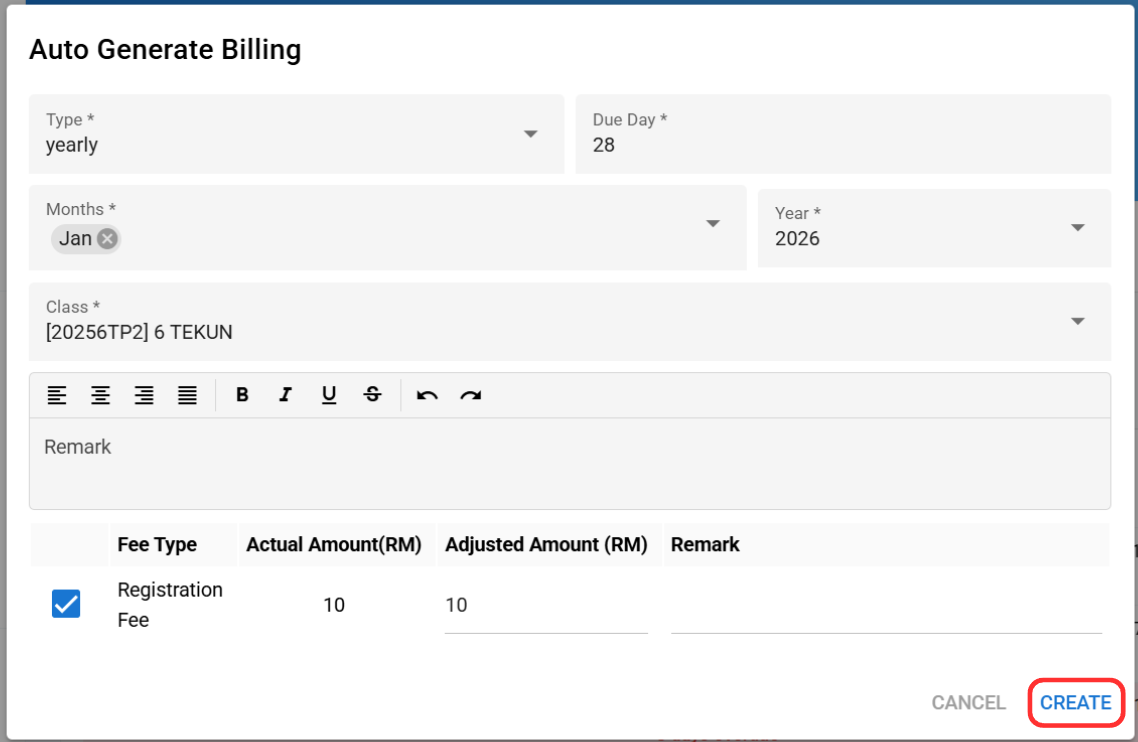
Step 2: Fill in the information and click "Create"
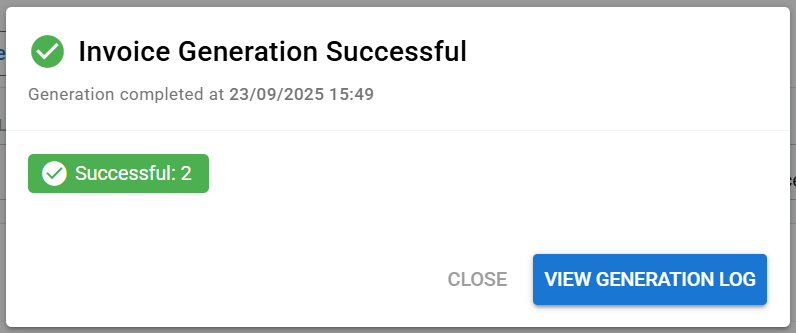
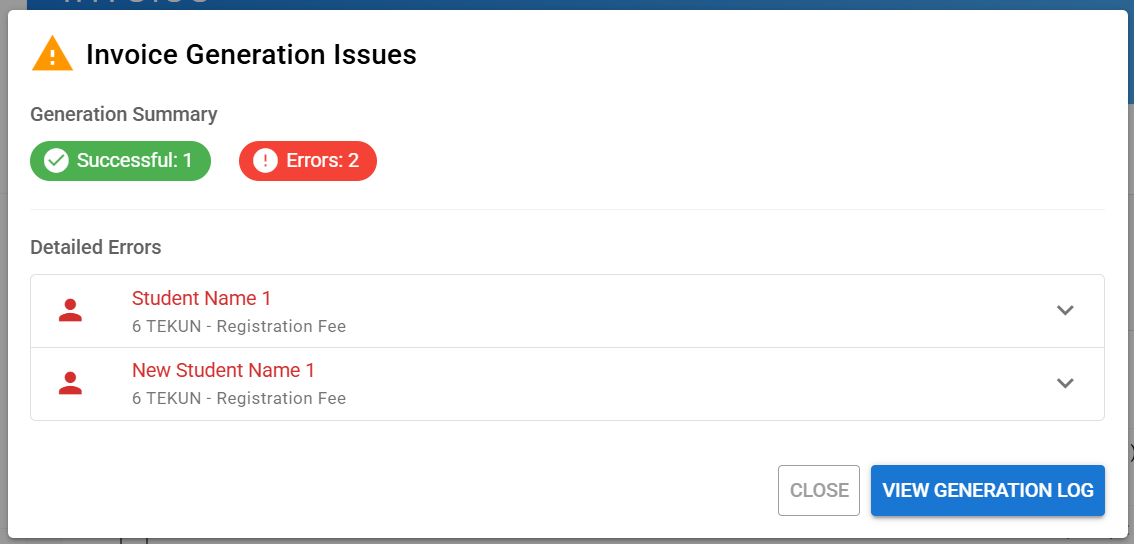
Step 3: After processing, a report will show up for invoice generation status.
18.2 Types of Generation Status
There are three (3) types of generation status which are:
1. Successful - all invoices generated successfully
2. Partial - a part of invoices failed to generate
3. Failed - all invoices failed to generate
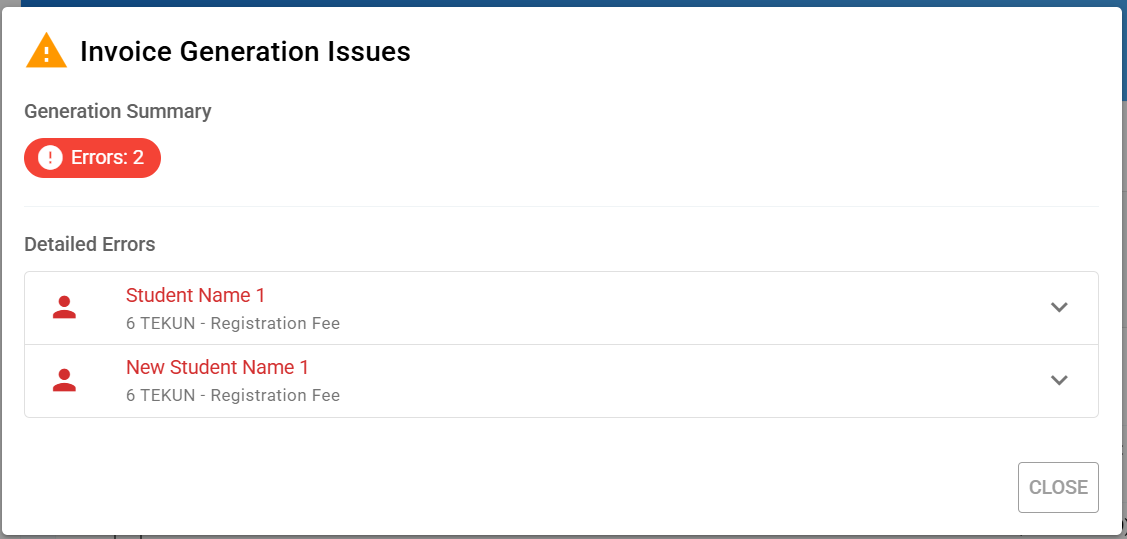
⚠️There are various reasons why invoice(s) failed to generate. Some of the reasons are invoice already exist/generated or parent not assigned to the student.
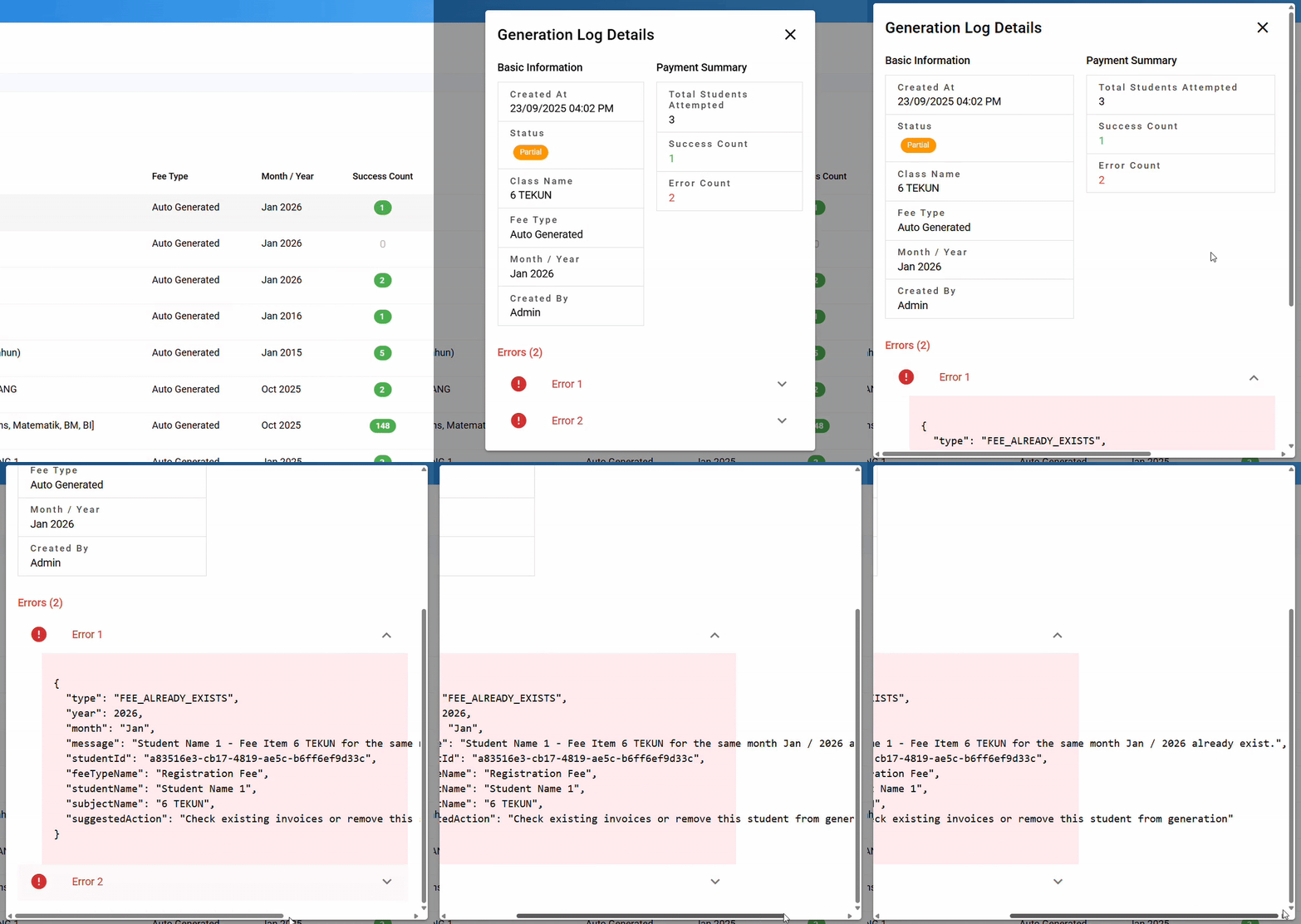
📝After every auto generate billing, a log will be saved so you can check which invoice failed to generate and what is the reason in Invoice Generation Log.
📝After every auto generate billing, a log will be saved so you can check which invoice failed to generate and what is the reason in Invoice Generation Log.
18.3 How to View Invoice Generation Log
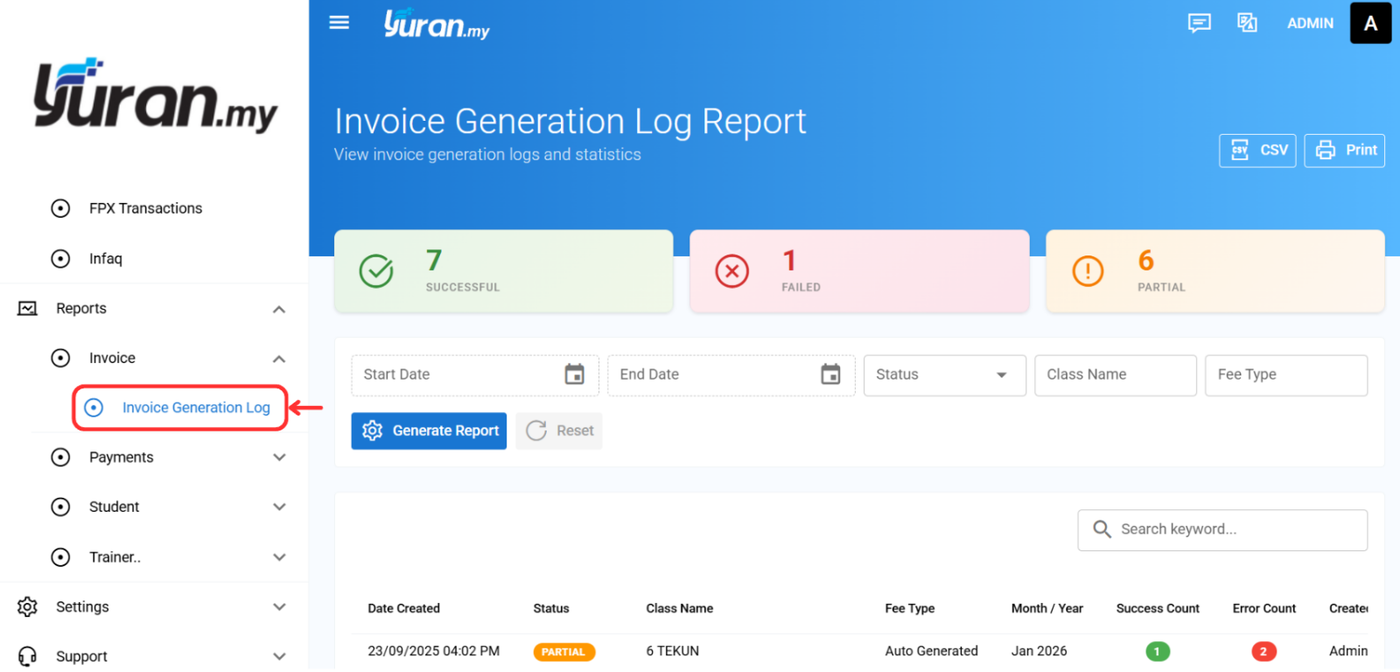
Step 1: Go to Report -> Invoice -> Invoice Generation Log
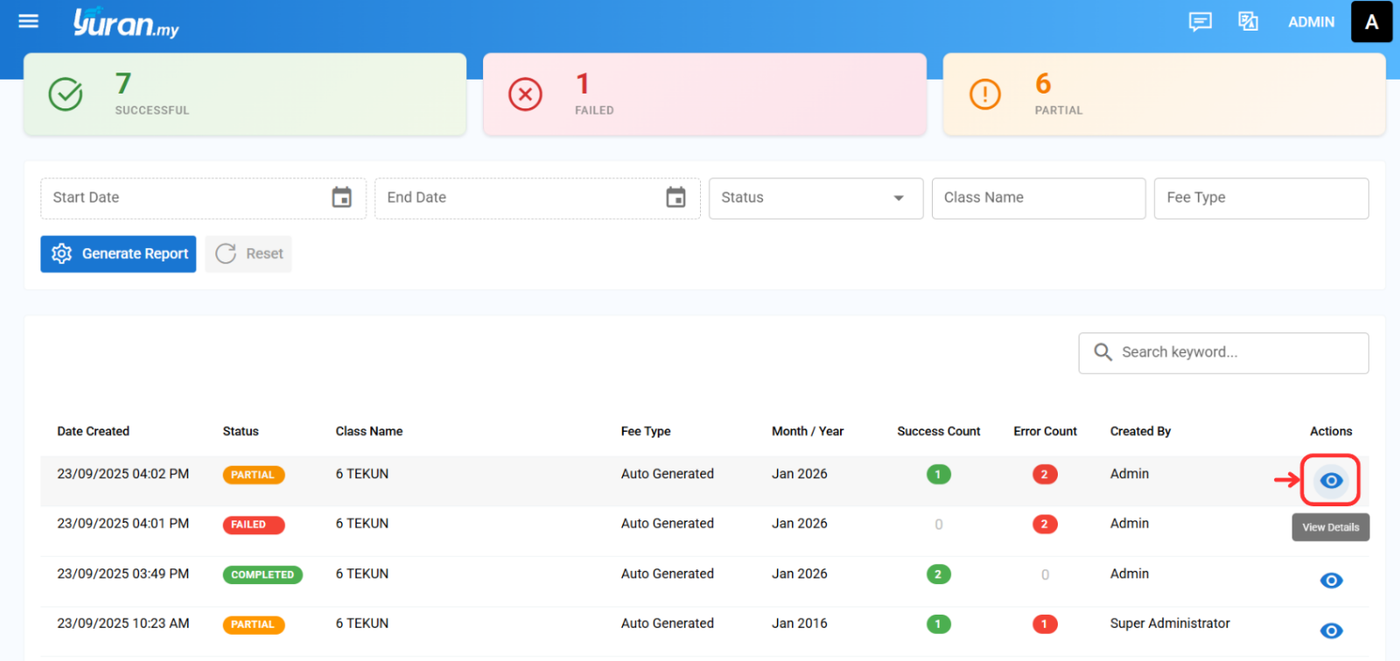
Step 2: Click View Details icon
Step 3: Click the dropdown icon in the Log Generation Details to see the reason.
You can easily filter the log status by clicking the status count at the top