
14.0 Yuran.my Apps User Guide

14.1 Sign Up Page
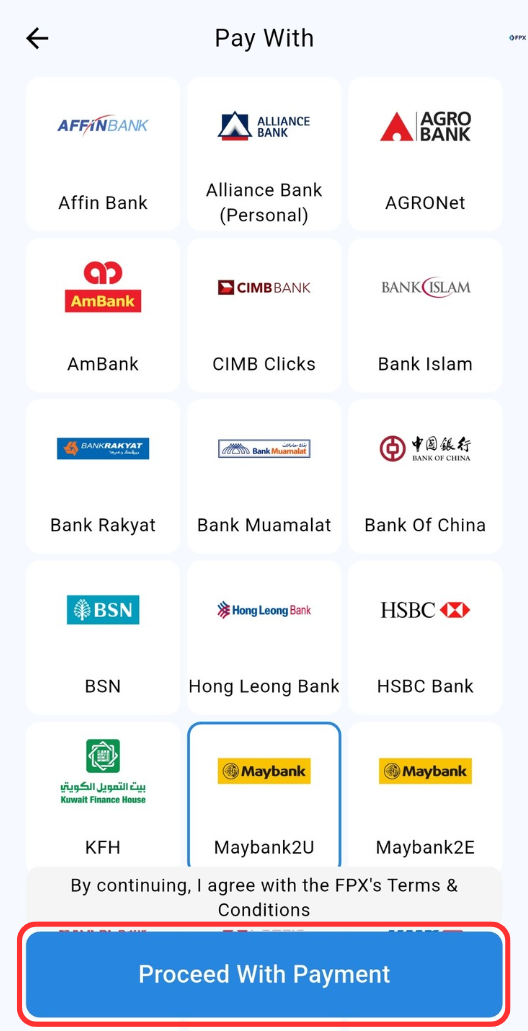
Step 1: At this Sign up page, click "Add New School/Organization" button.
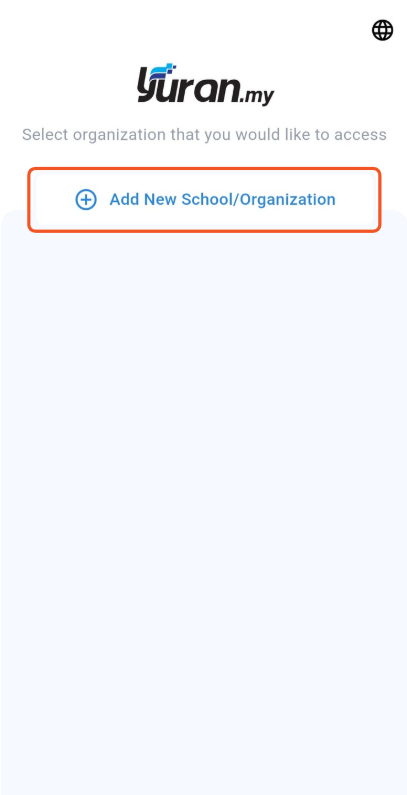
Step 2: Enter the school/organization URL on Yuran.My or the subdomain name. Then, click the "Continue" button.
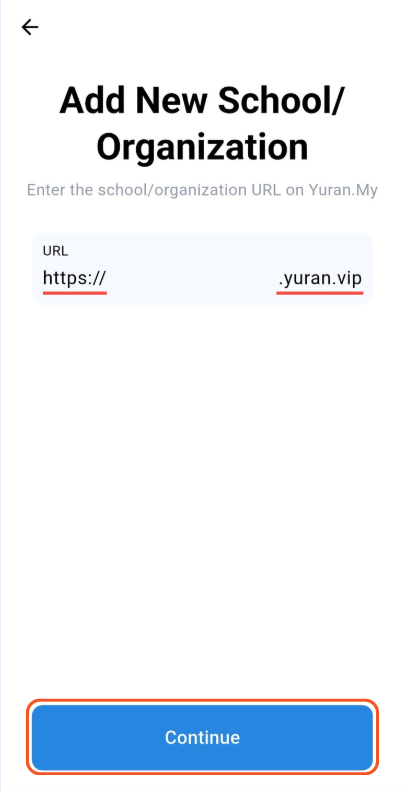
🔗 You only need to enter the subdomain name which lies between "https://" and ".yuran.vip" of the yuran.my url.
14.2 Login Page
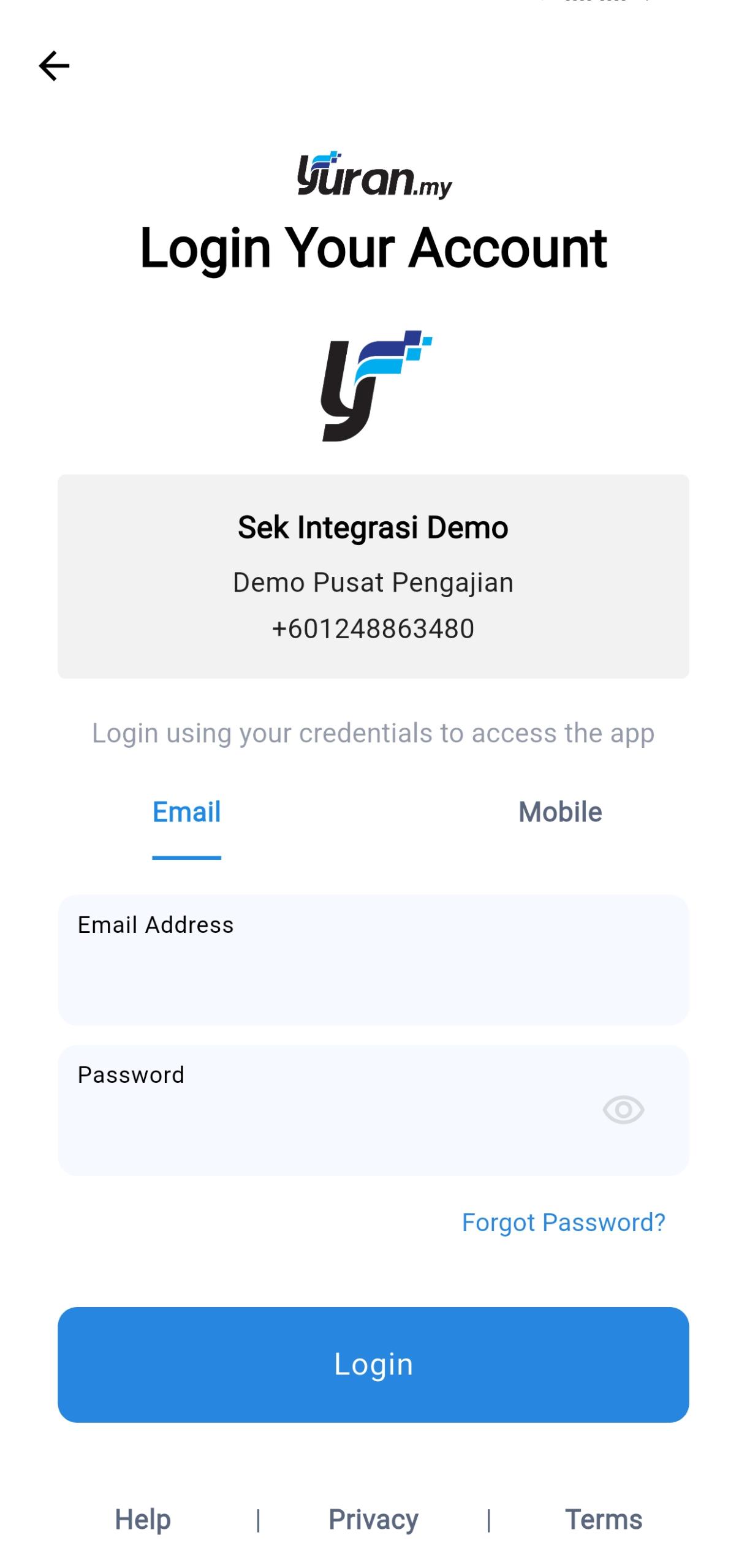
At this Login Page, user able to choose either login using Email or Mobile credentials to access their account.
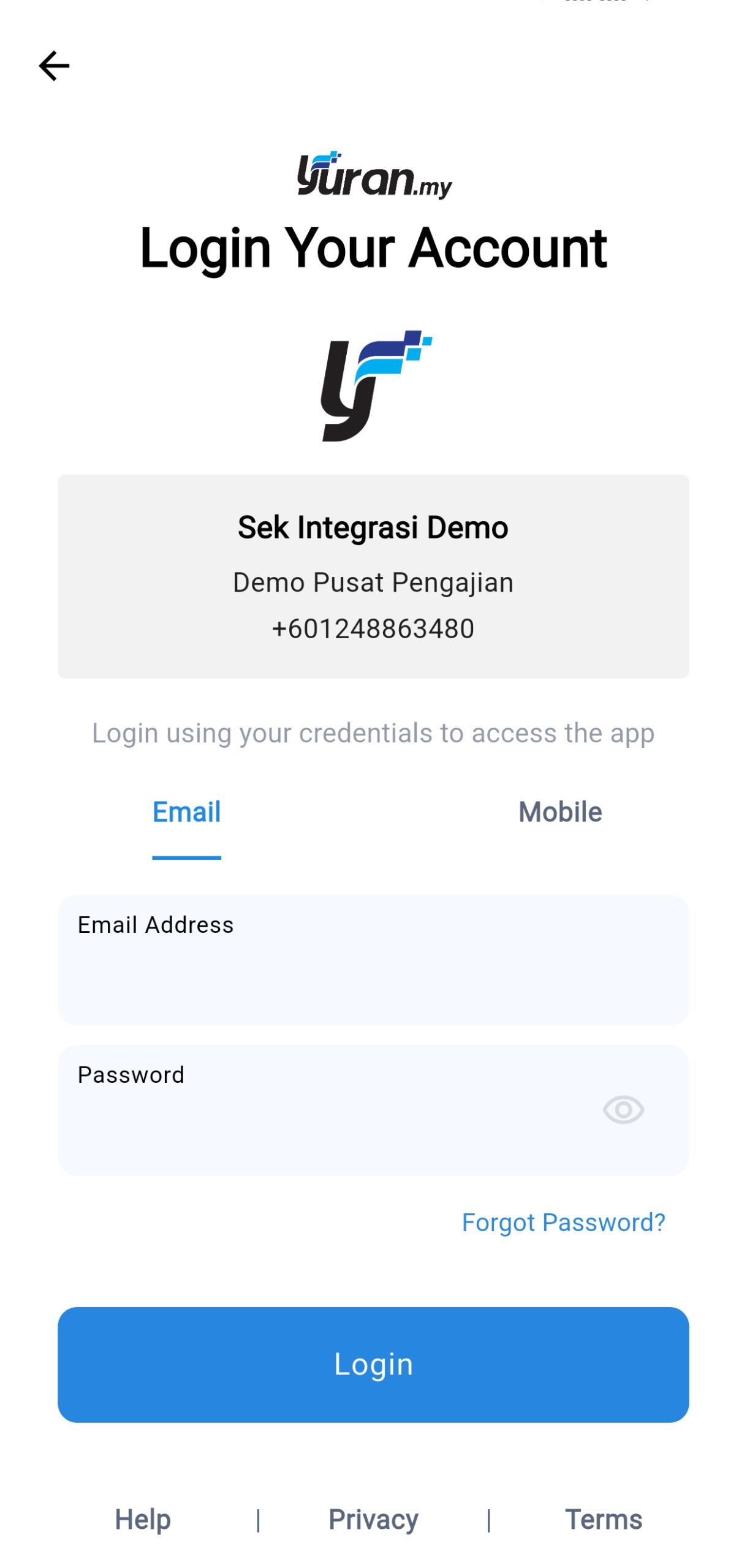
14.2.1 Login with Email credential
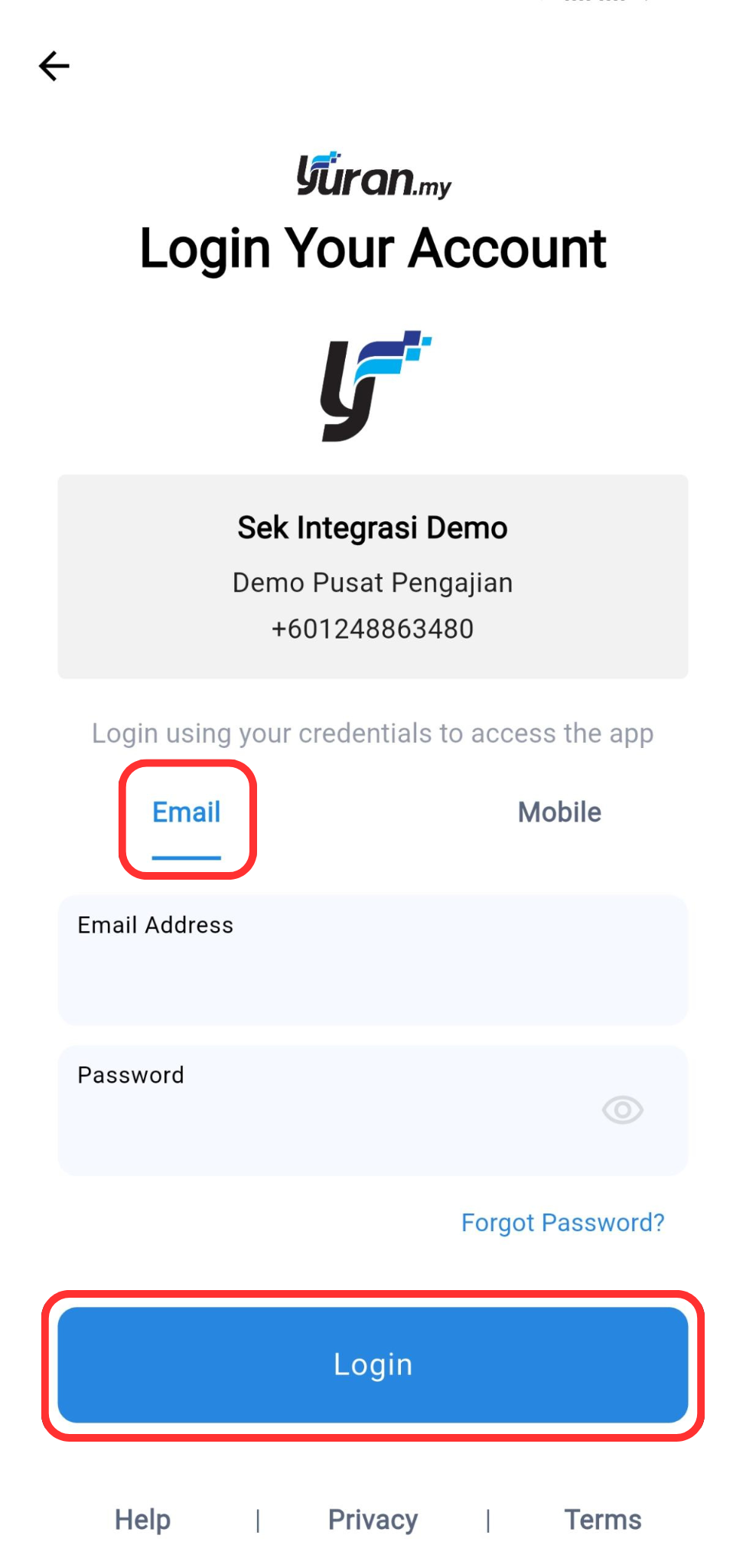
Step 1: Choose the Email credential option. Insert your registered Email Address and Password. Then, click "Login" button.
14.2.1.1 Forgot Password
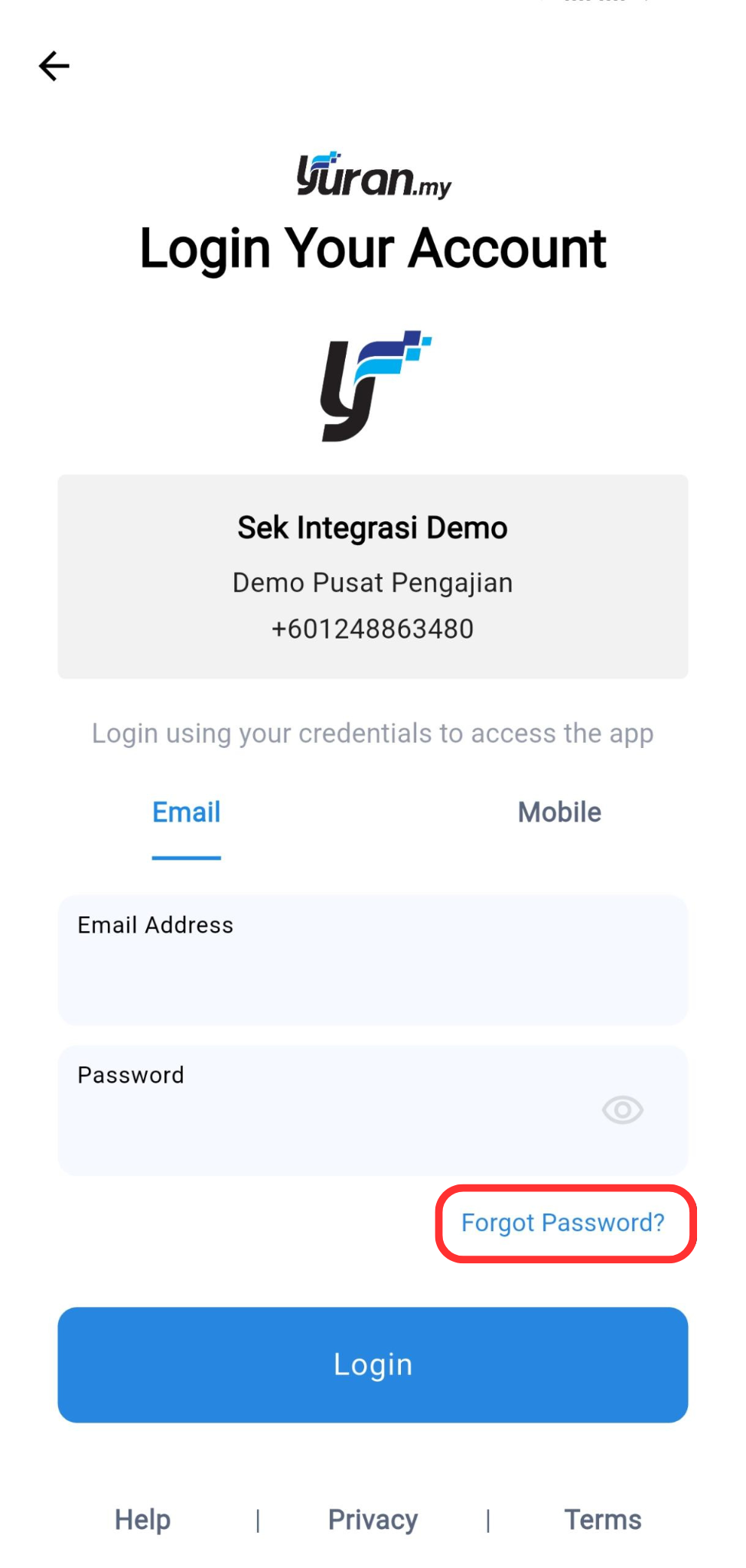
Step 1: Click "Forgot Password?" button at the Login page.
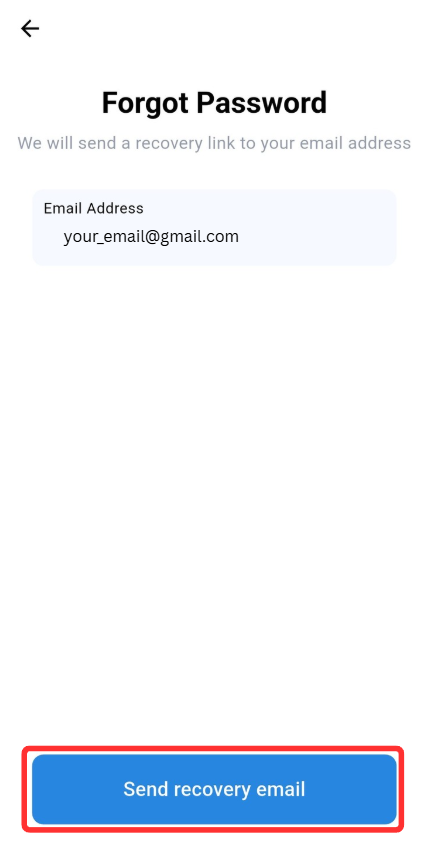
Step 2: Enter the Email Address to send the recovery link and click "Send Recovery Email" button.
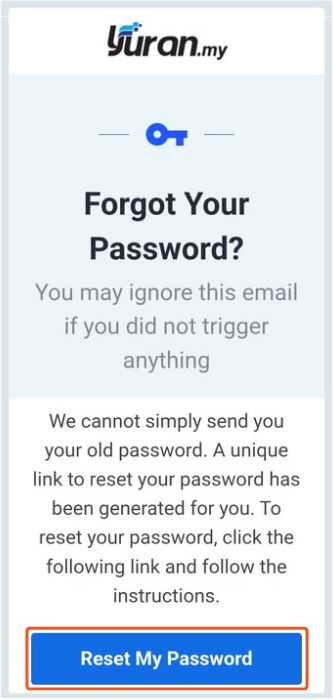
Step 3: Check your email and click "Reset My Password" button
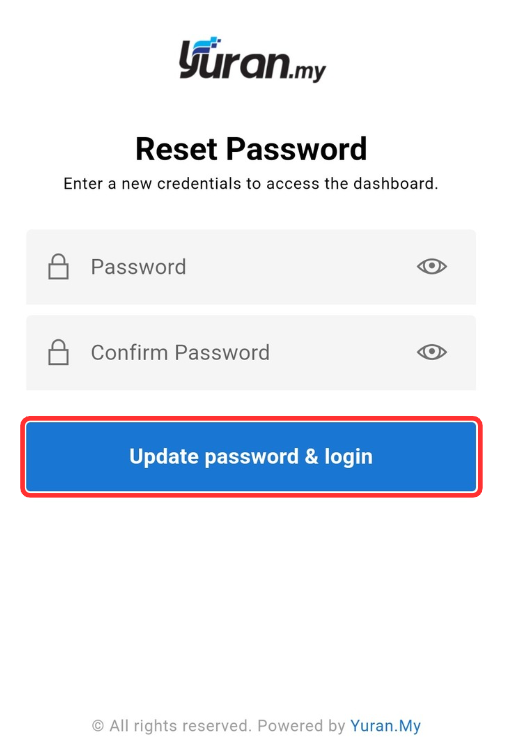
Step 4: Insert new password and confirm the password. Then, click "Update password & login" button to reset your password.
14.2.2 Login with Mobile credential
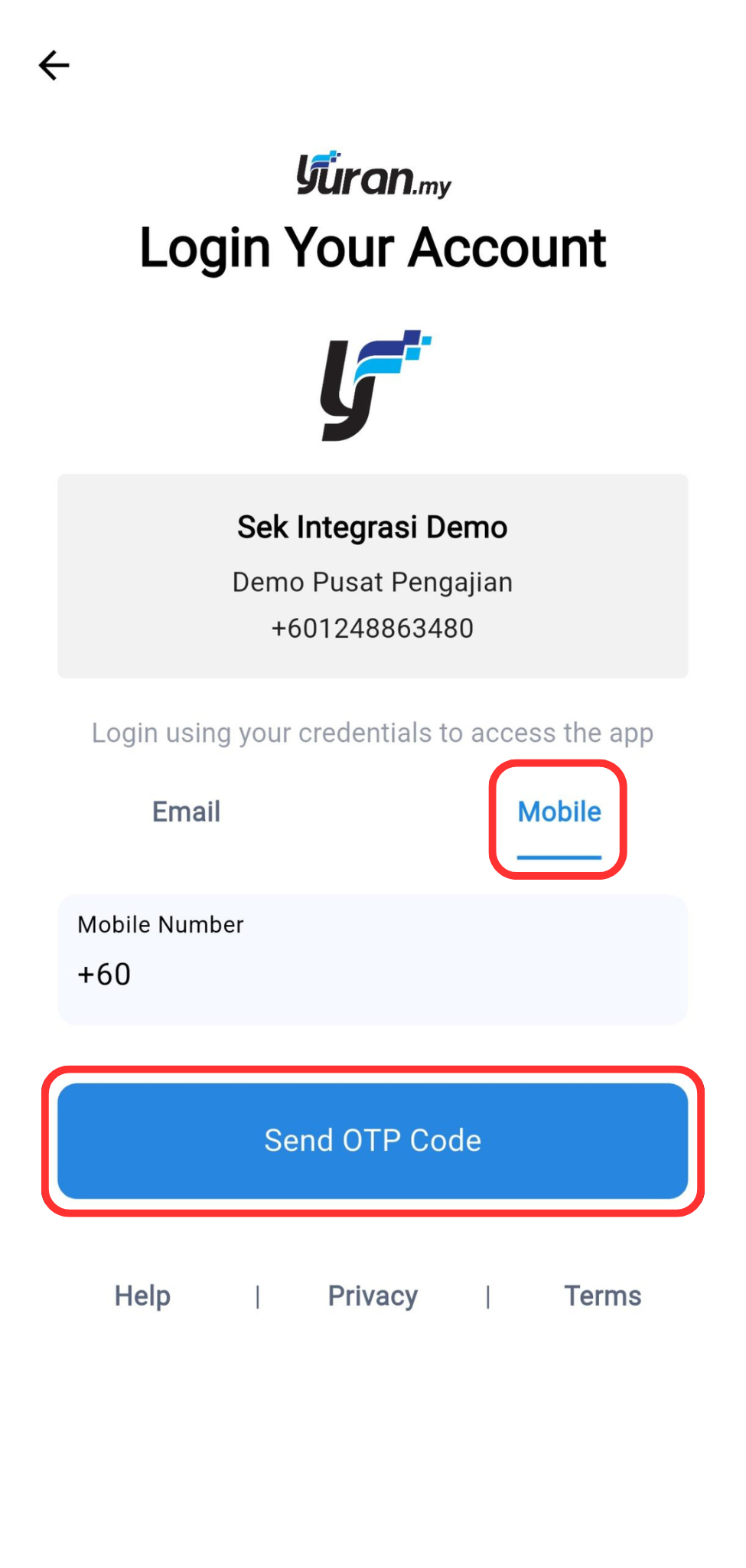
Step 1: Choose the Mobile credential option. Insert your Mobile Number and click "Send OTP Code" button.
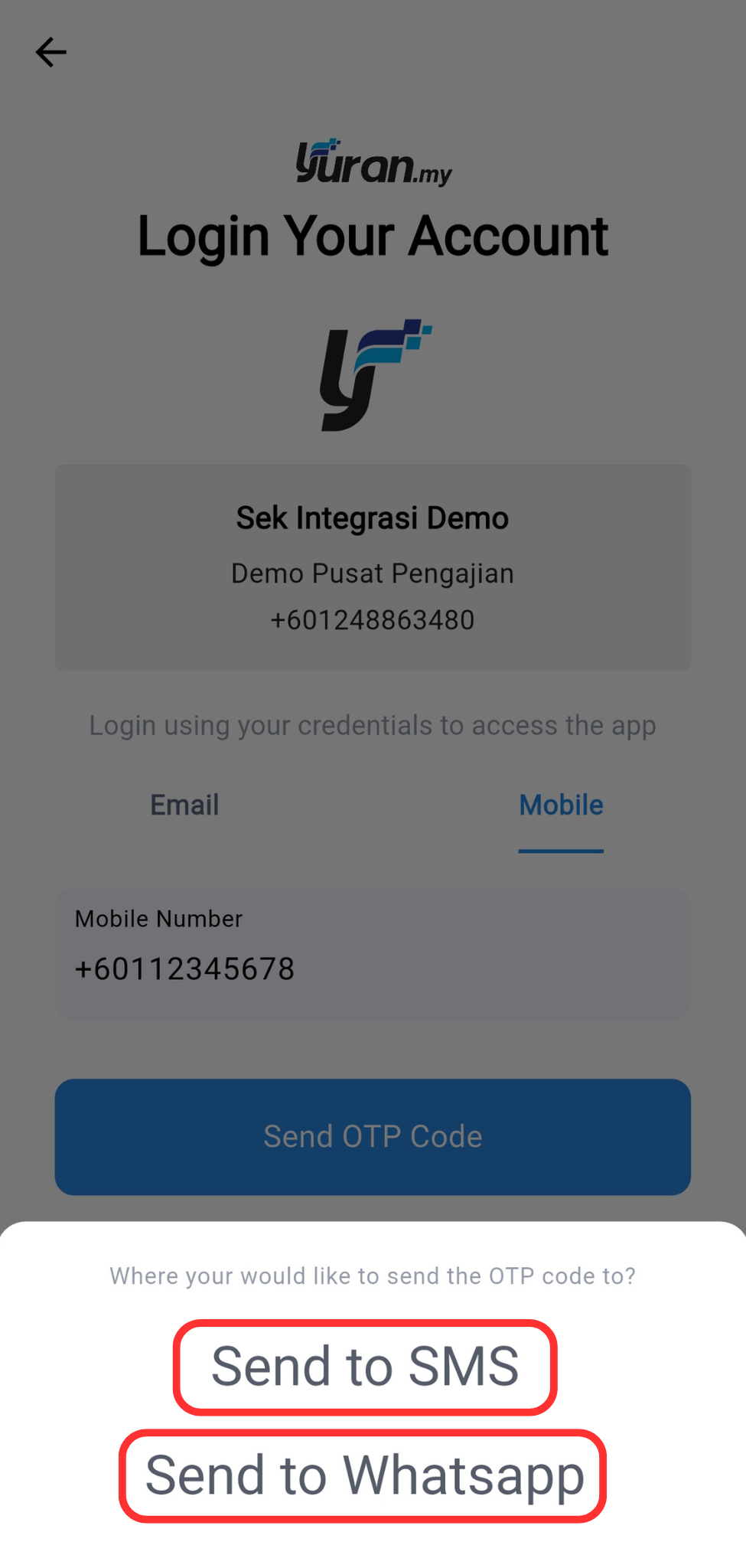
Step 2: You can choose either Send to SMS or Send to Whatsapp.
Step 3: Enter the OTP code and click "Verify Code" button. If you did not receive anything, resend the code or choose other option.
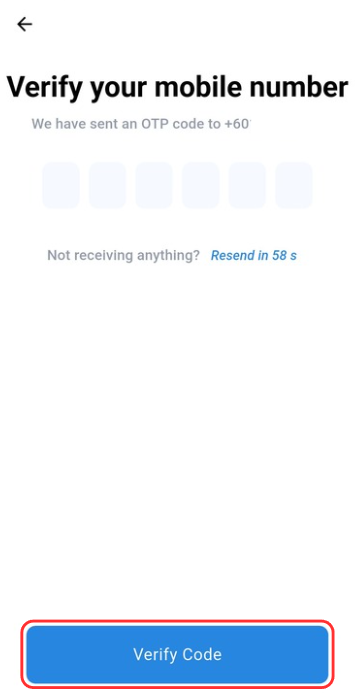
🔑If you do not receive anything, resend the code or you can choose the other OTP option.
14.3 Home page
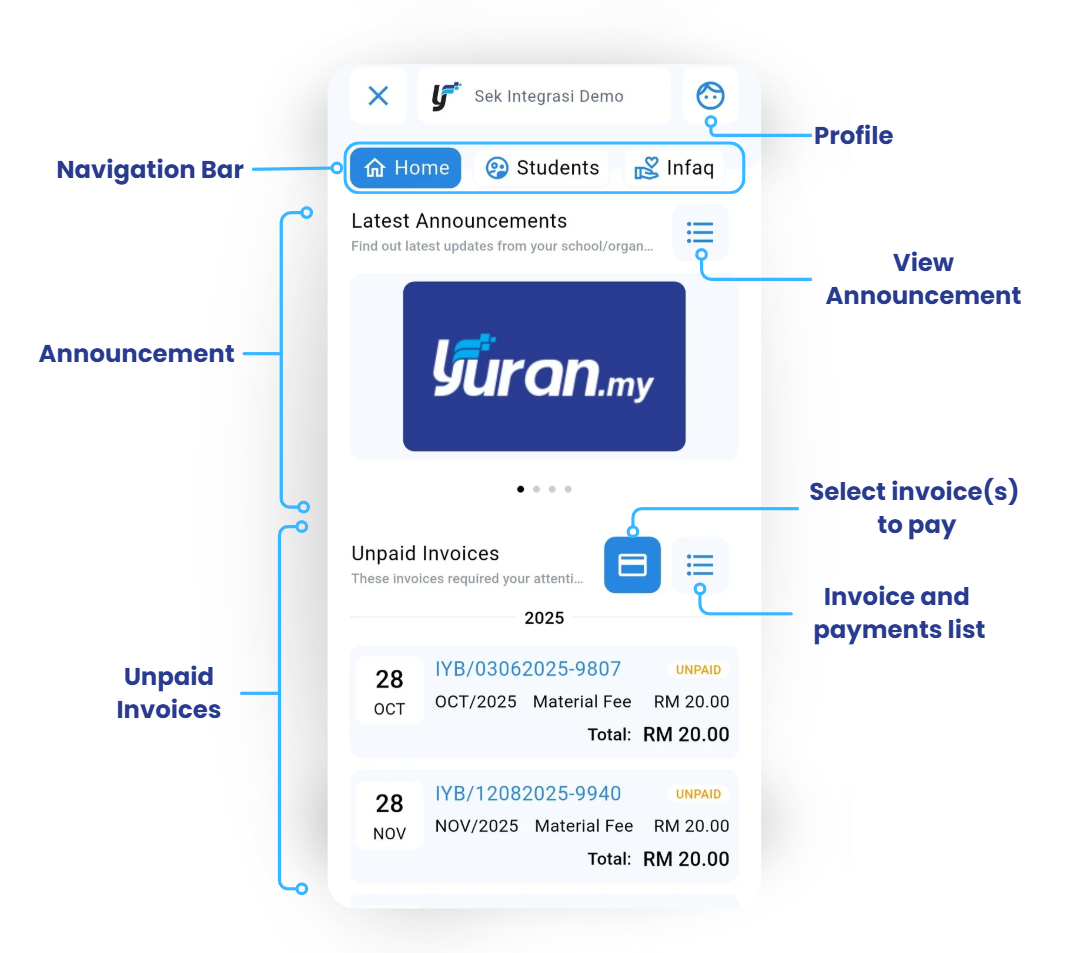
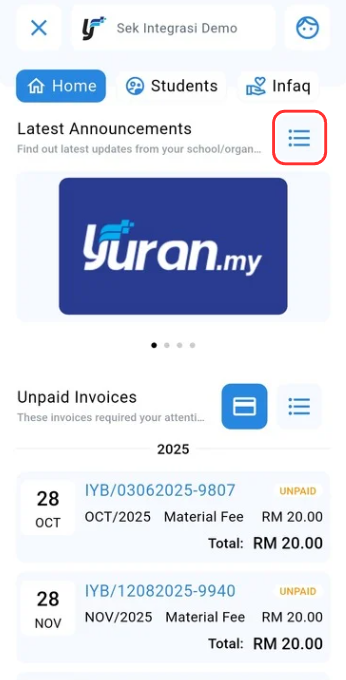
The Home page of the Yuran.my app provides a quick overview of the latest announcements and a summary of any unpaid invoices. It serves as the main dashboard for users to stay updated and manage their payments efficiently.
14.4 Profile page
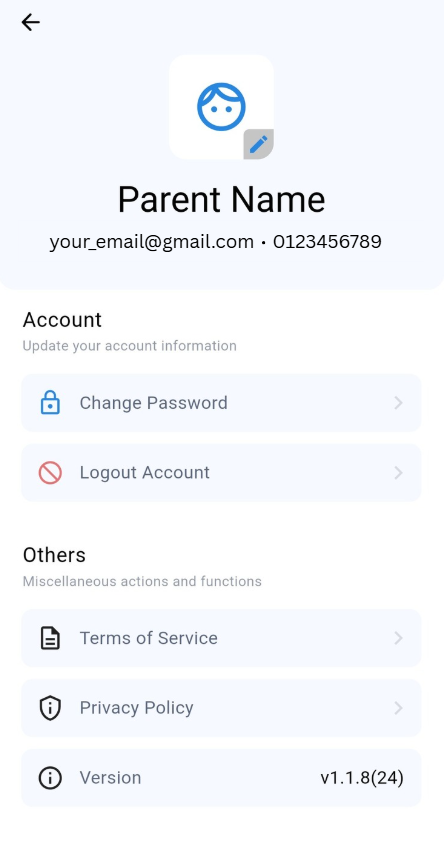
At Profile page, user able to Change Password and Logout Account under Account category. Besides, user able to view Terms of Service, Privacy Policy, and Version under Others category.
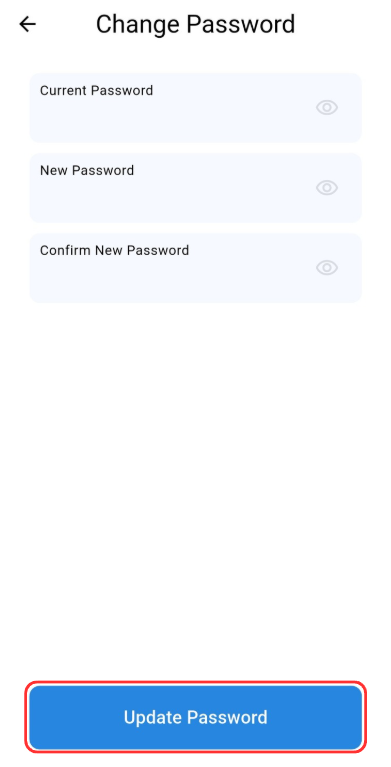
14.4.1 How to Change Your Password
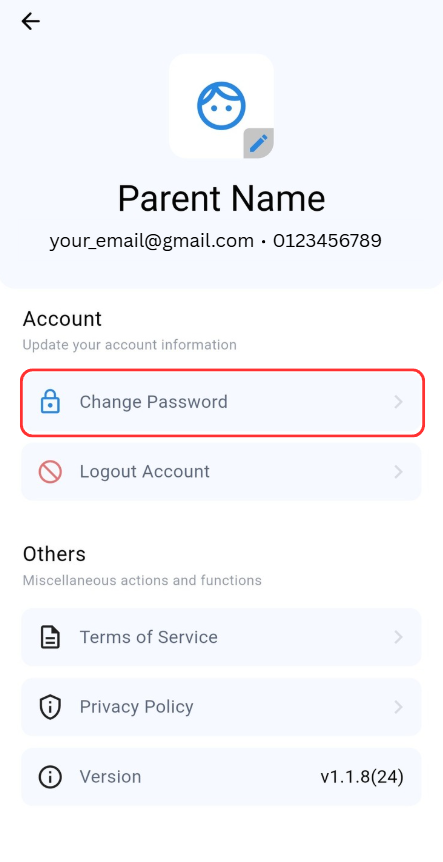
Step 1: Go to Profile -> Account -> Change Password
Step 2: Enter your required fields and click "Update Password"
14.5 Viewing Announcement, News, and Events
Step 1: Click the "Hamburger menu" icon at the Announcement on Home page.
Step 2: Click on the Announcement, News or Event post to read the details. Click "Visit Page" to redirect to attached link.
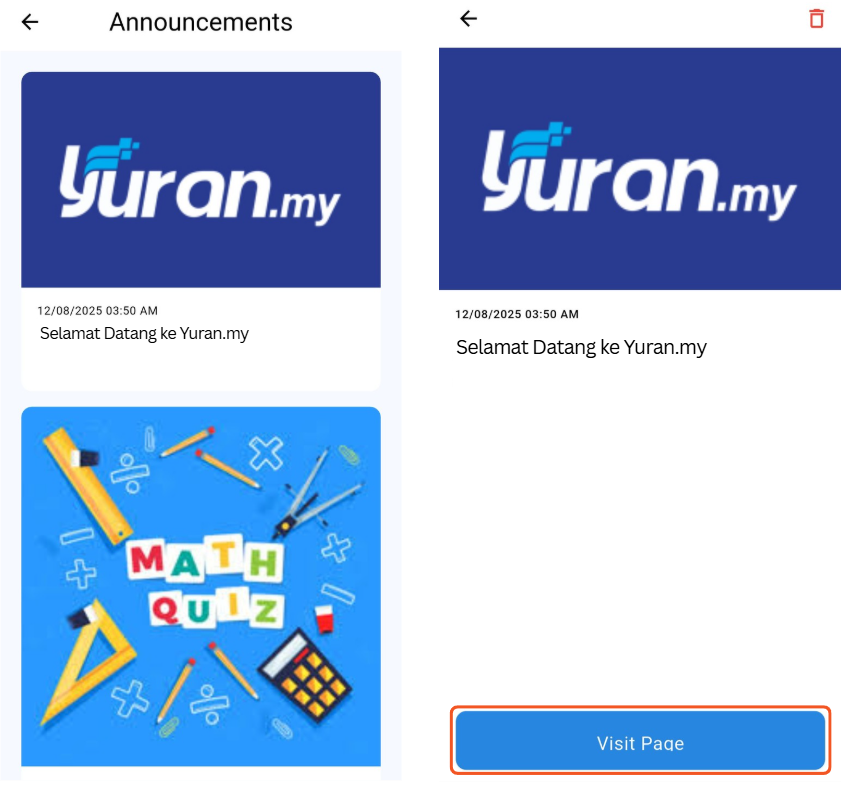
🗑️ You can delete the announcement if you don't want to see the announcement in home page by clicking the trash can icon at the top right of the announcement.
14.6 Invoices and Receipts
14.6.1 View Invoice in Yuran.my app
Step 1: Click Hamburger icon at the Unpaid Invoices section.
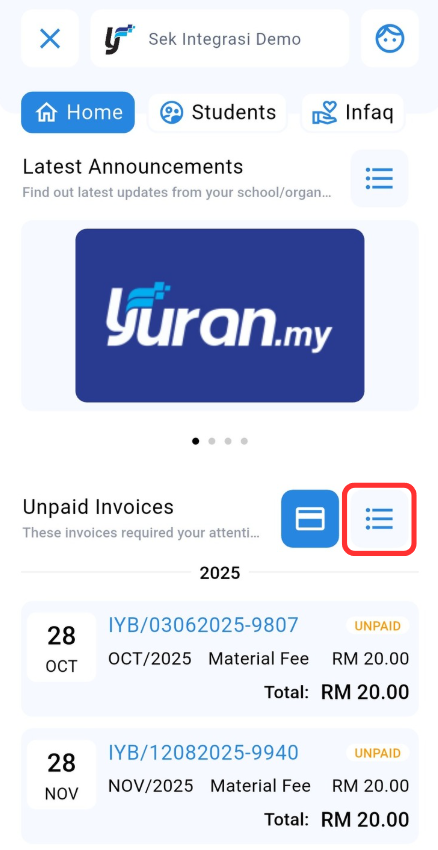
Step 2: Click the invoice to see the details.
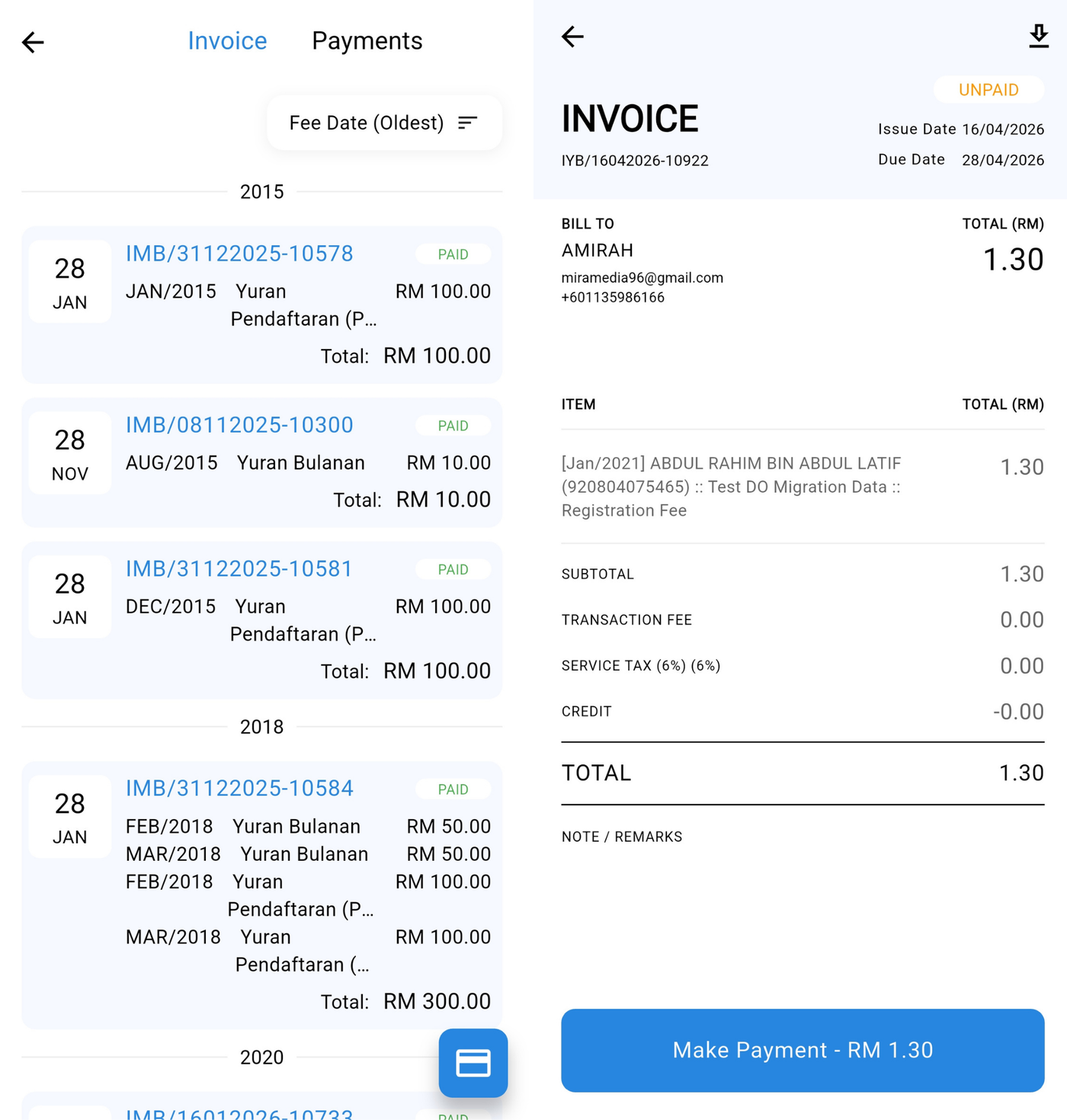
14.6.2 How to filter the order of invoices on the student menu, invoice menu & payment button in Yuran.my app
14.6.2.1 Invoice filter on the student menu
Step 1: Click the Students/Players/Assets navigation at the Home page.
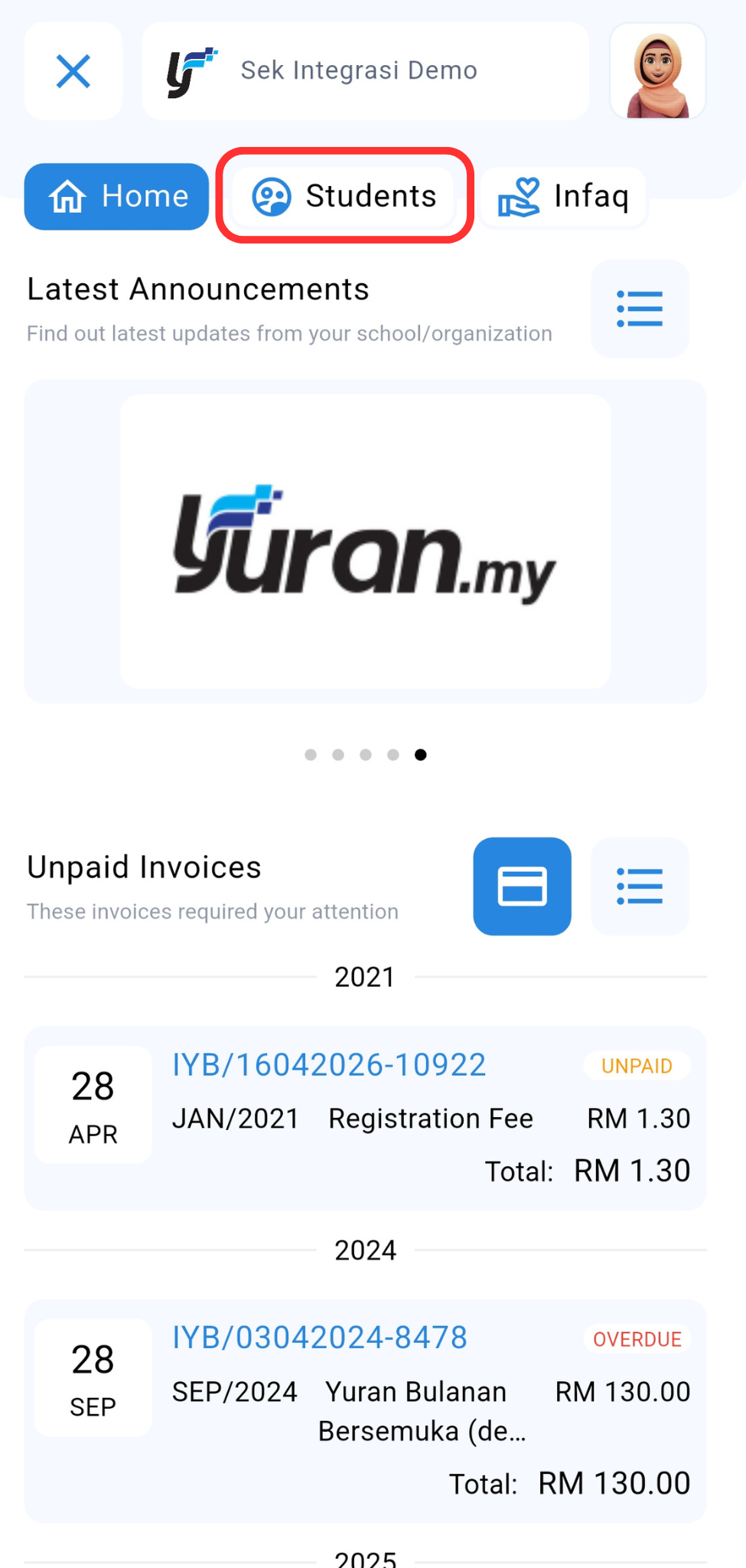
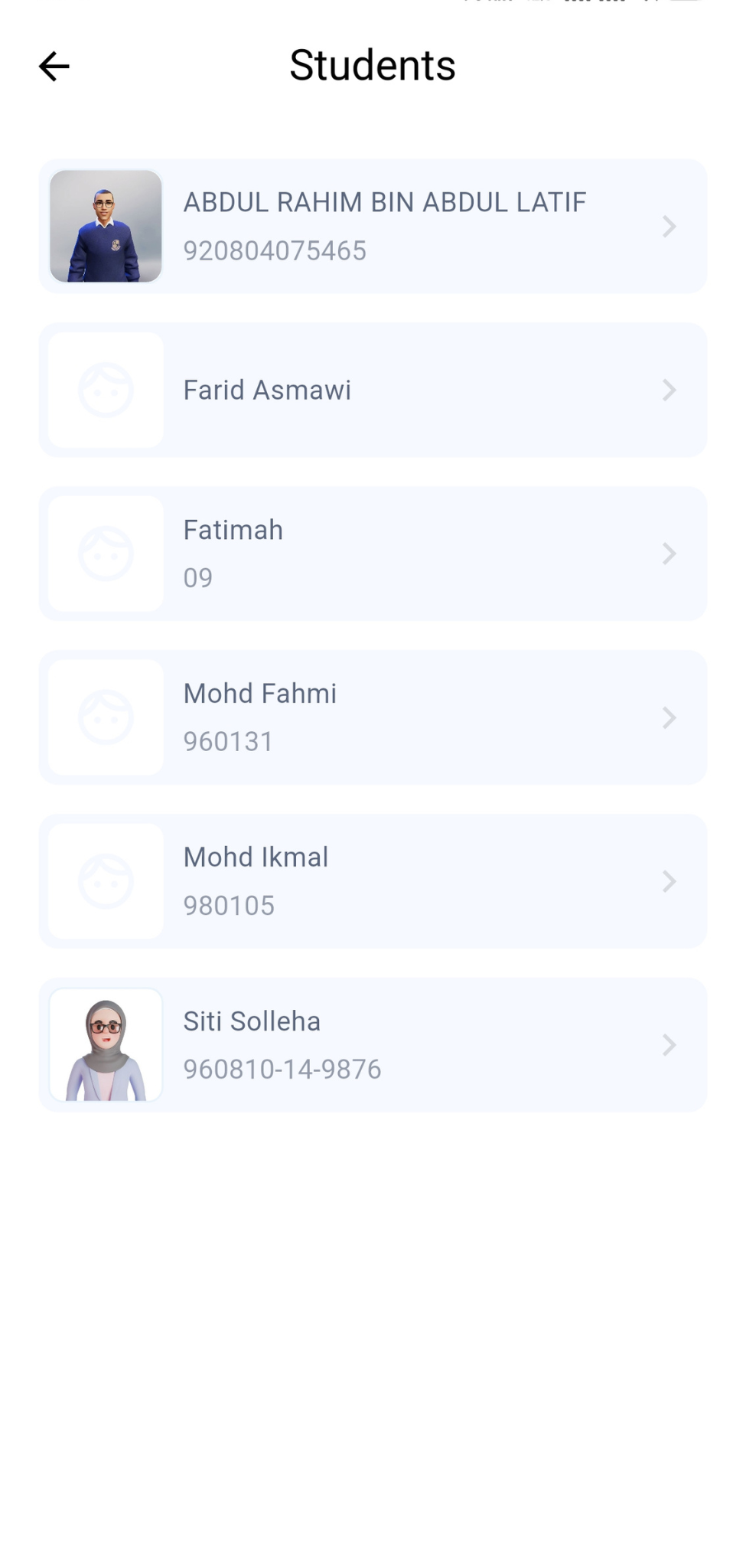
Step 2: Choose the Student/Player/Asset.
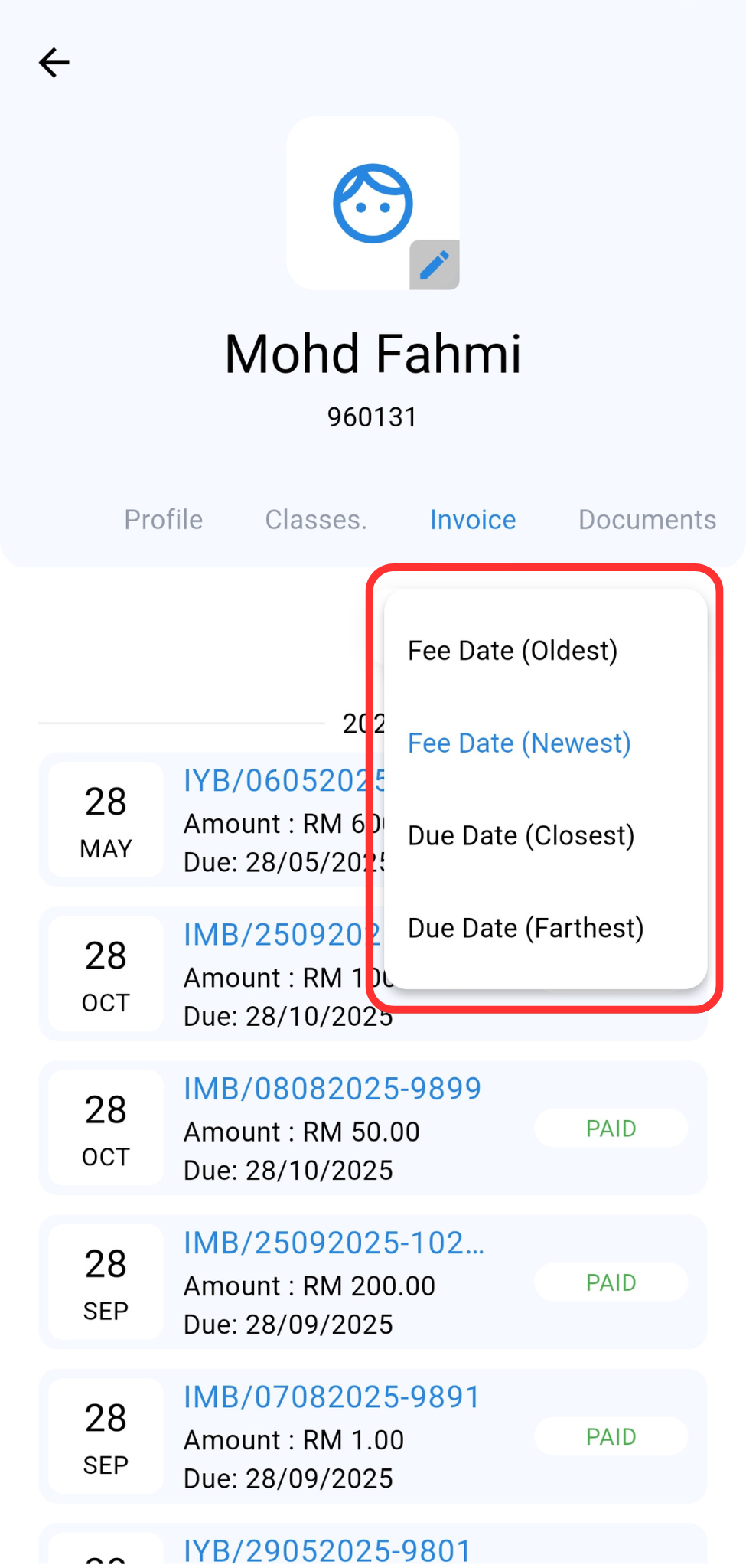
Step 3: At invoice tab, click fee date to filter the order of invoices.
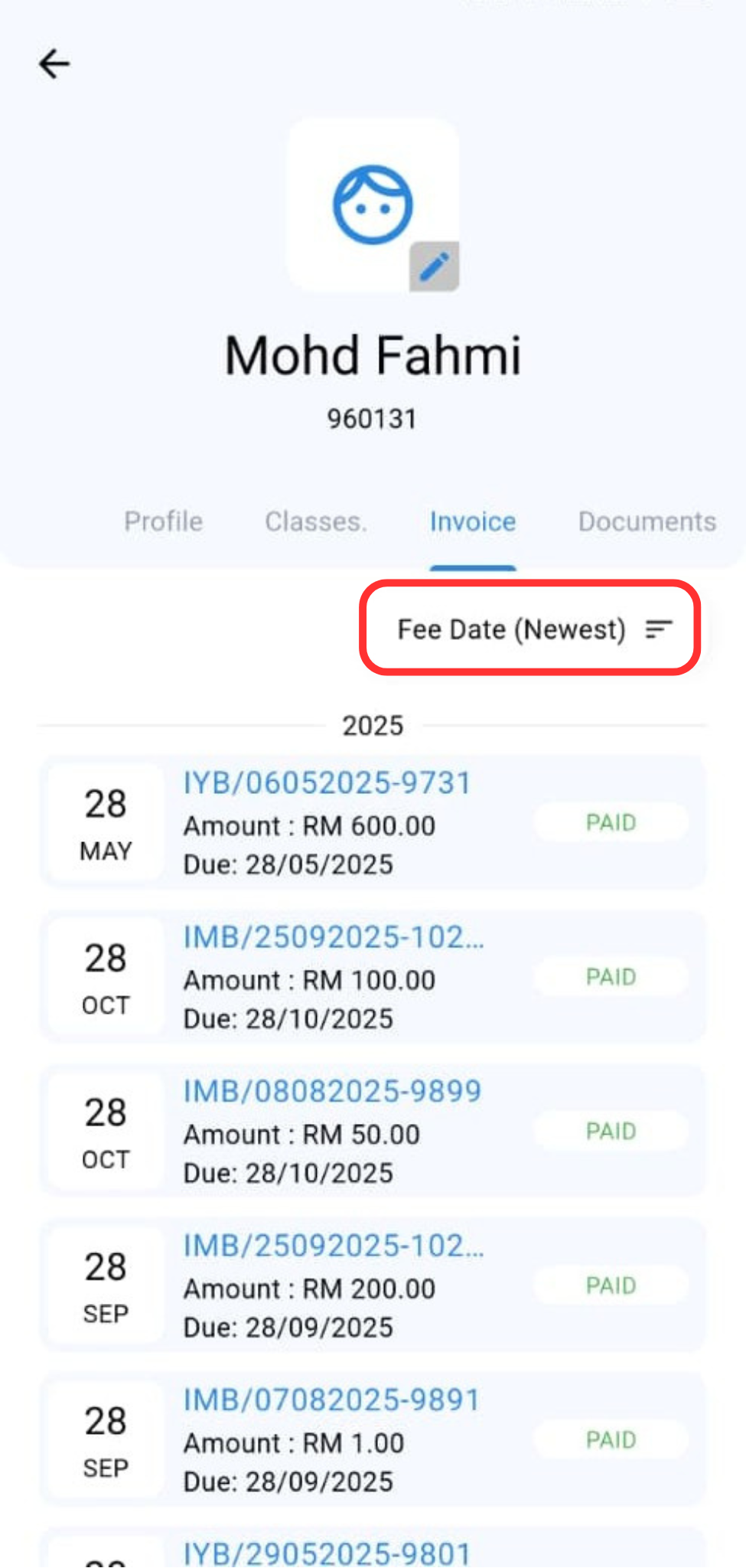
Step 4: There are 4 invoice filter options on the right. After selecting the order, the invoice will be displayed according to the selection.
14.6.2.2 Invoice filter on the Invoice menu
Step 1: Click Hamburger icon at the Unpaid Invoices section
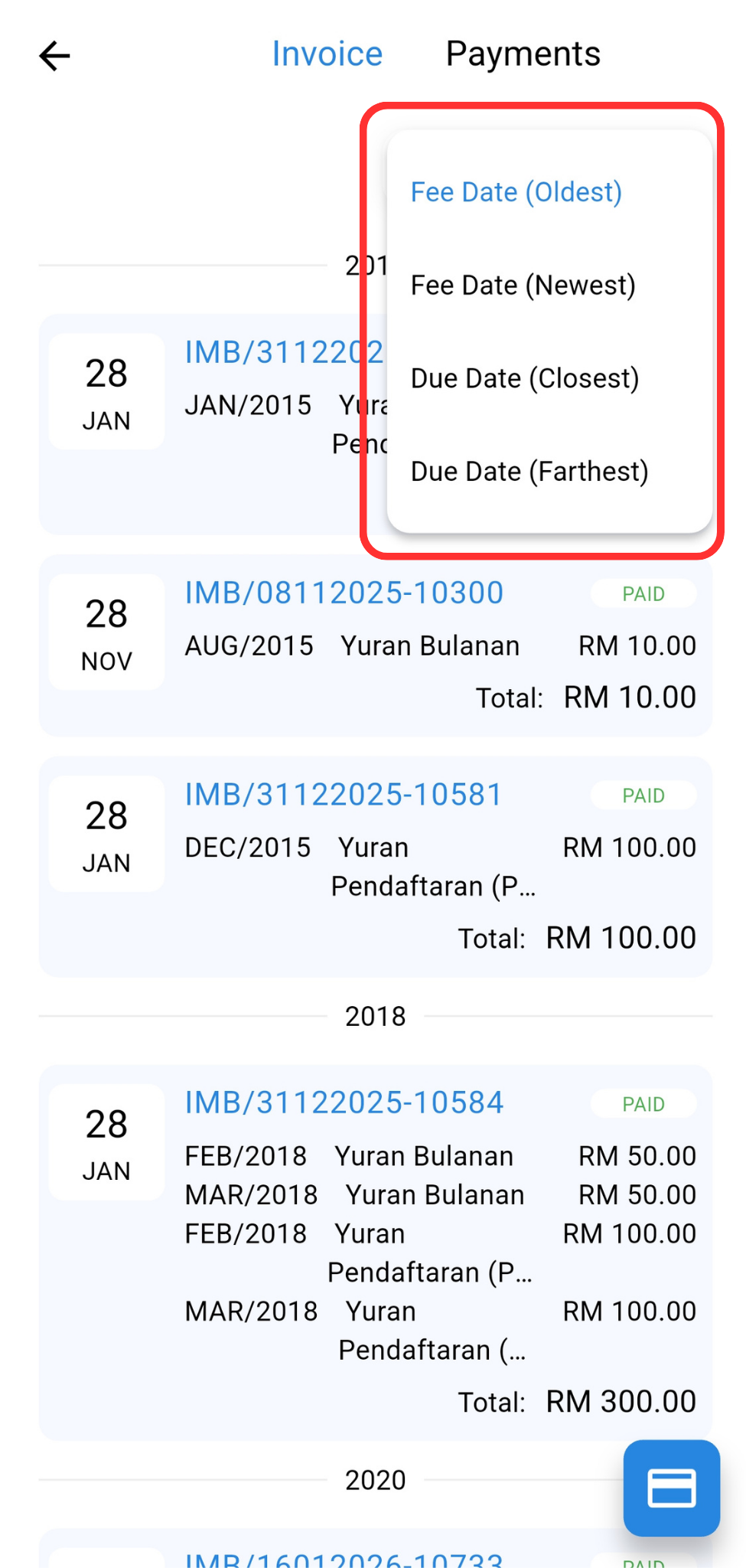
Step 2: Click fee date to filter the order of invoices.
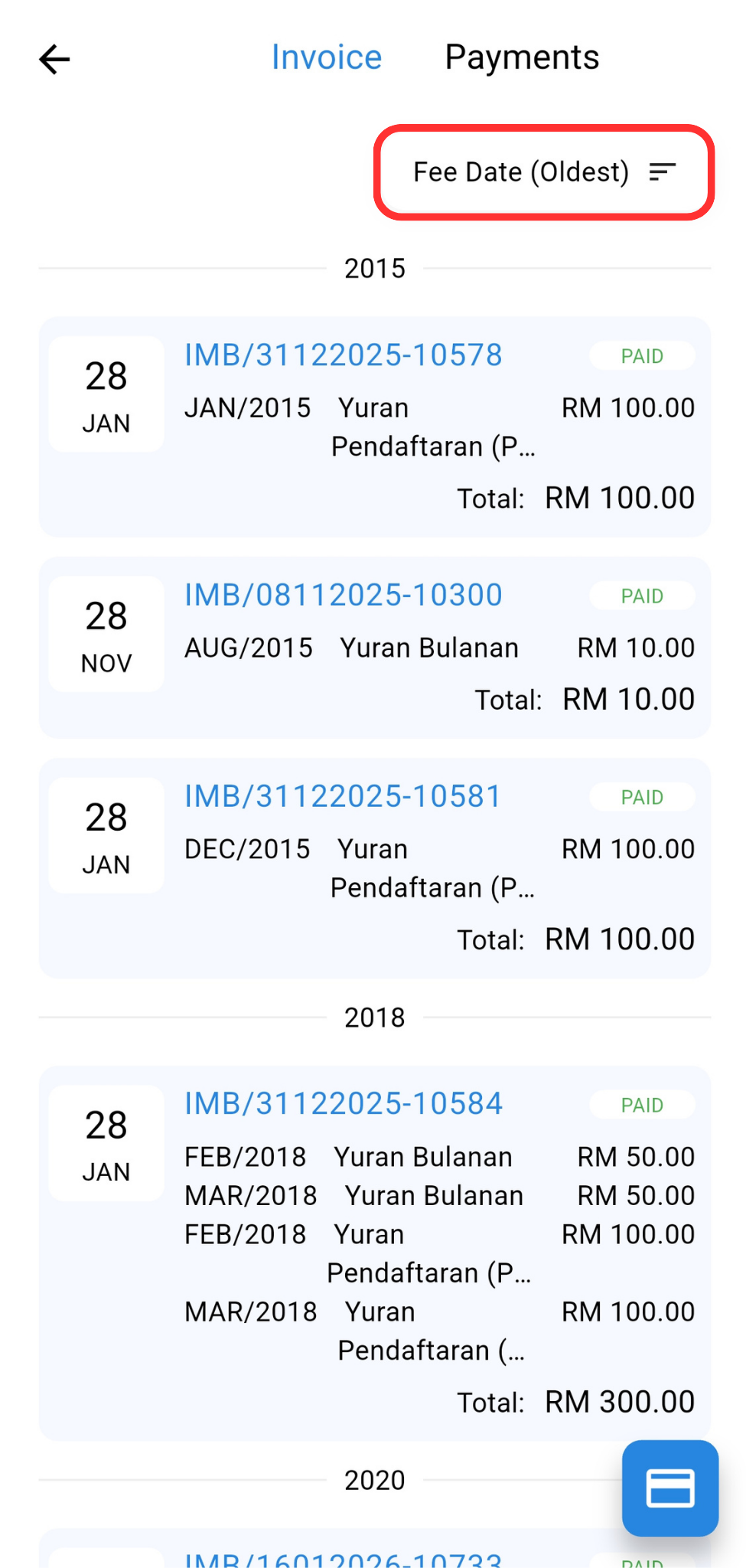
Step 3: There are 4 invoice filter options on the right. After selecting the order, the invoice will be displayed according to the selection.
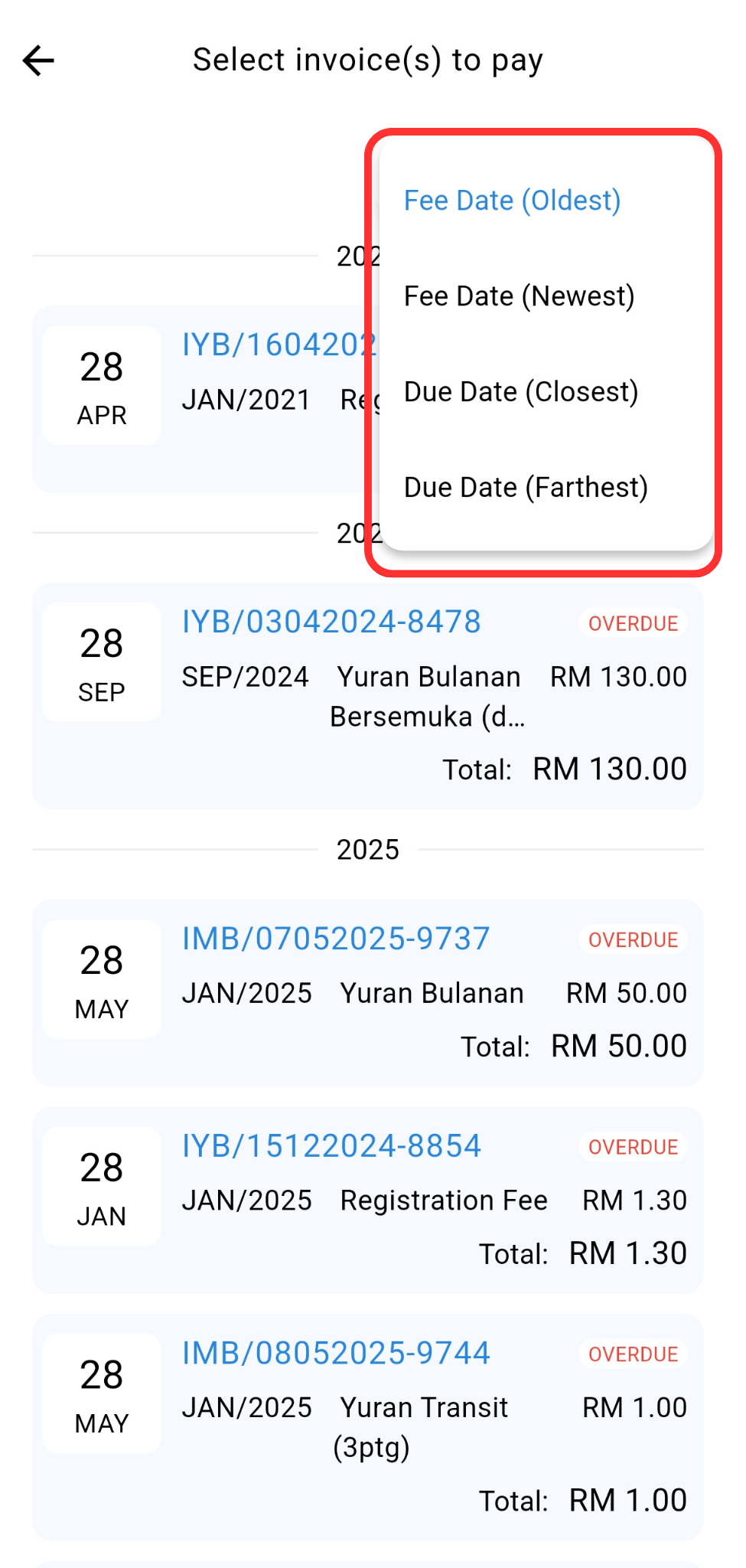
14.6.2.3 Invoice filter on the payment button
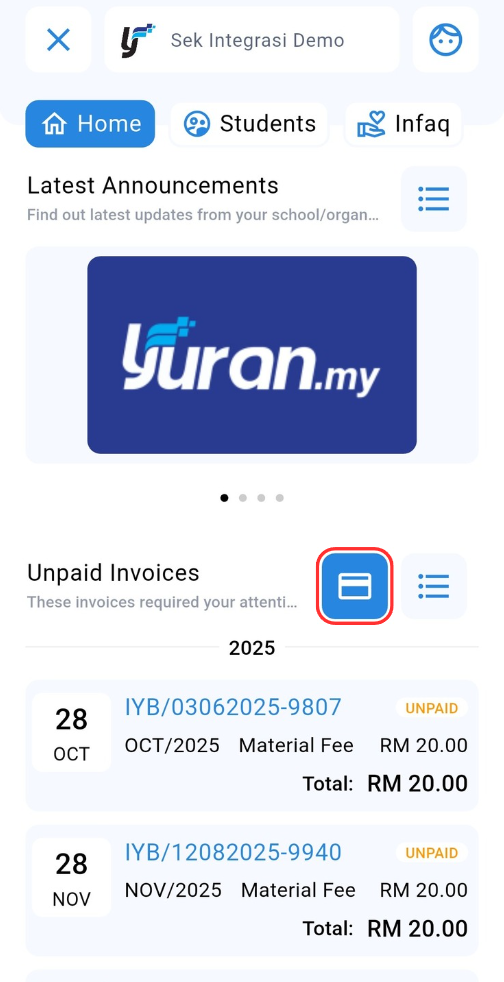
Step 1: Click the "Select Payment" icon.
Step 2: Click fee date to filter the order of invoices.
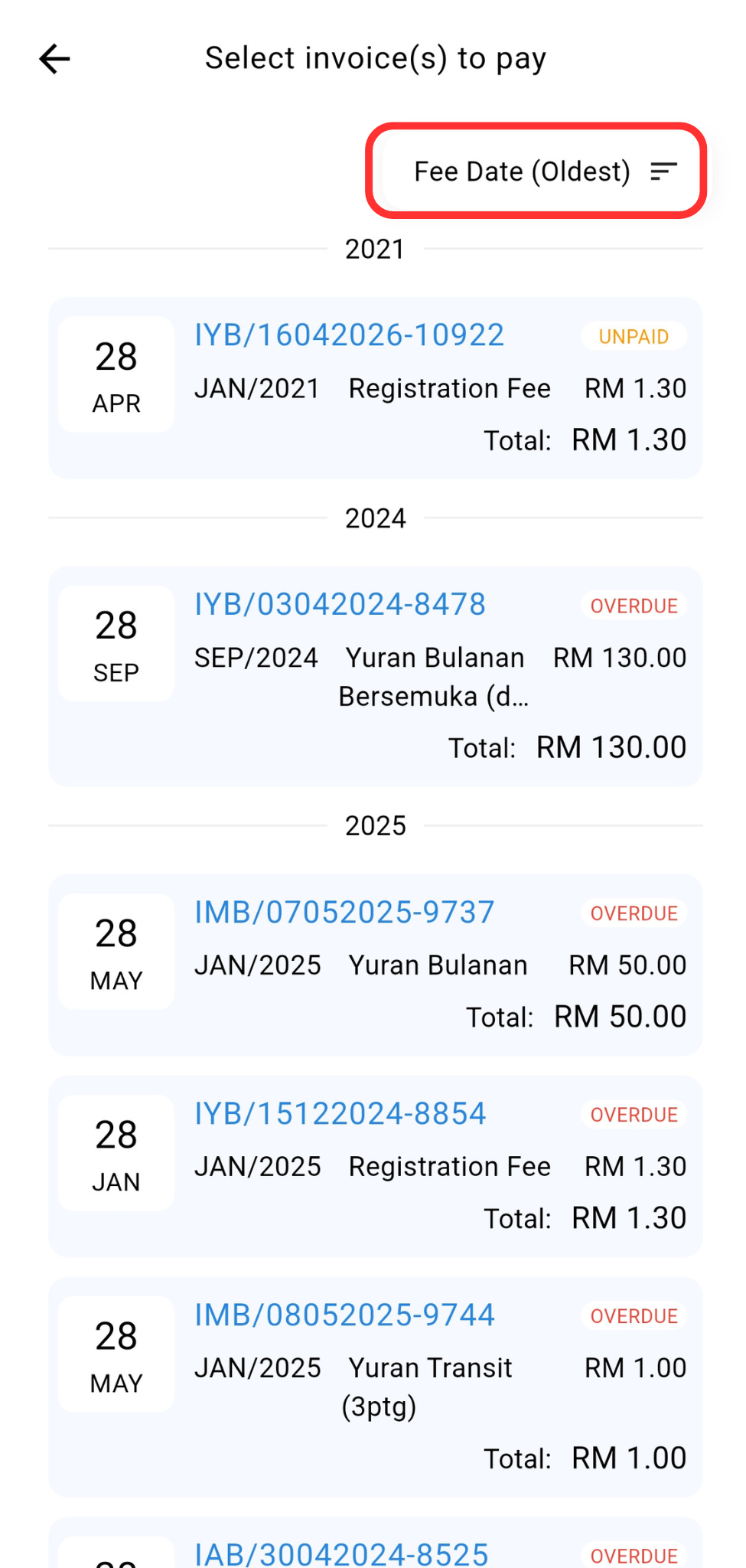
Step 3: There are 4 invoice filter options on the right. After selecting the order, the invoice will be displayed according to the selection.
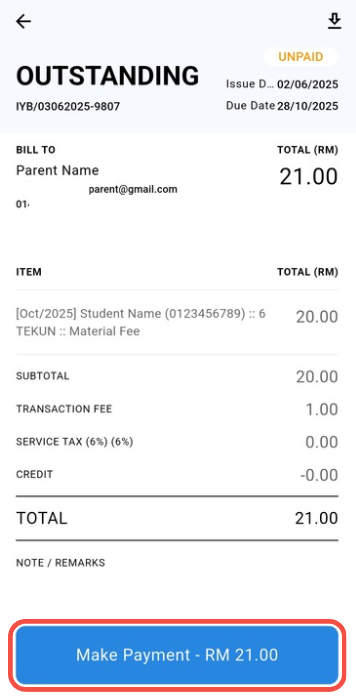
14.6.3 How to Make Single Payment in Yuran.my app
Step 1: Click the invoice you want to pay. Then, click "Make Payment" button.
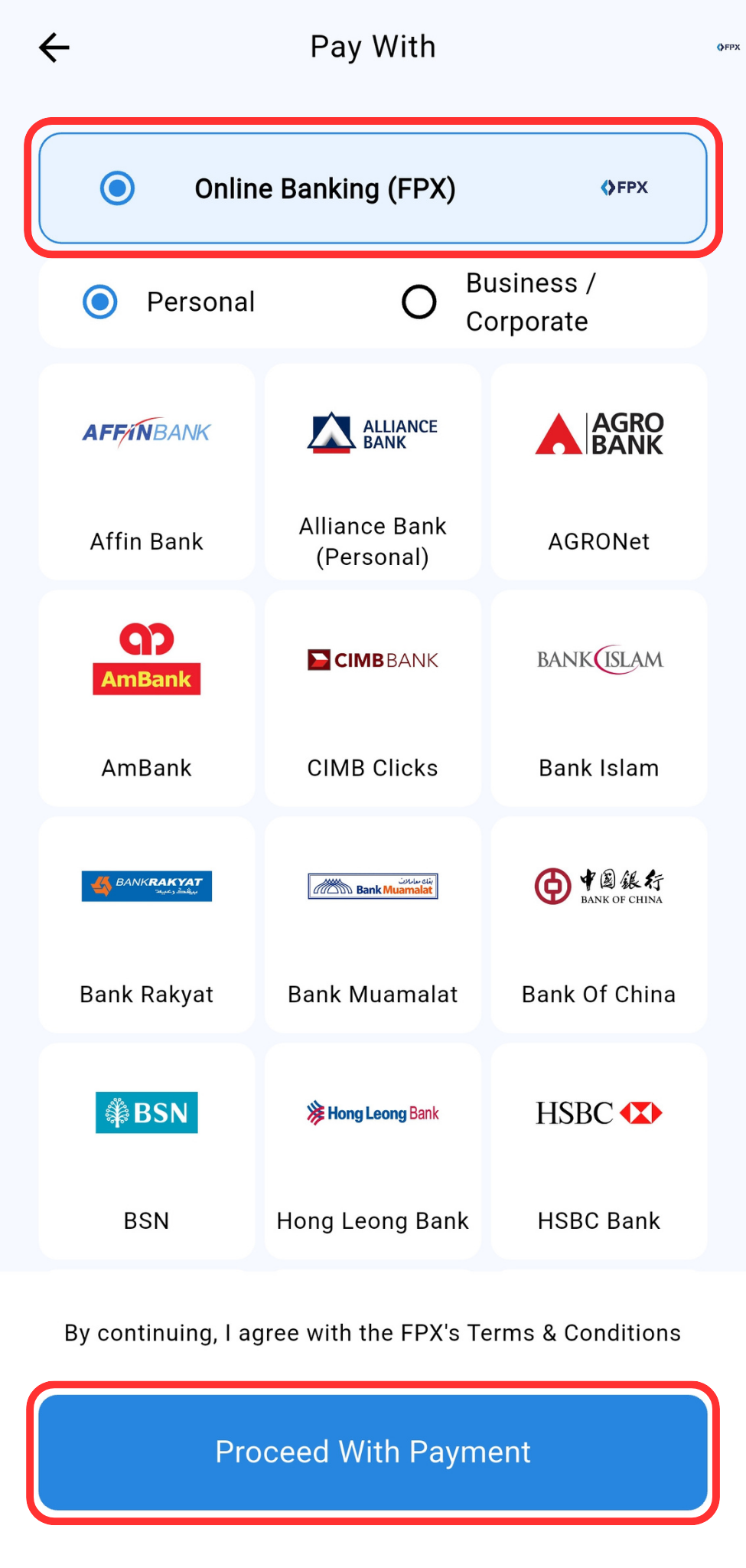
Step 2: Please choose one of the 4 payment methods provided to procced the payment.
Online Banking (FPX)
DuitNow QR
Kad (Visa/Mastercard)
E-Wallet
ℹ️DuitNow QR, Card (Visa/Mastercard) and E-Wallet payment methods are only available for accounts that have been registered with Chip-in.
Online Banking (FPX): Select bank and click "Proceed With Payment" button to be redirected to FPX payment gateway.
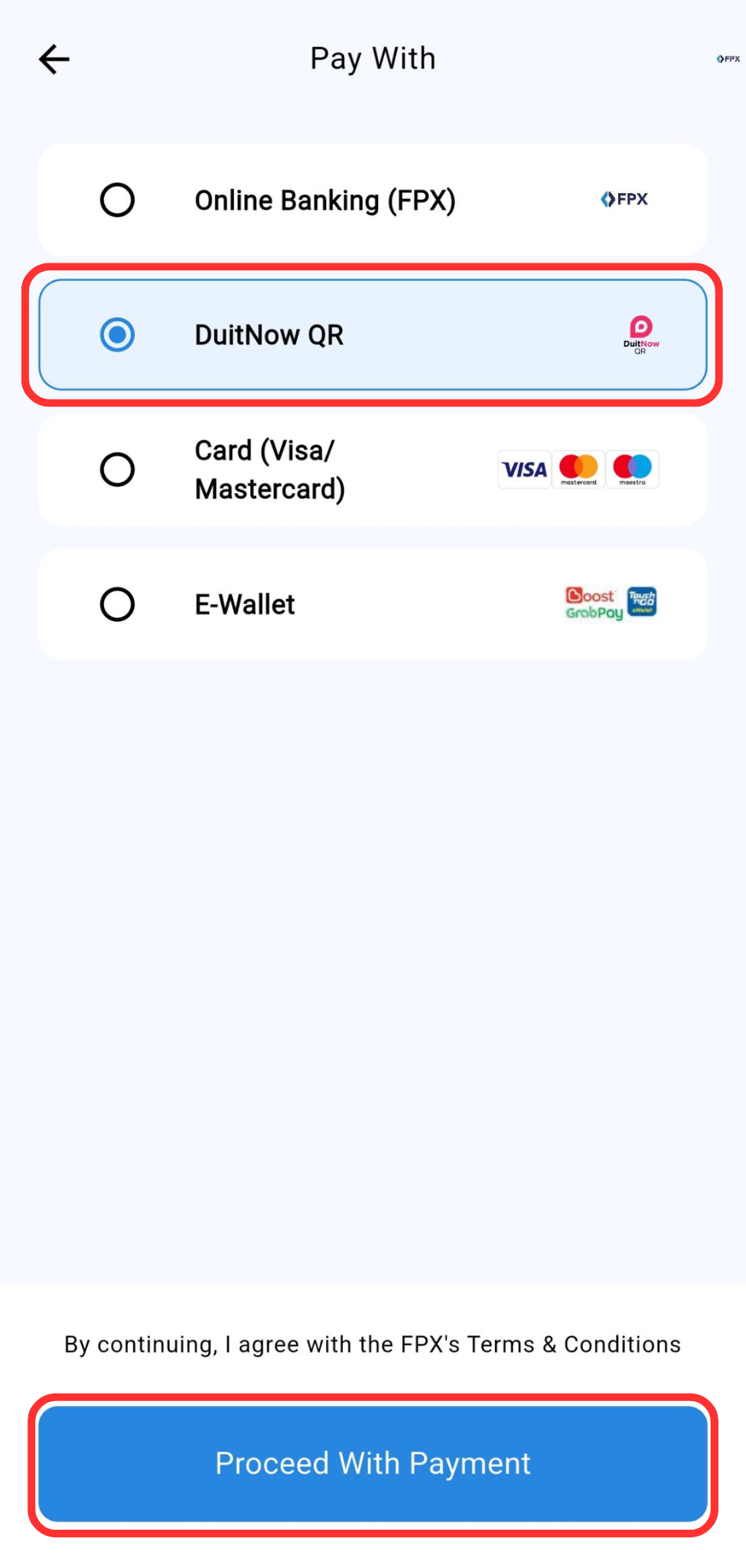
DuitNow QR: Select the DuitNow QR payment method and click "Proceed With Payment" button. A QR code will be displayed on the screen. Please follow the next steps displayed to complete the payment process successfully.
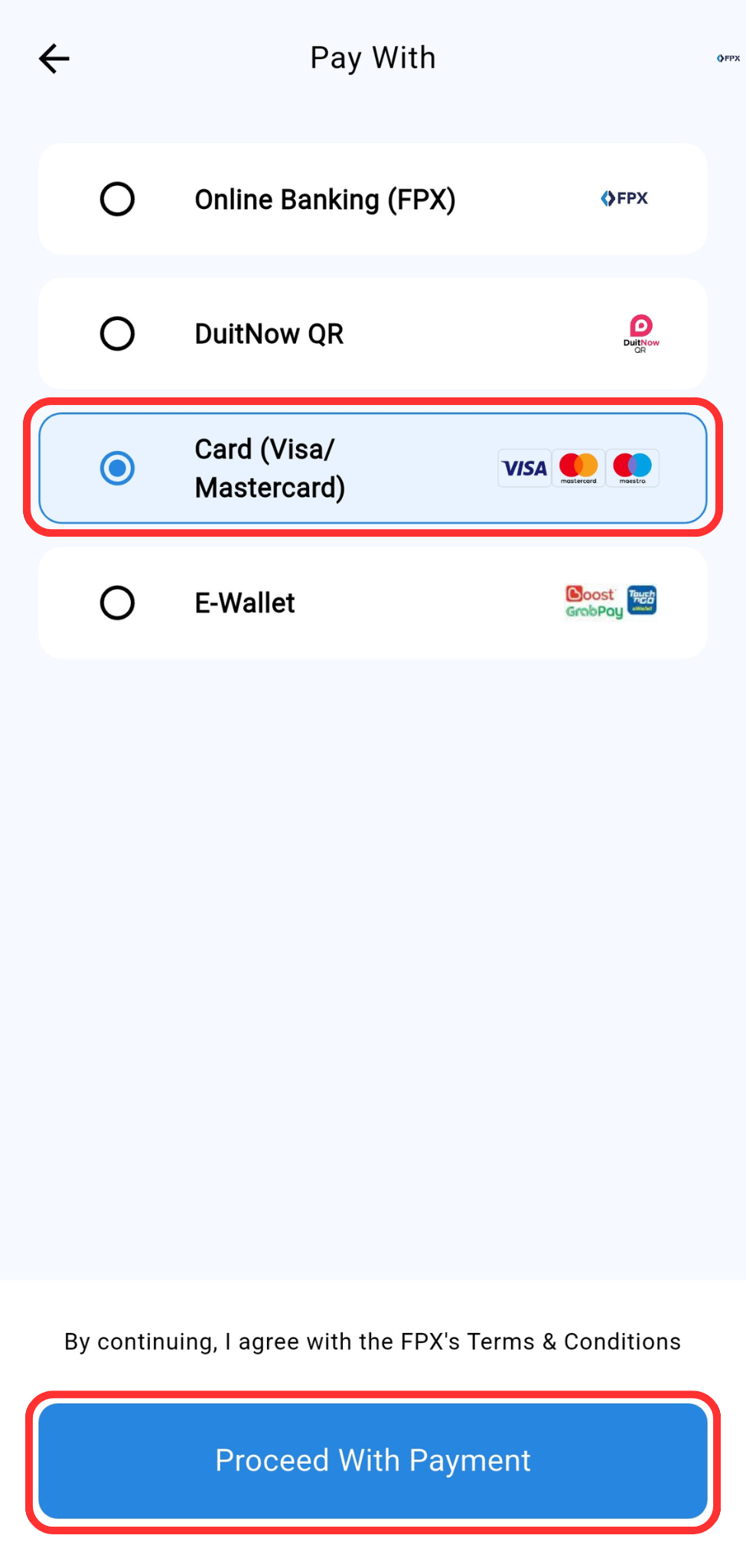
Card (Visa/Mastercard): Select the Card (Visa/Mastercard) payment method and click "Proceed With Payment" button. Please follow the next steps displayed to complete the payment process successfully.
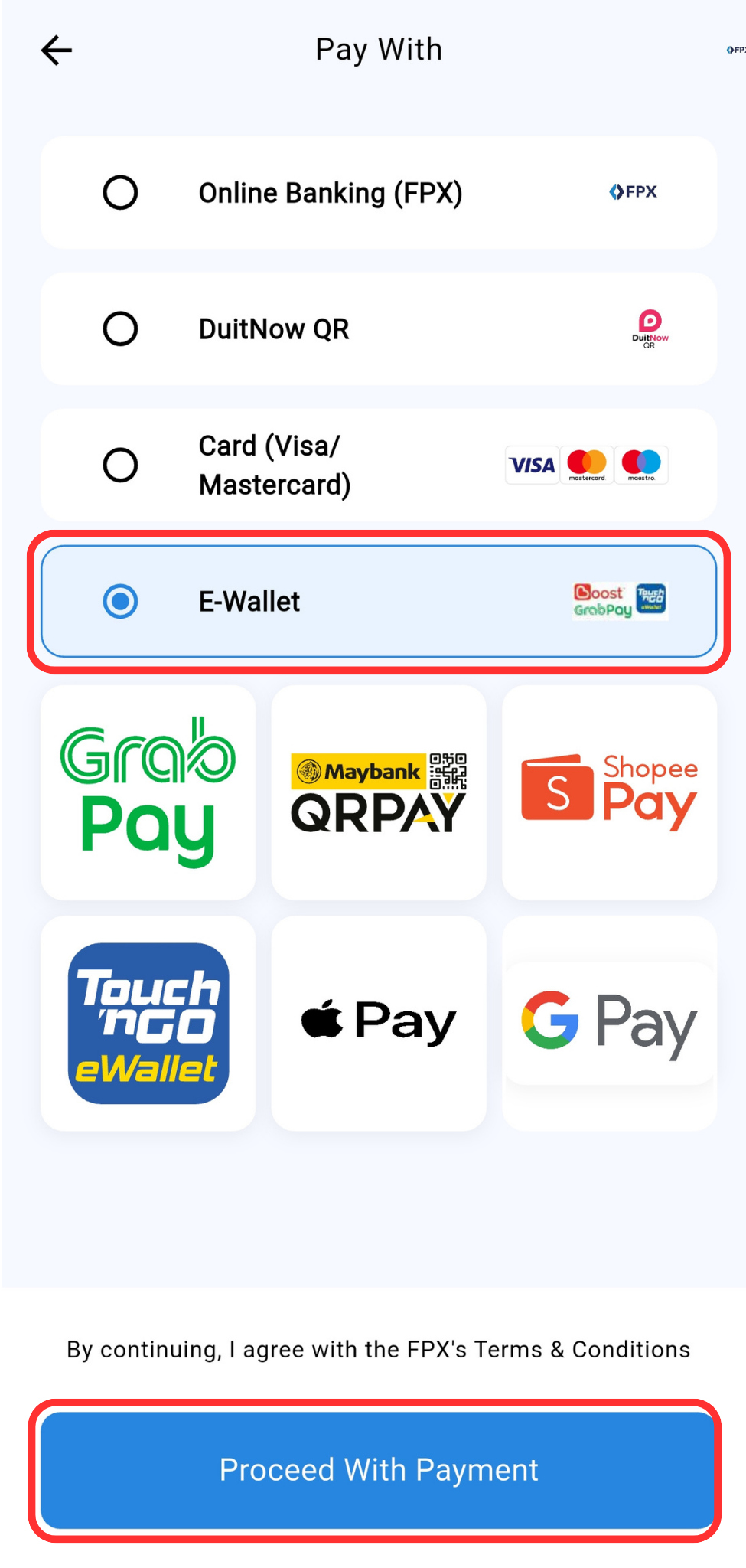
E-Wallet: Select the E-Wallet payment method. Choose one of the eWallets you want to use (example: GrabPay, ShopeePay, Touch 'n Go, Apple Pay or Google Pay) and click "Proceed With Payment" button. Please follow the next steps displayed to complete the payment process successfully.
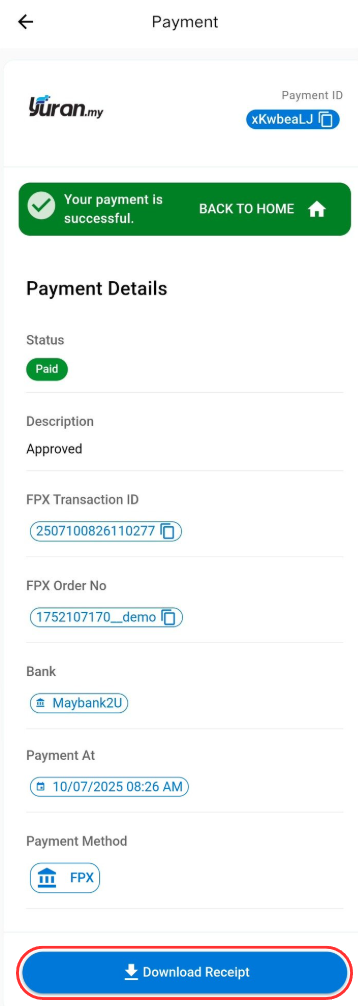
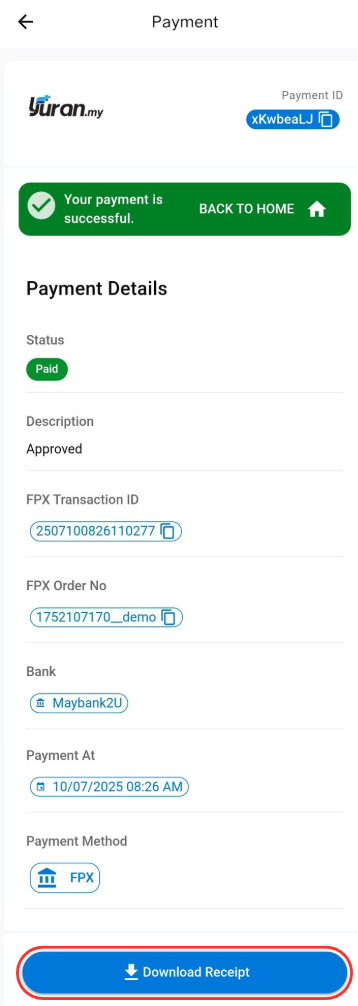
Step 3: After success payment, you can download the receipt as shown.
💵Transaction fee is charged per transaction made. Save your money by making multiple invoice payment at a time.
14.6.4 How to Make Multiple Payment using Yuran.my app
Step 1: Click the "Select Payment" icon.
Step 2: Select invoice(s) to pay and click "Make Payment" button.
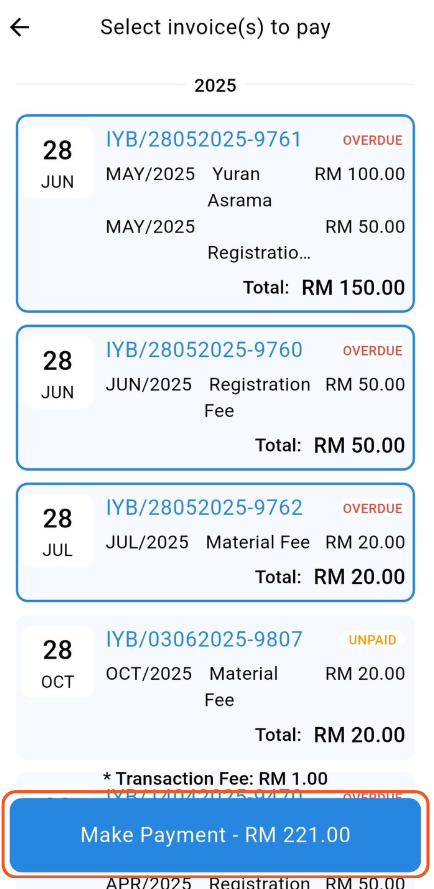
Step 3: Please choose one of the 4 payment methods provided to procced the payment.
Online Banking (FPX)
DuitNow QR
Kad (Visa/Mastercard)
E-Wallet
ℹ️DuitNow QR, Card (Visa/Mastercard) and E-Wallet payment methods are only available for accounts that have been registered with Chip-in.
Online Banking (FPX): Select bank and click "Proceed With Payment" button to be redirected to FPX payment gateway.
DuitNow QR: Select the DuitNow QR payment method and click "Proceed With Payment" button. A QR code will be displayed on the screen. Please follow the next steps displayed to complete the payment process successfully.
Card (Visa/Mastercard): Select the Card (Visa/Mastercard) payment method and click "Proceed With Payment" button. Please follow the next steps displayed to complete the payment process successfully.
E-Wallet: Select the E-Wallet payment method. Choose one of the eWallets you want to use (example: GrabPay, ShopeePay, Touch 'n Go, Apple Pay or Google Pay) and click "Proceed With Payment" button. Please follow the next steps displayed to complete the payment process successfully.
Step 4: After success payment, you can download the receipt as shown.
14.6.5 Download and View Receipt in Yuran.my
Step 1: Click Hamburger icon at the Unpaid Invoices section.
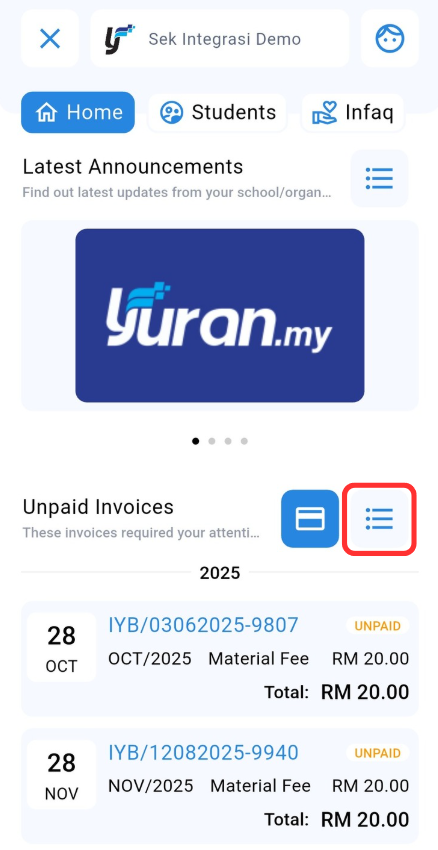
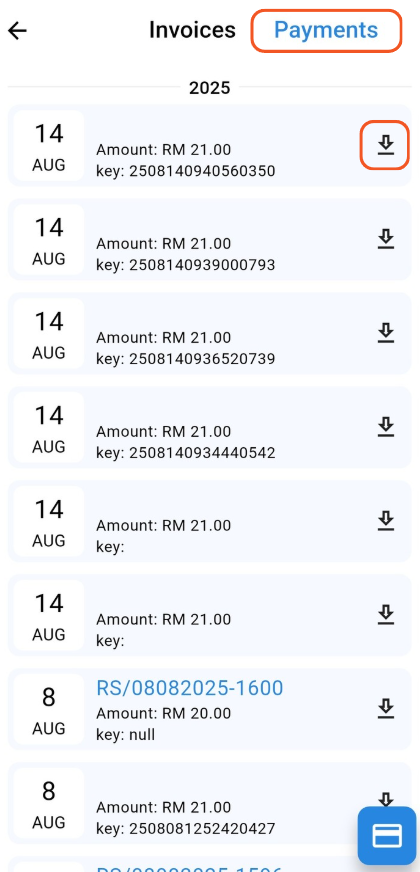
Step 2: Go to Payments tab. Then, click "Download" icon on the payment to download the receipt.
14.7 Student/Players/Assets
14.7.1 View Student/Player/Asset Profile
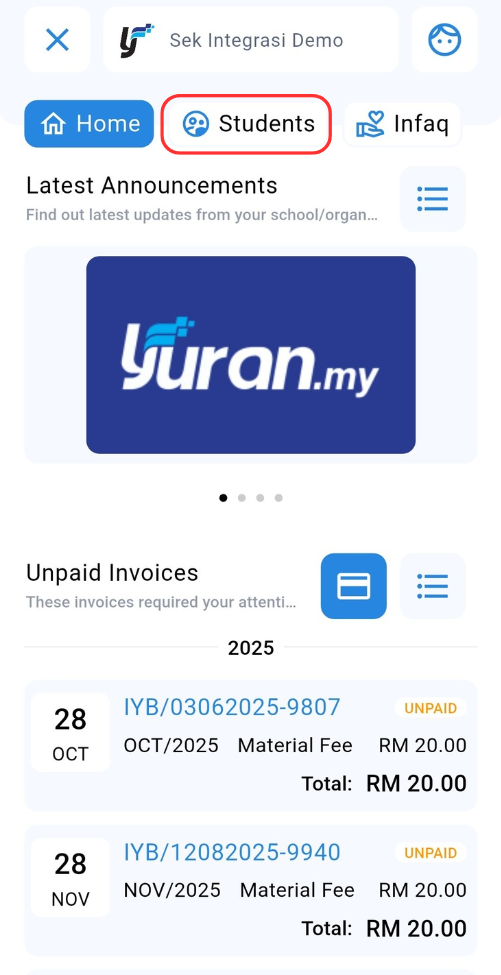
Step 1: Click the Students/Players/Assets navigation at the Home page.
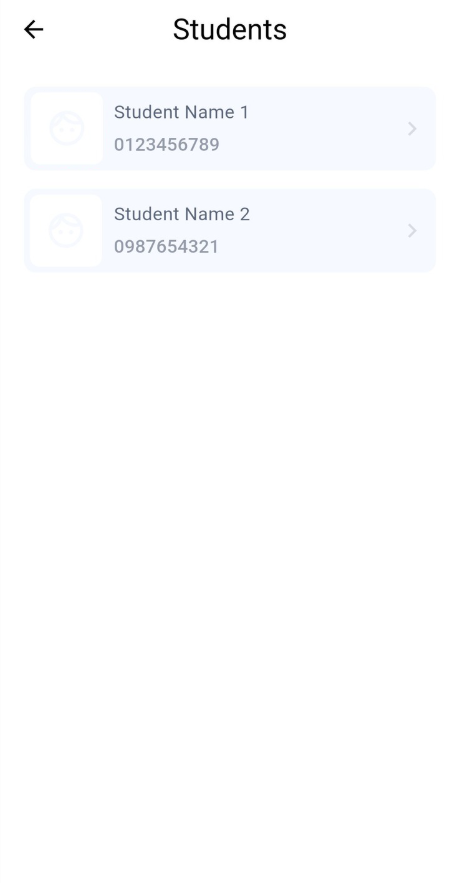
Step 2: Choose the Student/Player/Asset.
Step 3: At this page, user able to view about the Student/Player/Asset Profile, Classes/Events, Invoices and Documents.
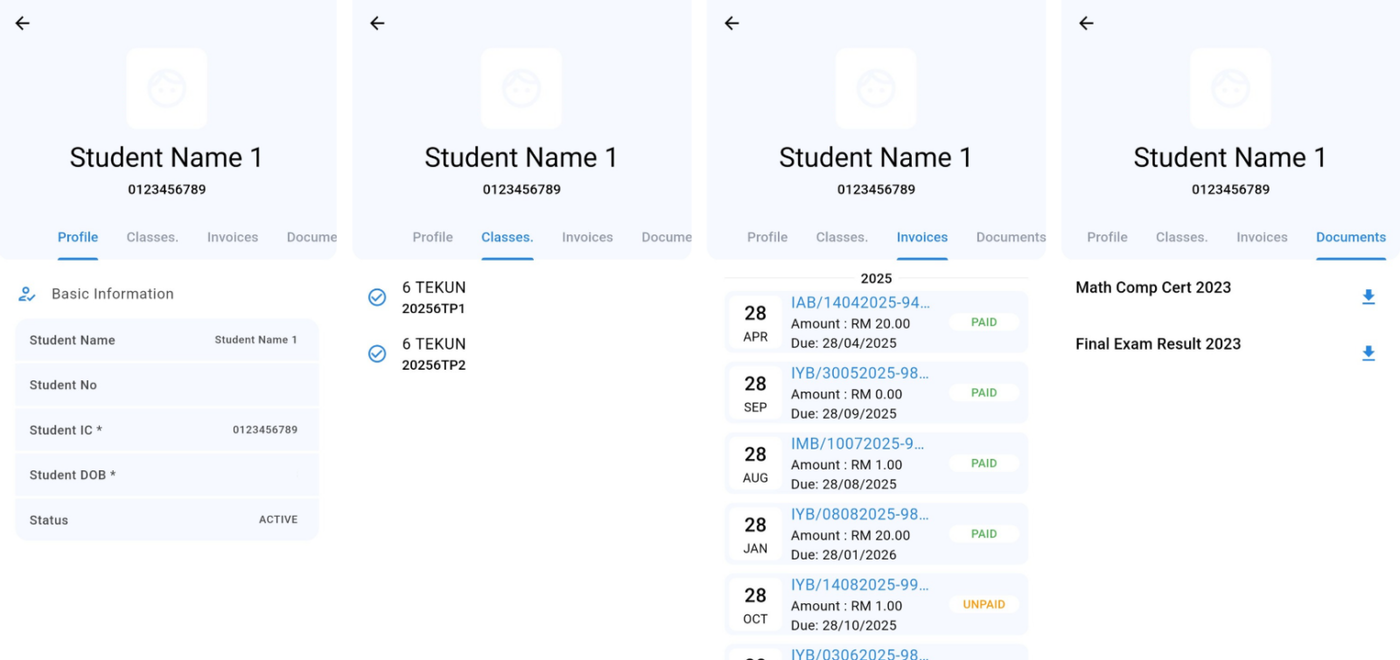
📝You can also make individual invoice payment through Student/Player/Asset Profile
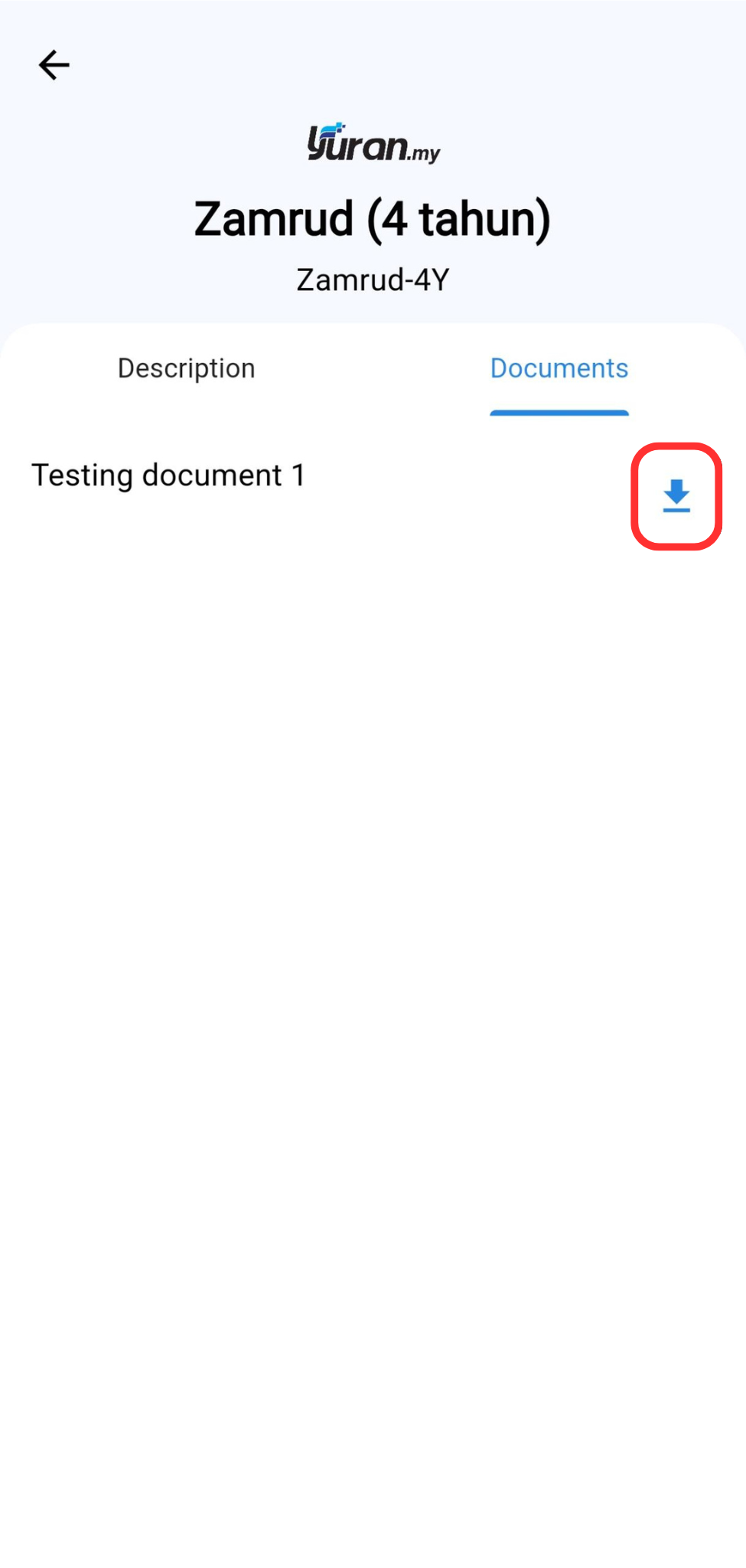
14.7.2 How to download document at Student/Player/Asset Profile
Step 1: Click the Students/Players/Assets navigation at the Home page.
Step 2: Choose the Student/Player/Asset.
Step 3: Click the tab classes and choose the class.
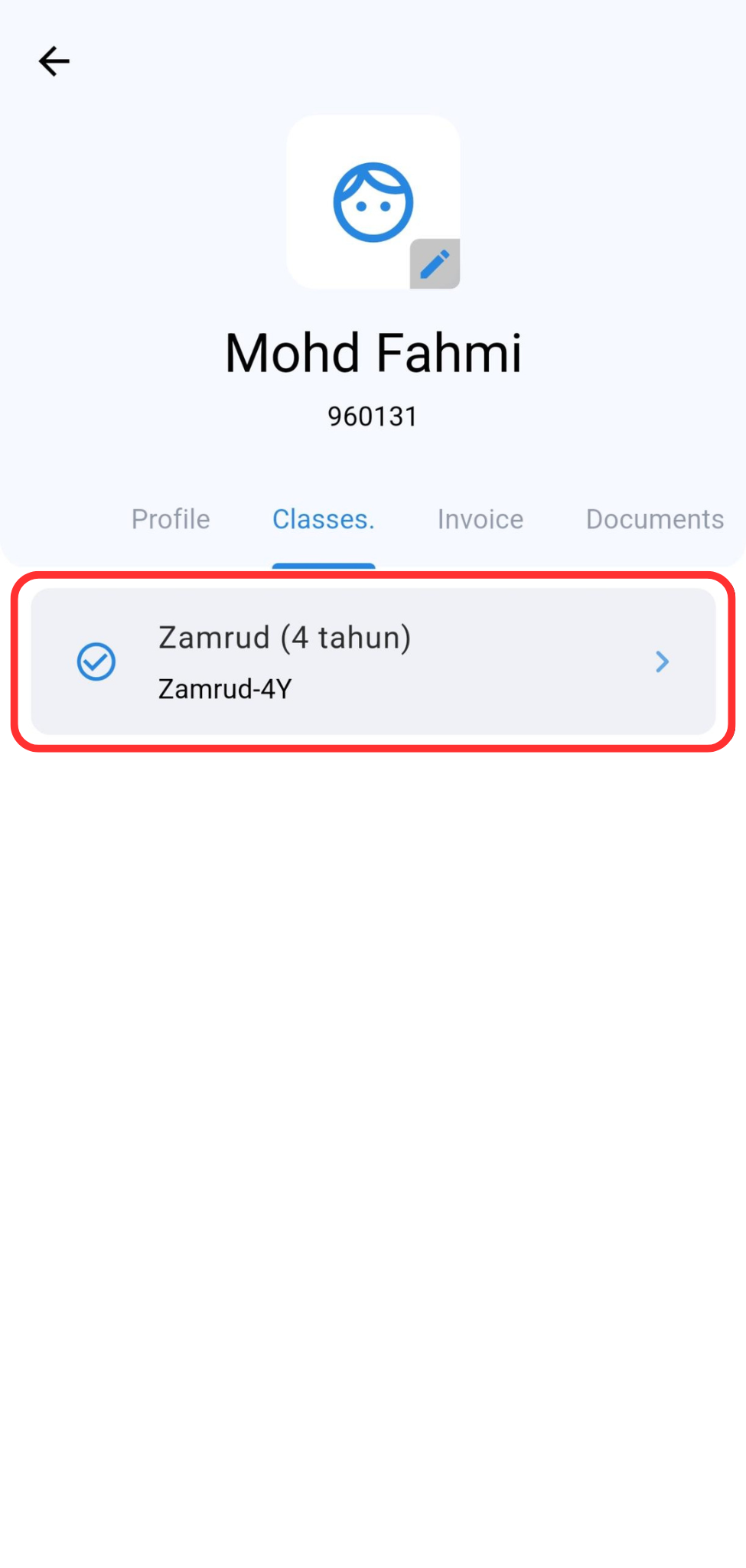
Step 4: Select the document tab and click download icon to download the document (if there is a document) and the document will appear.
14.8 Infaq
14.8.1 Make Infaq
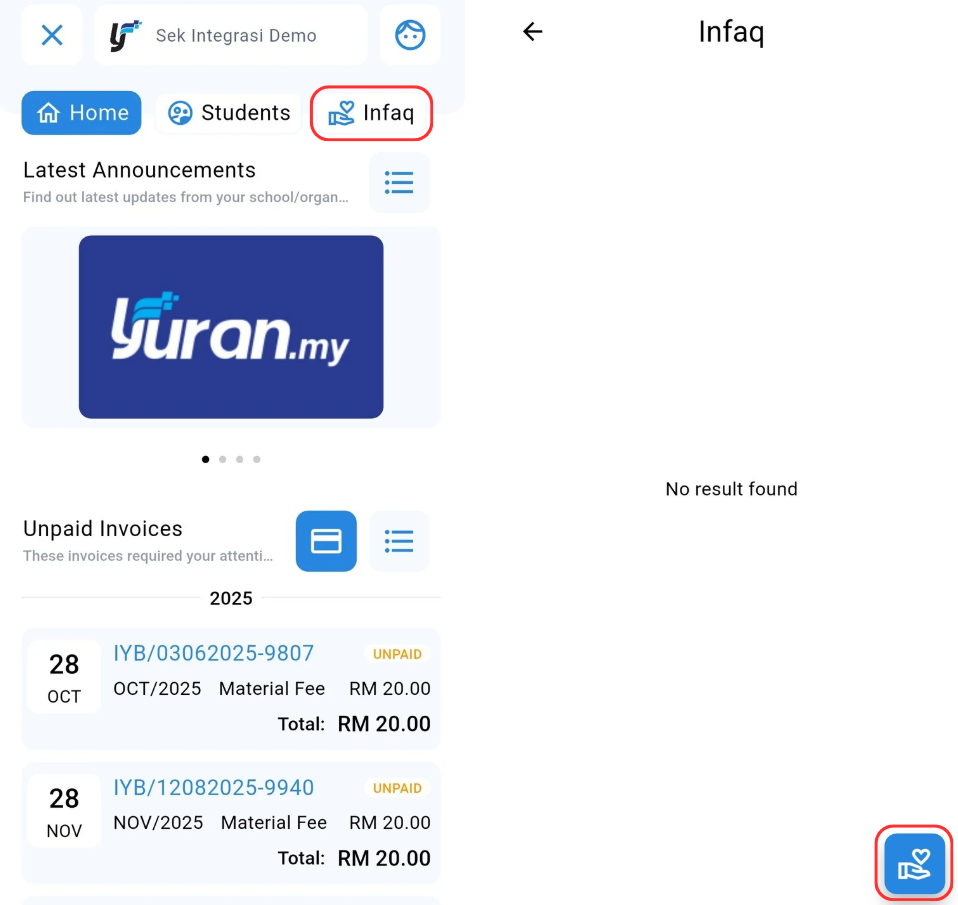
Step 1: Click the Infaq navigation at the Home page. Click "Contribution" button at the bottom right.
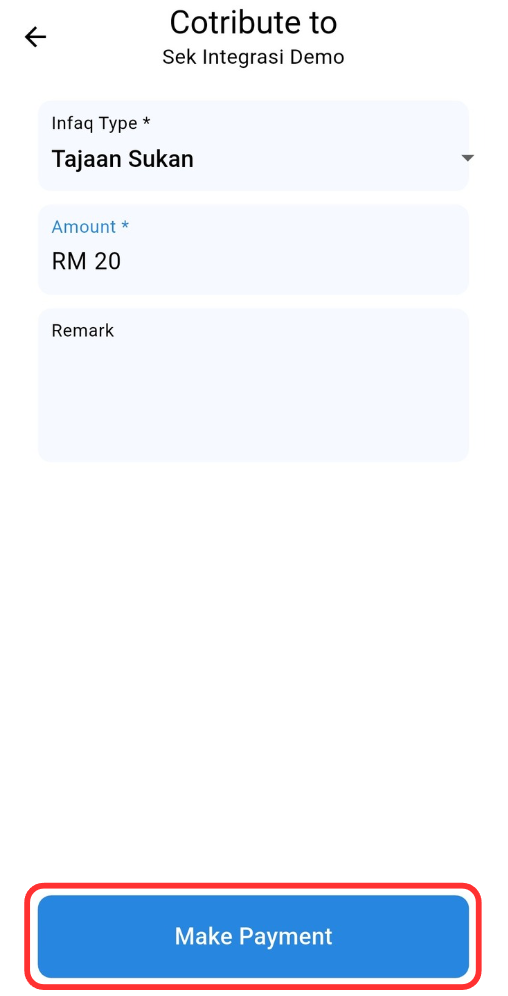
Step 2: Choose Infaq Type, enter the required fields and click "Make Payment" button.
Step 3: Select bank and click "Proceed With Payment" button to be redirected to FPX payment gateway.