
8.0 Report Management

8.0 Reporting
Module | Report | Description |
Payments | Payment Listing | List the payment information |
Payment Monthly | List the monthly payment summary | |
Payment Yearly | List the yearly payment summary | |
Invoice Listing | List the invoice information | |
Yearly Statement | List of the collection yearly | |
Billing Summary | Details of billing yearly summary | |
Cancel Payment Listing | Details of cancel payment listing | |
Player/Student/Asset | Player/Student/Asset List | List the player/student/asset information |
Yearly Statement | List the player/student/asset information | |
Program Summary | List the player/student/asset information | |
Yearly Student Attendance | List the player/student/asset information | |
Student Attendance Details | Details record of the student's attendance based on class, session and total attend | |
Trainer | Attendance | Attendance report |
8.1 Payments
8.1.1 How to Generate the Payment Listing Report?
Step 1: Click Payments > Payment Listing under the Reports category.
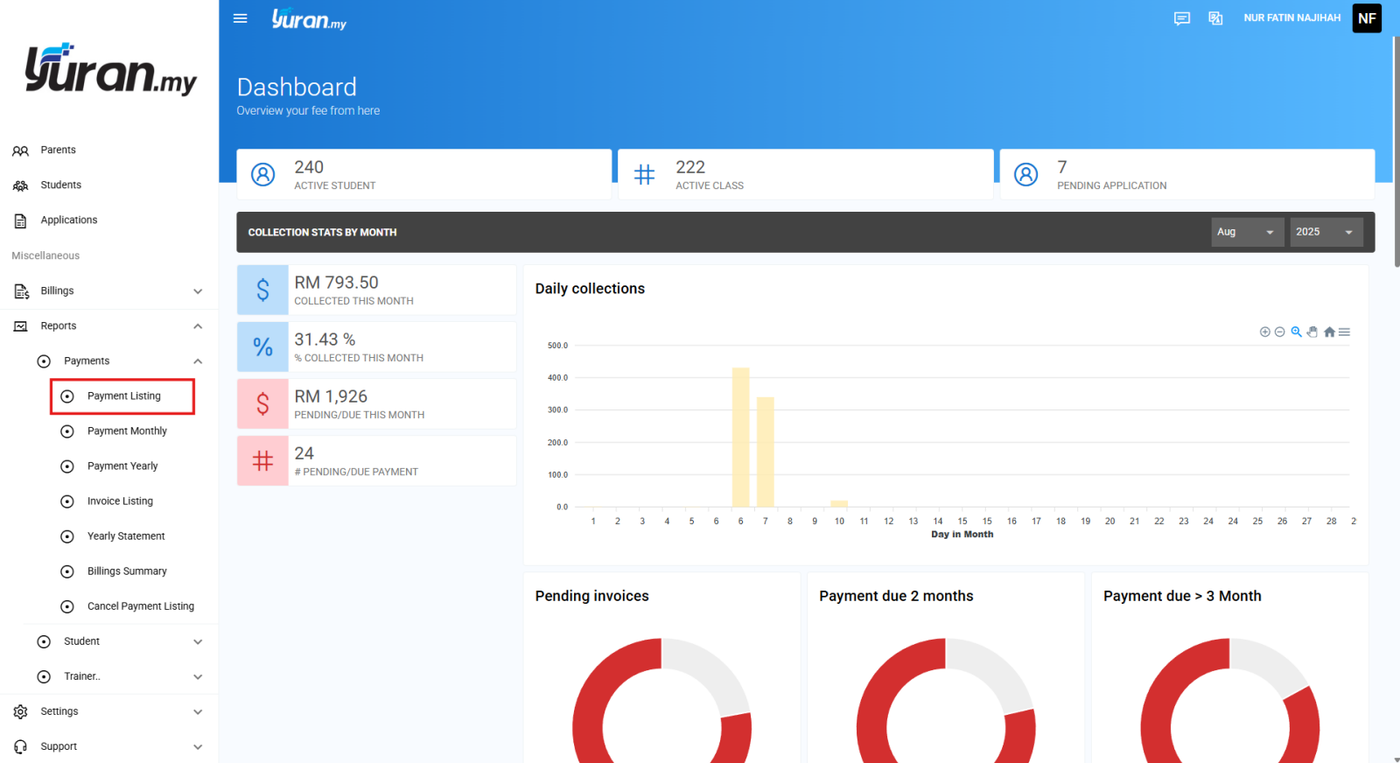
Step 2: Once clicking the Payment Listing, Payment List Report page will appear.

Step 3: At this page, user able to generate Payment Listing report by inserting the data such as Method, Date Type, Start Date, End Date, Fee Type, Event, Trainer, Player. Then, click Generate Report button.
* Generate Report button


Step 4: Click the Export CSV button to export the report into the Excel file.
* Export CSV button


Step 5: Click the Print button to print the Payment Listing report.
* Print button


8.1.2 How to Generate the Payment Monthly Report?
Step 1: Click Payments > Payment Monthly at the left panel under Reports category.
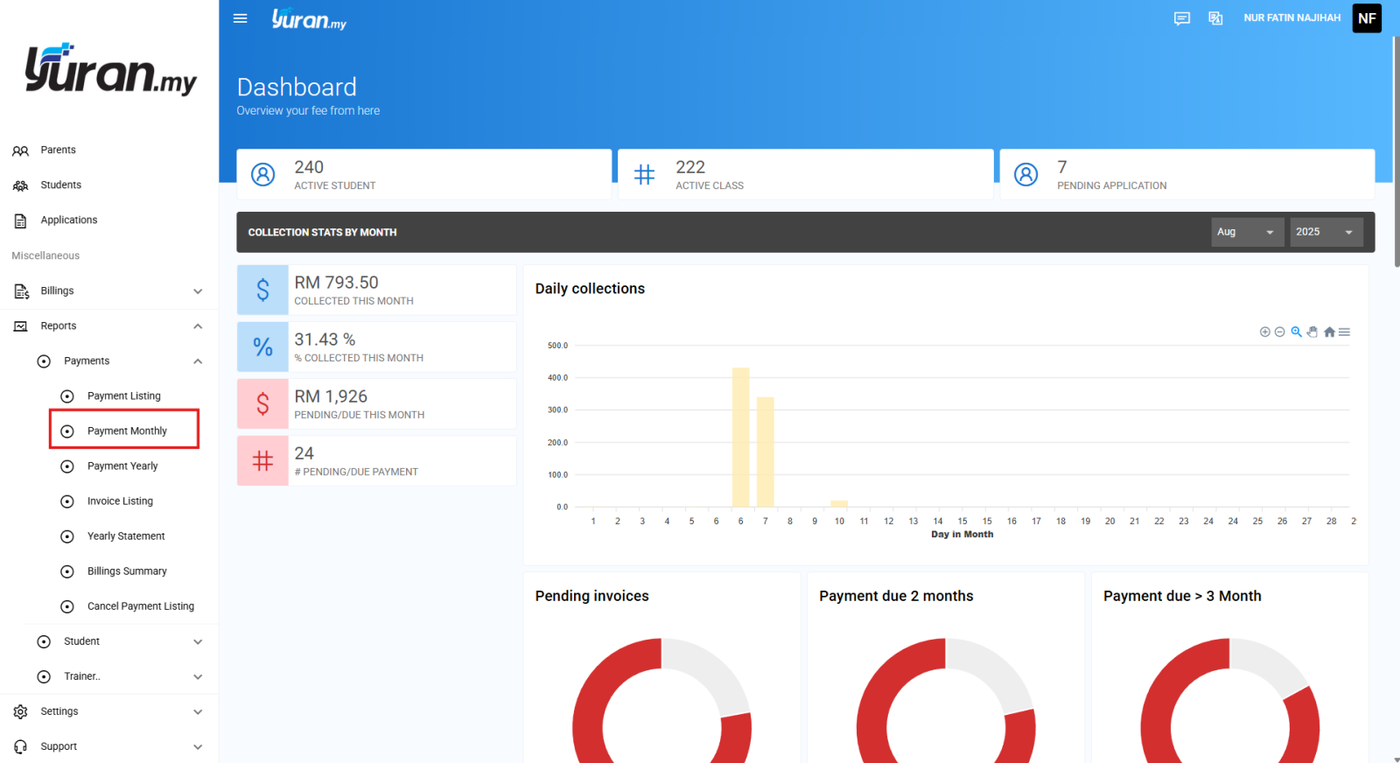
Step 2: Once clicking the Payment Monthly menu, Payment Report by Month page will appear.

Step 3: At this page, user able to insert the data such as Year, Month, Date Type and Event/Class to generate Payment Yearly report. Then, click the Generate Report button.
* Generate Report button


Step 4: Click the Export CSV button to export the report into the Excel file.
* Export CSV button

Step 5: Click the Print button to print the Payment Listing report.
* Print button

8.1.3 How to Generate the Payment Yearly Report?
Step 1: Click Payments > Payment Yearly at the left panel under Reports category.
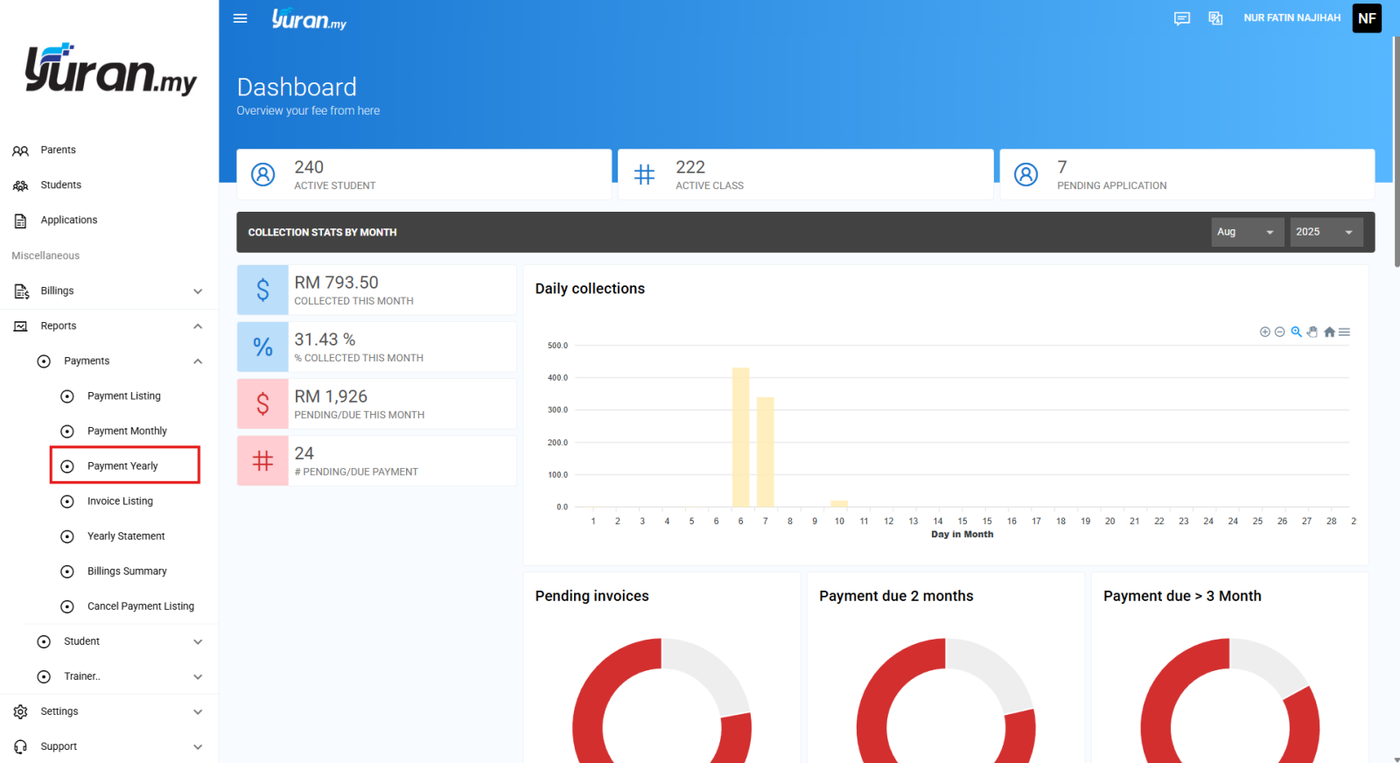
Step 2: Once clicking the Payment Yearly, Payment Yearly Report page will appear.

Step 3: At this page, user able to insert the data such as Year and Event/Class to generate Payment Yearly report. Then, click the Generate Report button.
* Generate Report button


Step 4: Click the Export CSV button to export the report into the Excel file.
* Export CSV button

Step 5: Click the Print button to print the Payment Listing report.
* Print button

8.1.4 How to Generate the Invoice Listing Report?
Step 1: Click the Payments > Invoice Listing at the left panel under Reports category.
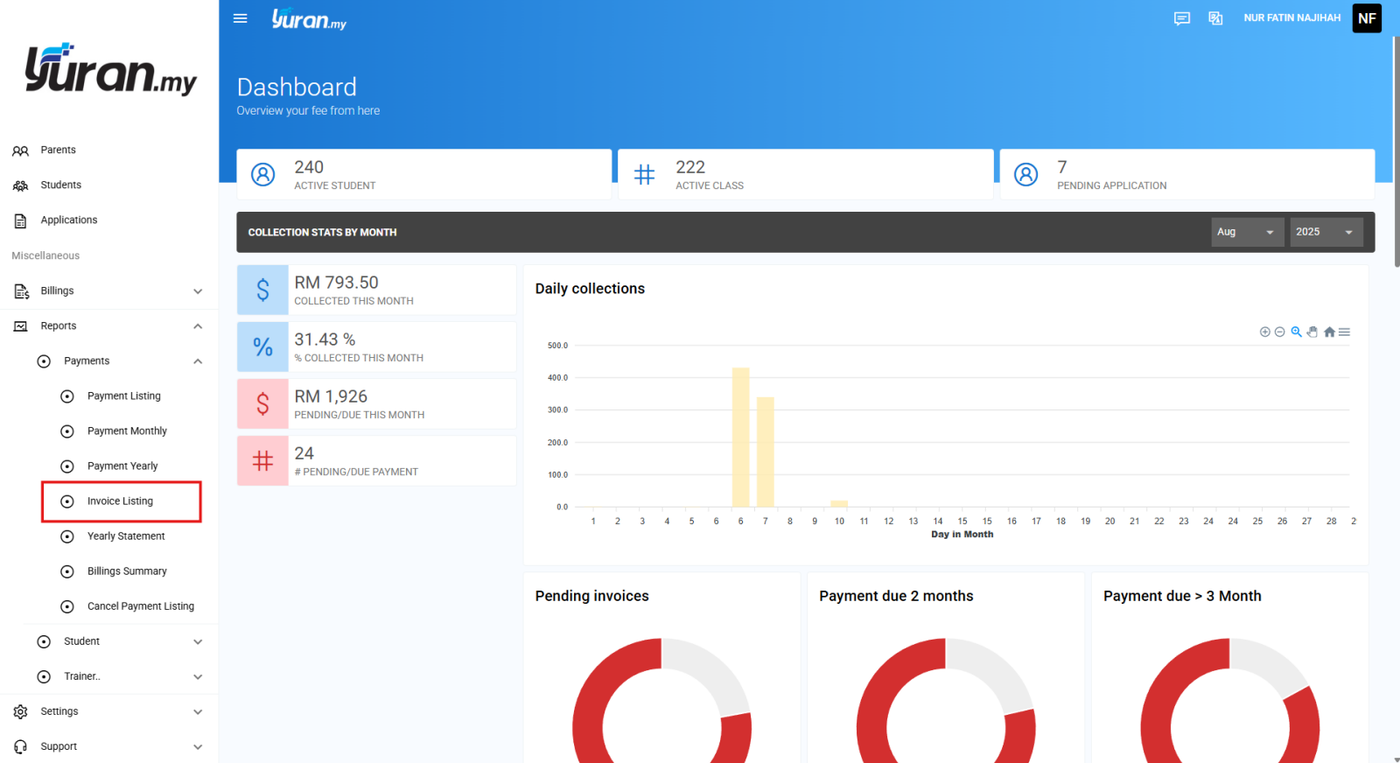
Step 2: Once clicking the Invoice Listing, Invoice List Report page will appear.

Step 3: At this page, user able to generate Invoice List Report by inserting the Year, Month, Start Date, End Date, Fee Type, Status, Event, Trainer, Player. Then, click the Generate Report button.
* Generate Report button


Step 4: Click the Export CSV button to export the report into the Excel file.
* Export CSV button

Step 5: Click the Print button to print the Payment Listing report.
* Print button

8.1.5 How to Generate the Yearly Statement Report?
Step 1: Click the Payments > Yearly Statement at the left panel under Reports category.
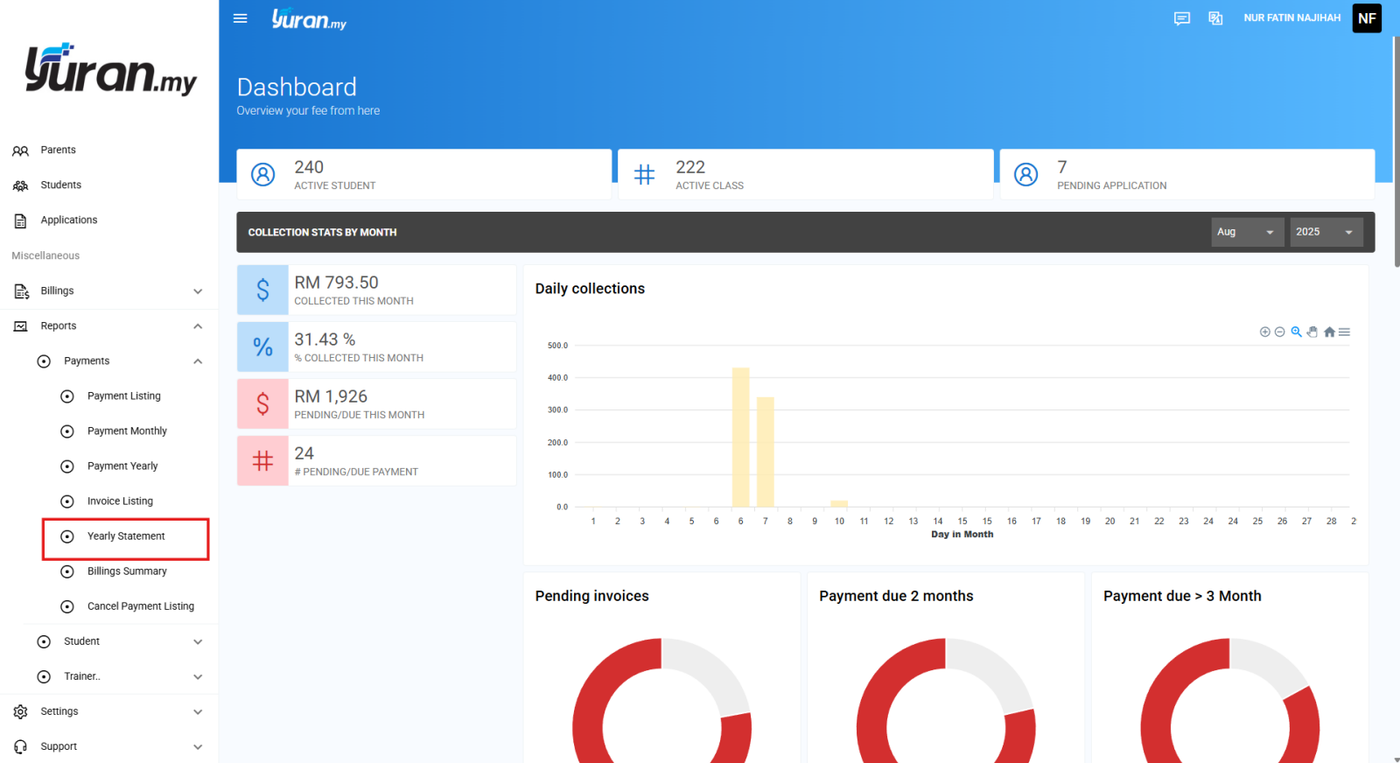
Step 2: Once clicking the Yearly Statement, the Collection Yearly Statement page will appear.

Step 3: Click the Export CSV button to export the report into the Excel file.
* Export CSV button

Step 4: Click the Print button to print the Payment Listing report.
* Print button

8.1.6 How to Generate Billings Summary Report?
Step 1: Click menu Payments>Billing Summary at the left panel under Reports category.
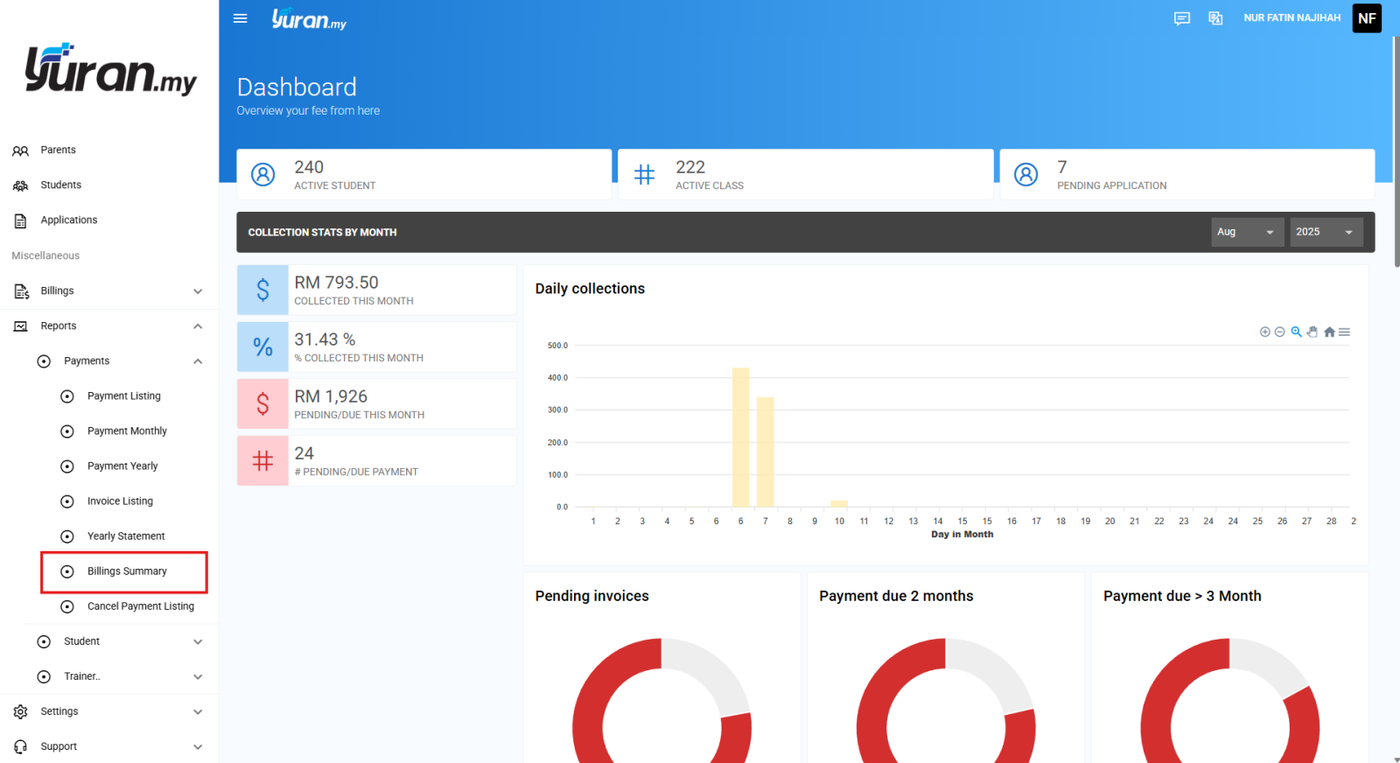
Step 2: Click Generate Report button to view the report.

Step 3: Click the Export CSV button to export the report into the Excel file.
* Export CSV button

Step 4: Click the Print button to print the Payment Listing report.
* Print button

8.1.7 How to Generate Cancel Payment Listing Report?
Step 1: Click menu Payments>Cancel Payment Listing at the left panel under Reports Category.
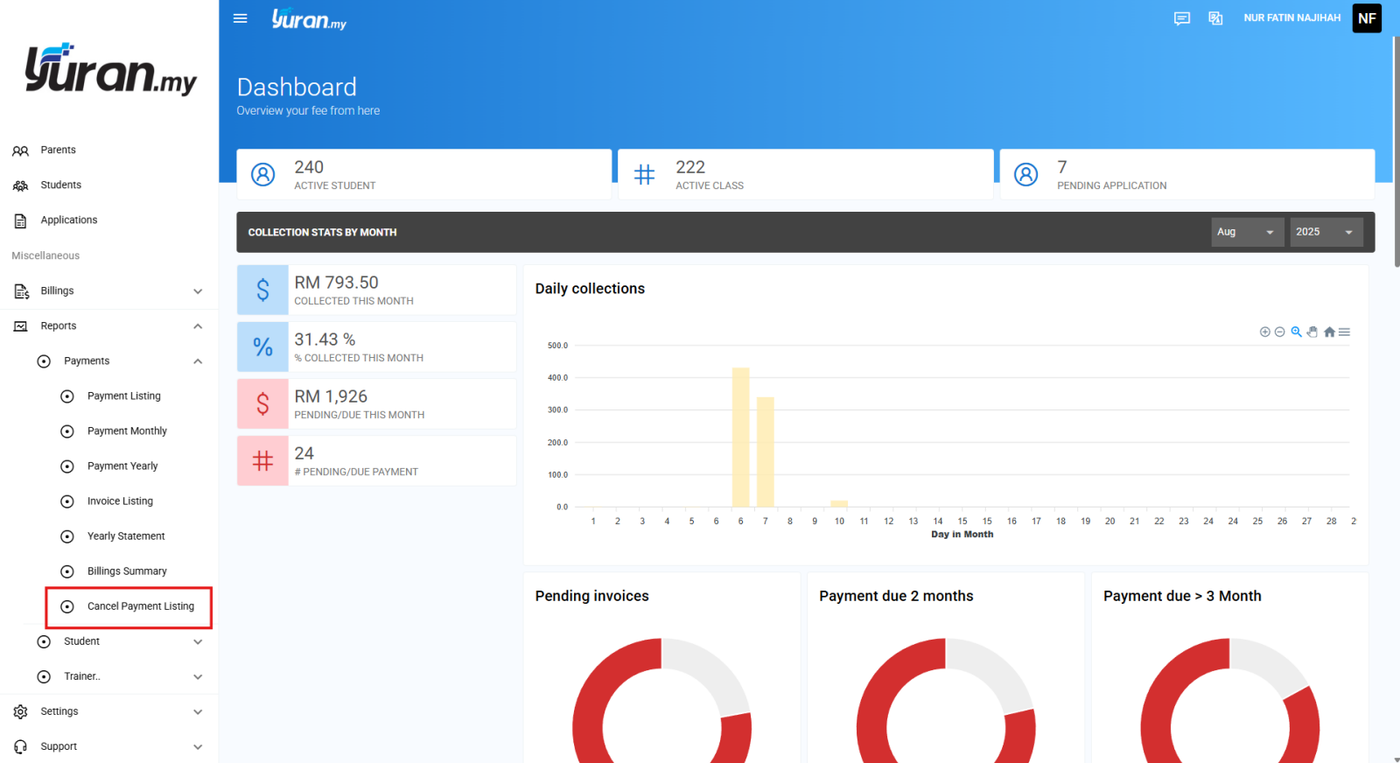
Step 2: Click Generate Report button to view the Cancel Payment Listing details report. You are also able to filter the report by Method, State Date, and End Date.

Step 3: Click the Export CSV button to export the report into the Excel file.
* Export CSV button

Step 4: Click the Print button to print the Payment Listing report.
* Print button

8.2 Student/Player/Asset
8.2.1 How to Generate the Player/Student/Asset List Report?
Step 1: Click the Player/Student/Asset > Player/Student/Asset List at the left panel under Reports category.
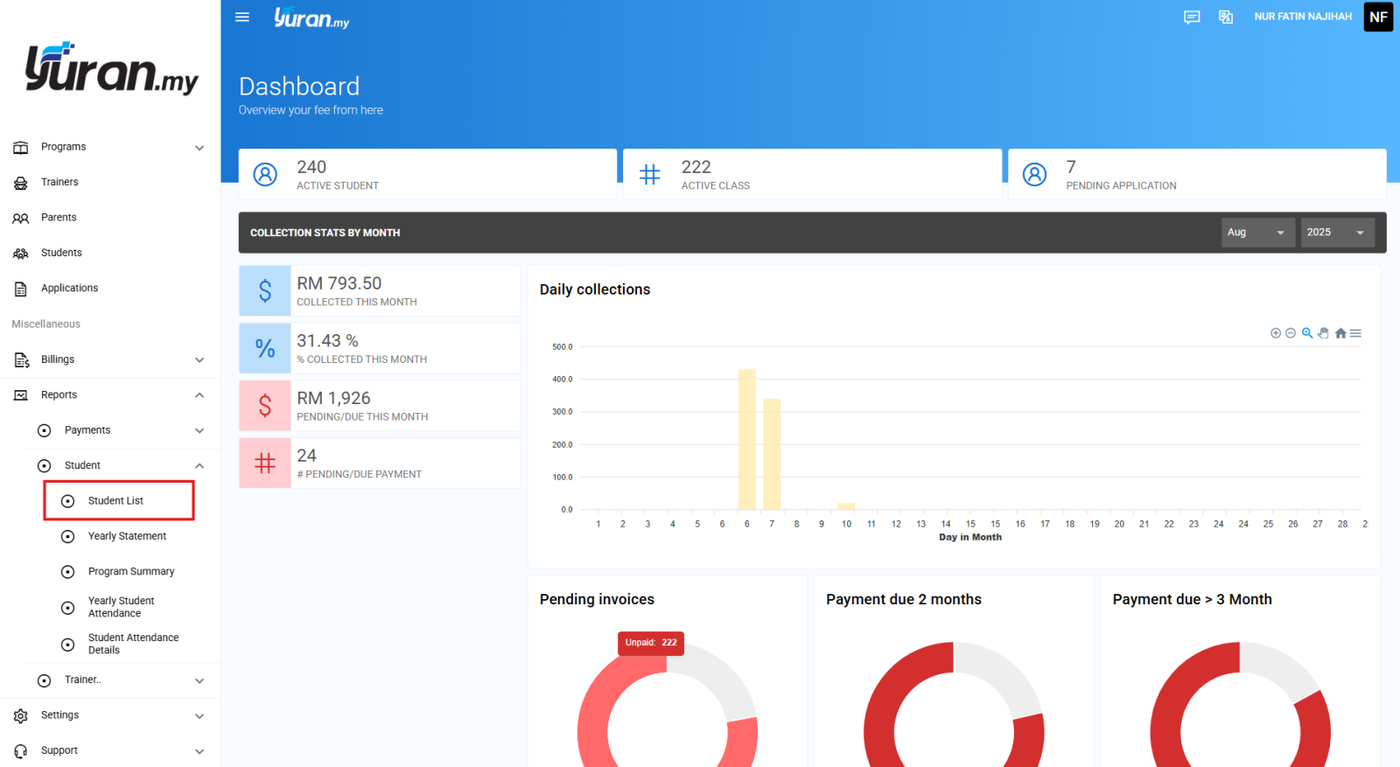
Step 2: Once clicking the Player List, the Player List Report page will appear.

Step 3: Click the Export CSV button to export the report into the Excel file.
* Export CSV button

Step 4: Click the Print button to print the Payment Listing report.
* Print button

8.2.2 How to Generate the Yearly Statement Report for Student/Player/Asset?
Step 1: Click Player/Student/Asset > Yearly Statement at the left panel under Reports category.

Step 2: Once clicking the Yearly Statement, Player Yearly Statement page will appear.

Step 3: At this page, user able to generate the Player Yearly Statement report by filtering them with Player or Date. Then, click the Generate Report button.
* Generate Report button


8.2.3 How to Generate Program Summary Report?
Step 1: Click menu Reports>Students>Program Summary at the left panel under Reports category.
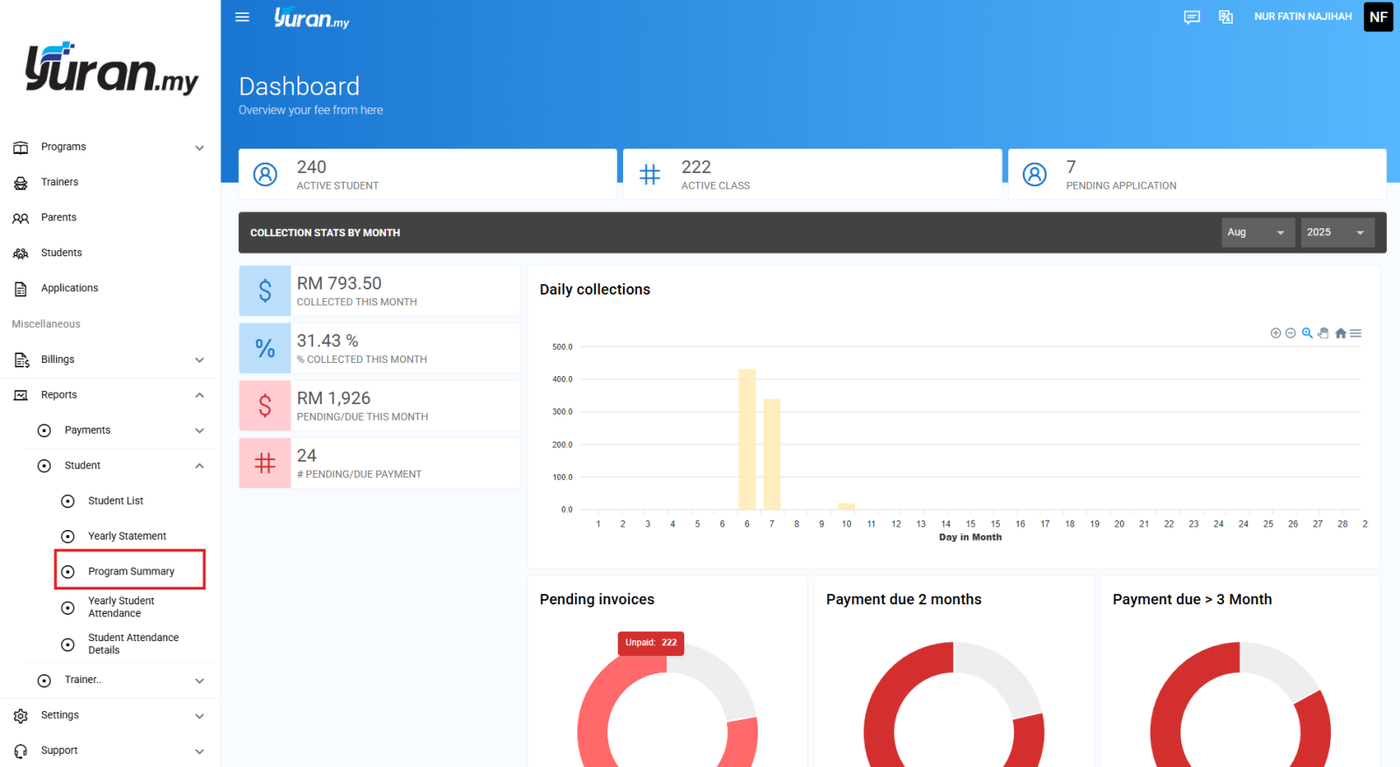
Step 2: You are able to view the Program Summary reports.

Step 3: Click the Print button to print the Payment Listing report.
* Print button

8.2.4 How to Generate Yearly Student Attendance Report?
Step 1: Click menu Reports>Students>Yearly Student Attendance at the left panel under Reports category.
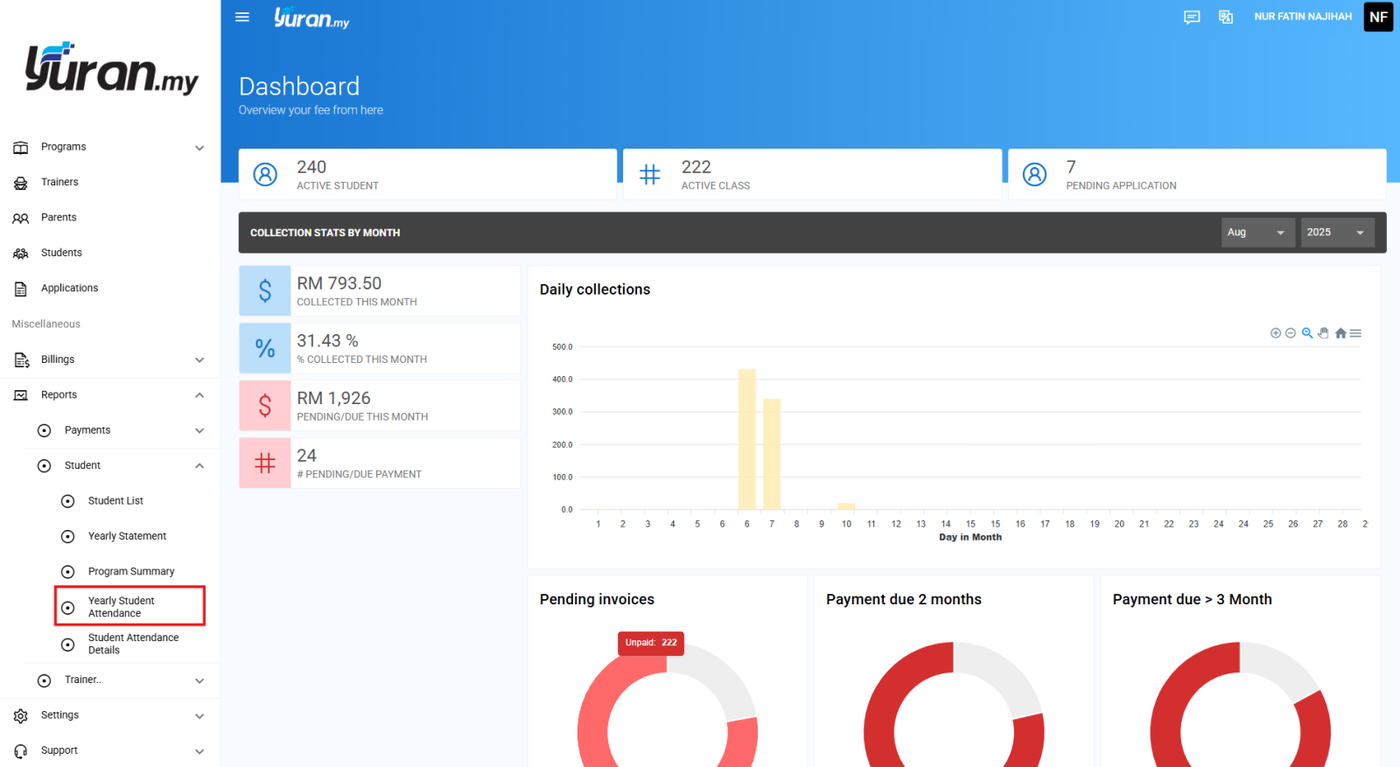
Step 2: Click Generate Report button to view the attendance yearly report details. You are also able to filter the report by Start Date, End Date, Class, and Session.

Step 3: Click the Export CSV button to export the report into the Excel file.
* Export CSV button

Step 4: Click the Print button to print the Yearly Student Attendance report.
* Print button

8.2.5 How to Generate Student Attendance Details Report?
Step 1: Click menu Reports>Students>Student Attendance Details at the left panel under Reports category.
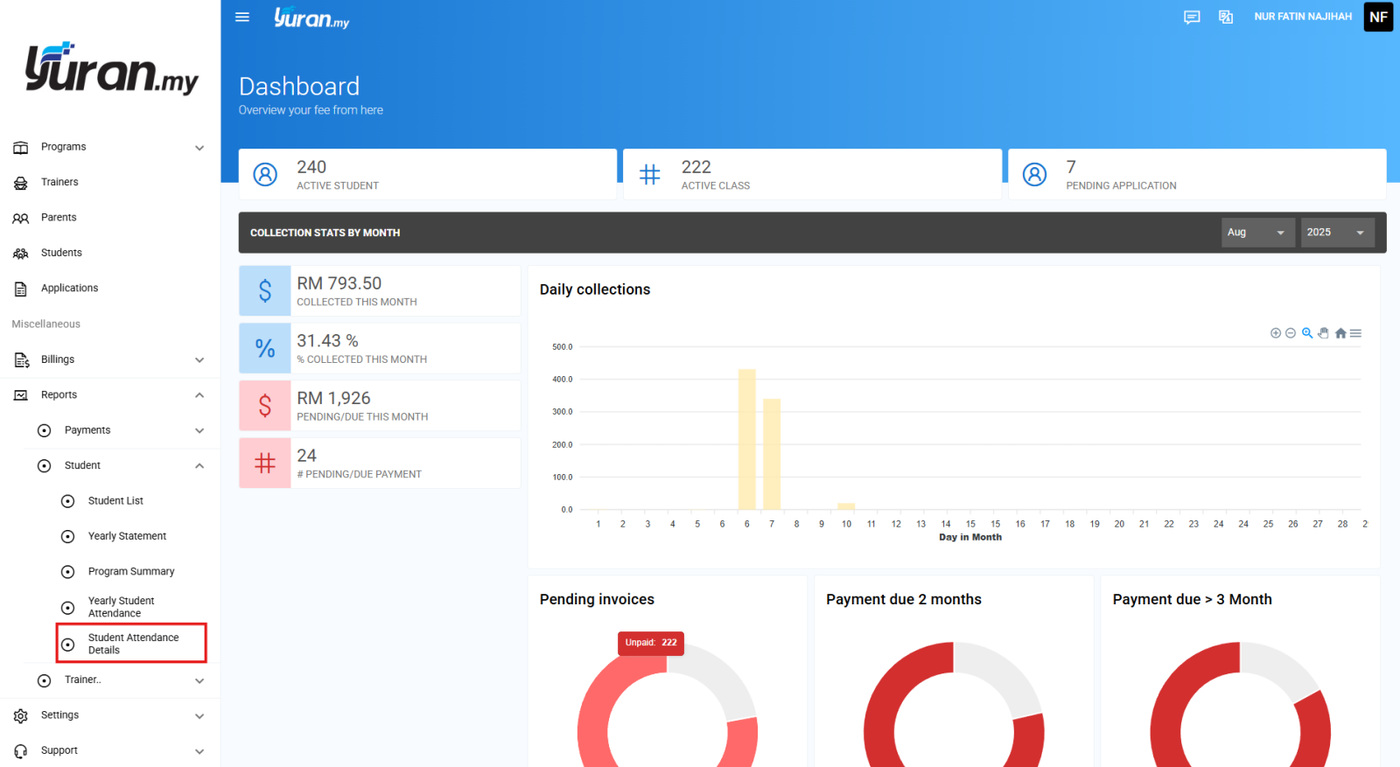
Step 2: Click Generate Report button to view the attendance yearly report details. You are also able to filter the report by Start Date, End Date, Student, Class, and Session.

Step 3: Click the Export CSV button to export the report into the Excel file.
* Export CSV button

Step 4: Click the Print button to print the Yearly Student Attendance report.
* Print button

8.3 Trainer
8.3.1 How to Generate the Attendance Report?
Step 1: Click Trainer > Attendance at the left panel under Reports category.
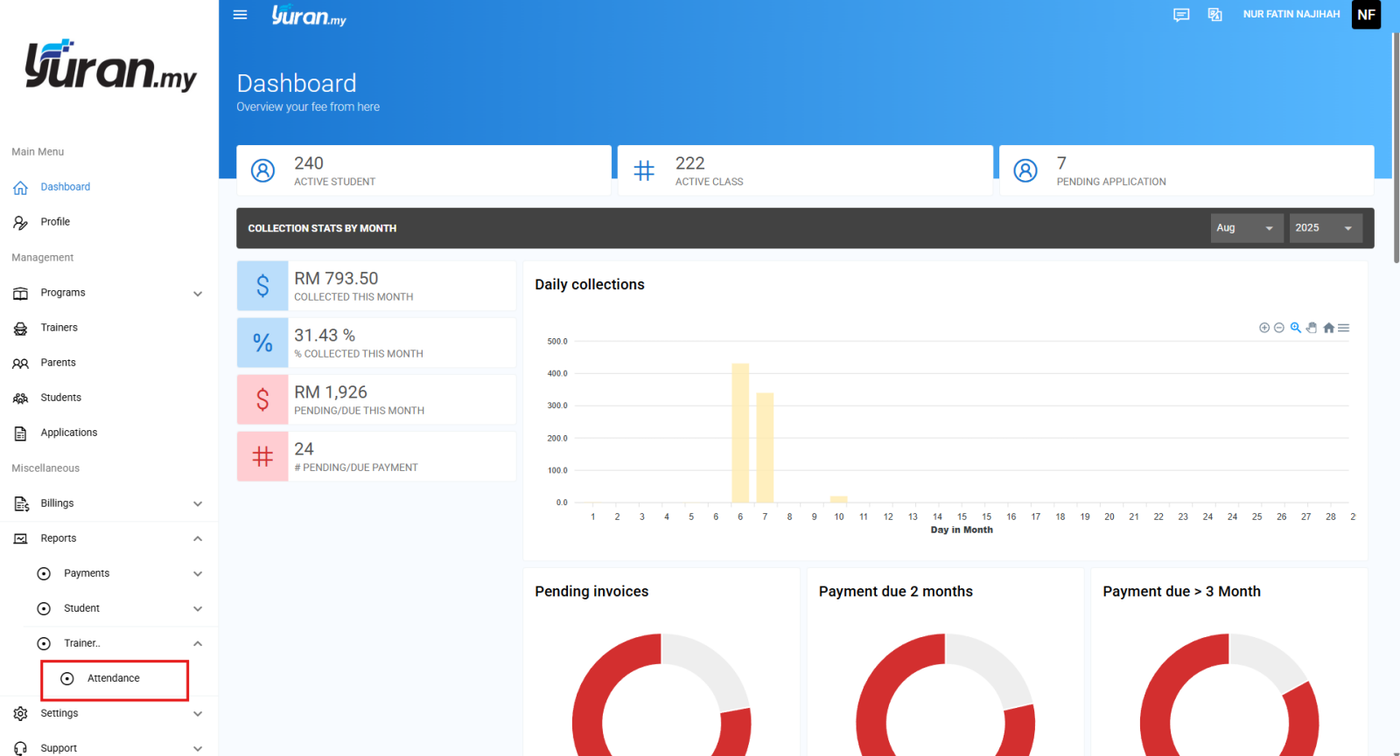
Step 2: Once clicking Attendance, the Attendance Report page will appear.

Step 3: At this page, user able to generate the Attendance report by inserting the Year, Month, and Trainer. Then, click the Generate Report button.
* Generate Report button


8.4 KAFA Reports
Summary of KAFA Reports
Arrears Reports - report payments by fee type but showing in status expected amount, collected amount, outstanding amount
Payment Chart - graphical data showing amount pending or paid based on students in class
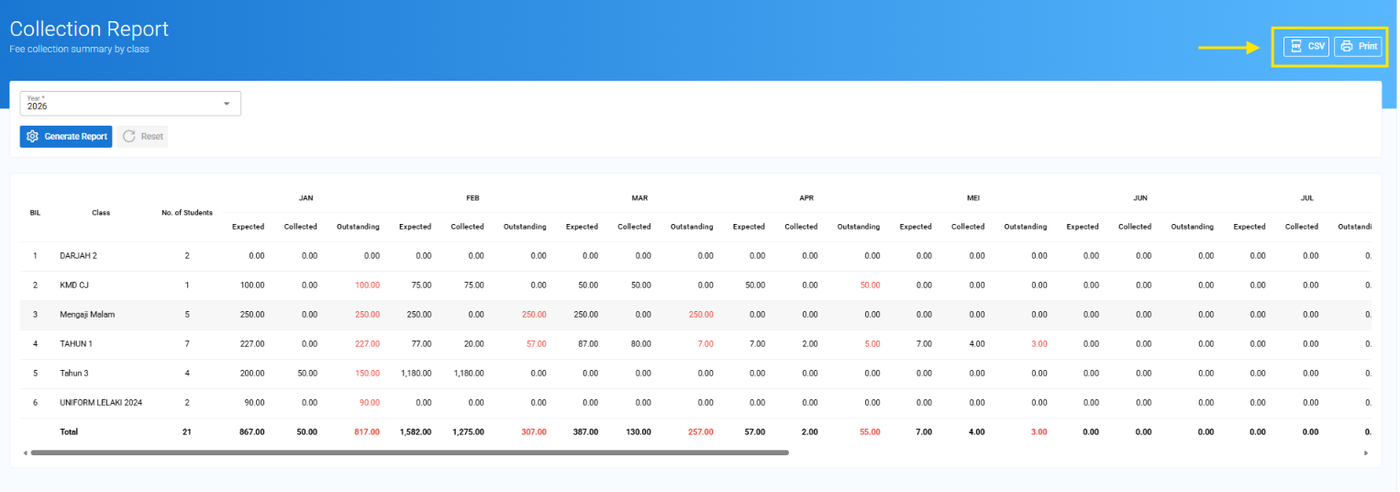
Collection reports - showing summary of fee collection based on classes, no of students and status amount (expected, collected, outstanding)
8.4.1 How to Generate Arrears Report?
Step 1: Click menu Reports>KAFA Reports>Arrears Report
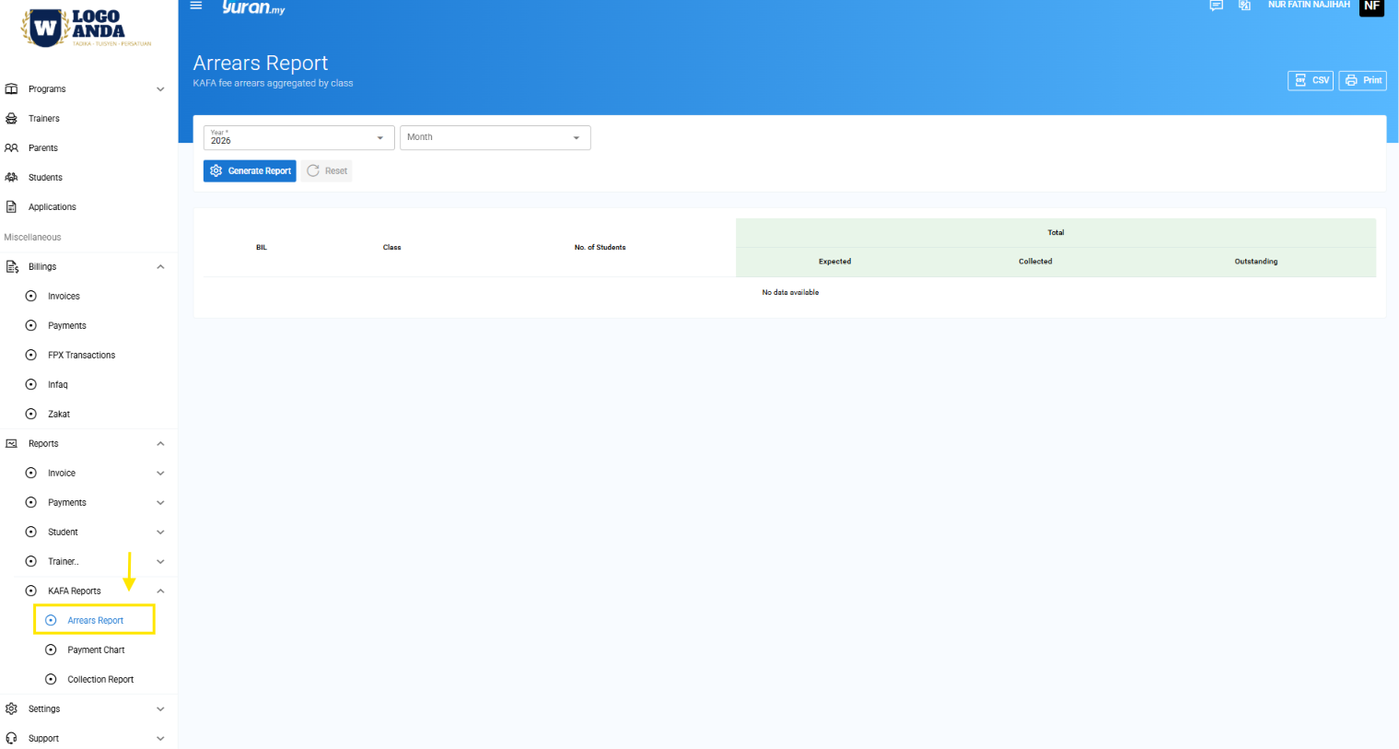
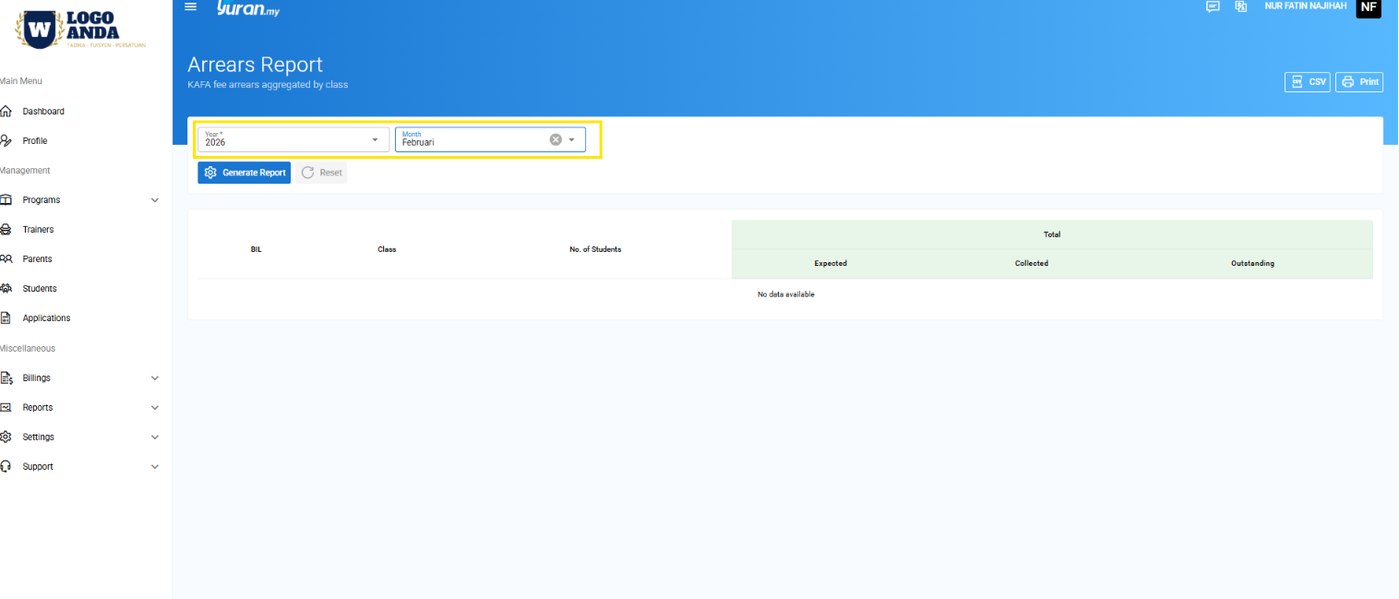
Step 2: Put on filter for Year and Month.
Step 3: Click Generate Report button to generate the report.
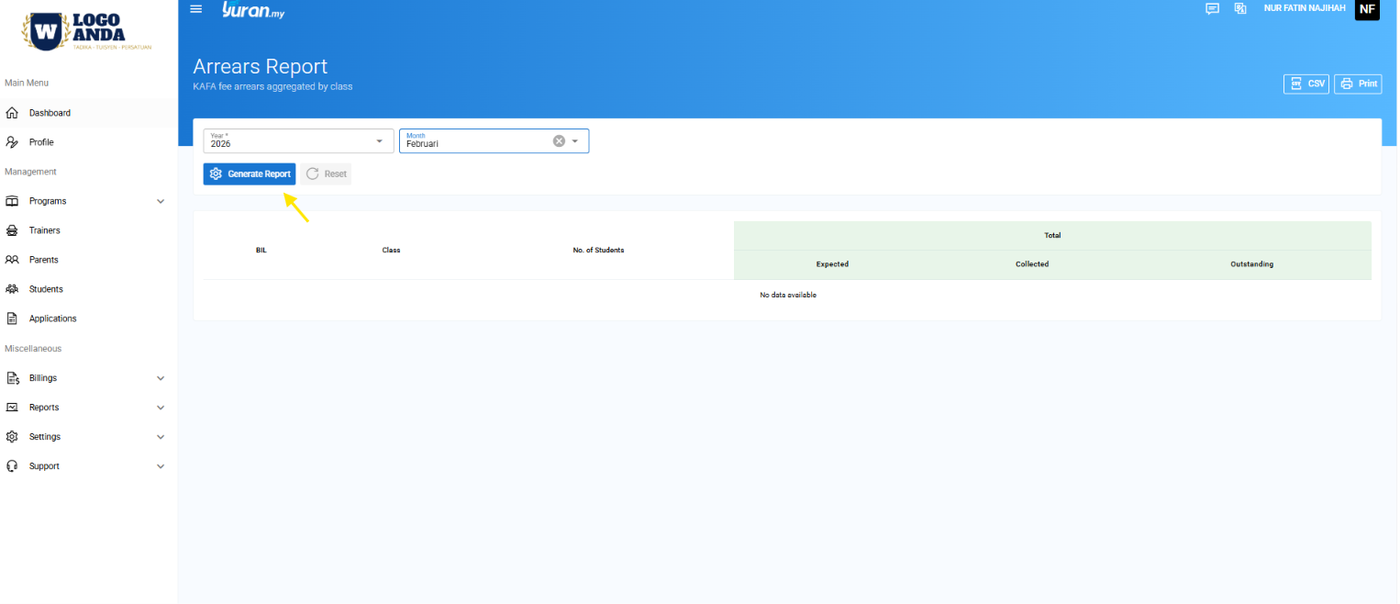
View of Arrears Report
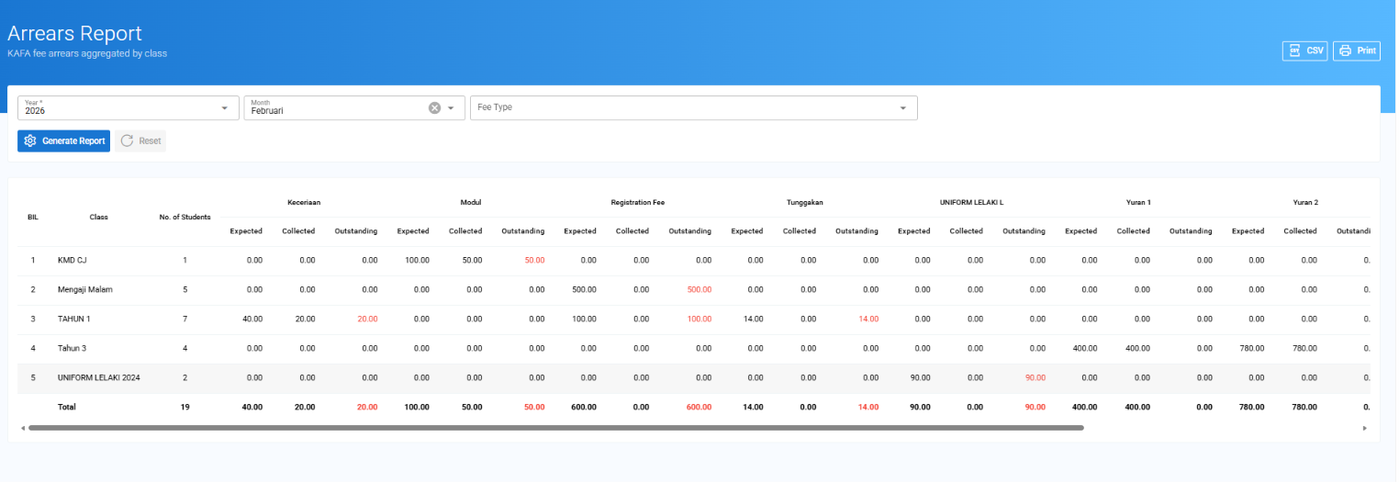
Step 4: Put on filter for Fee Type if want more specific report.

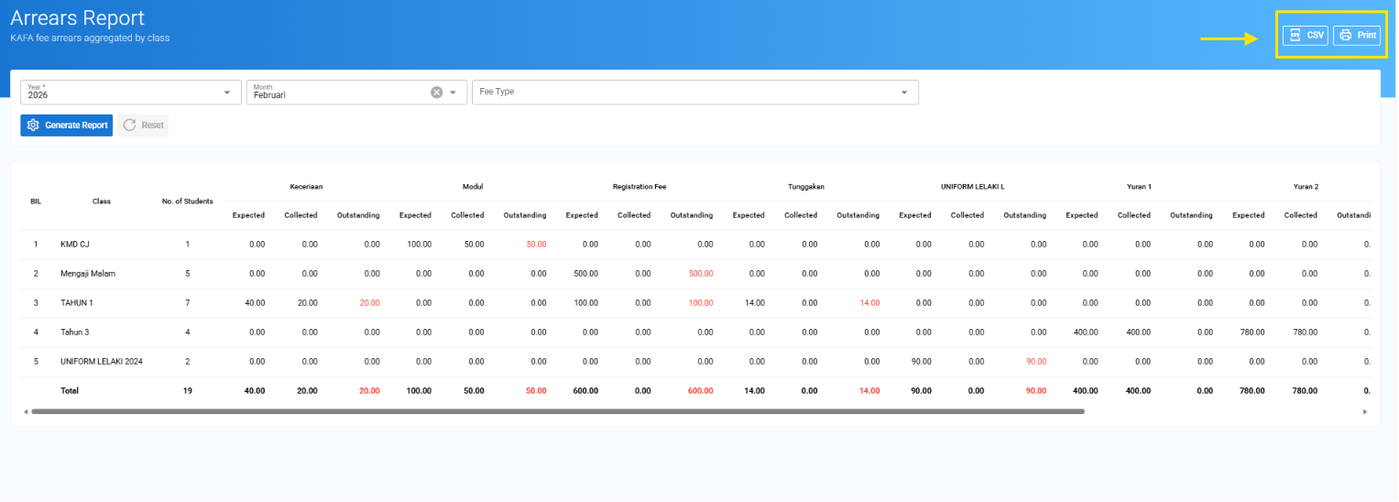
Step 5: Click CSV button to download in Excel/CVS file format or Print button to download as PDF file format.
8.4.2 How to Generate Payment Chart Report?
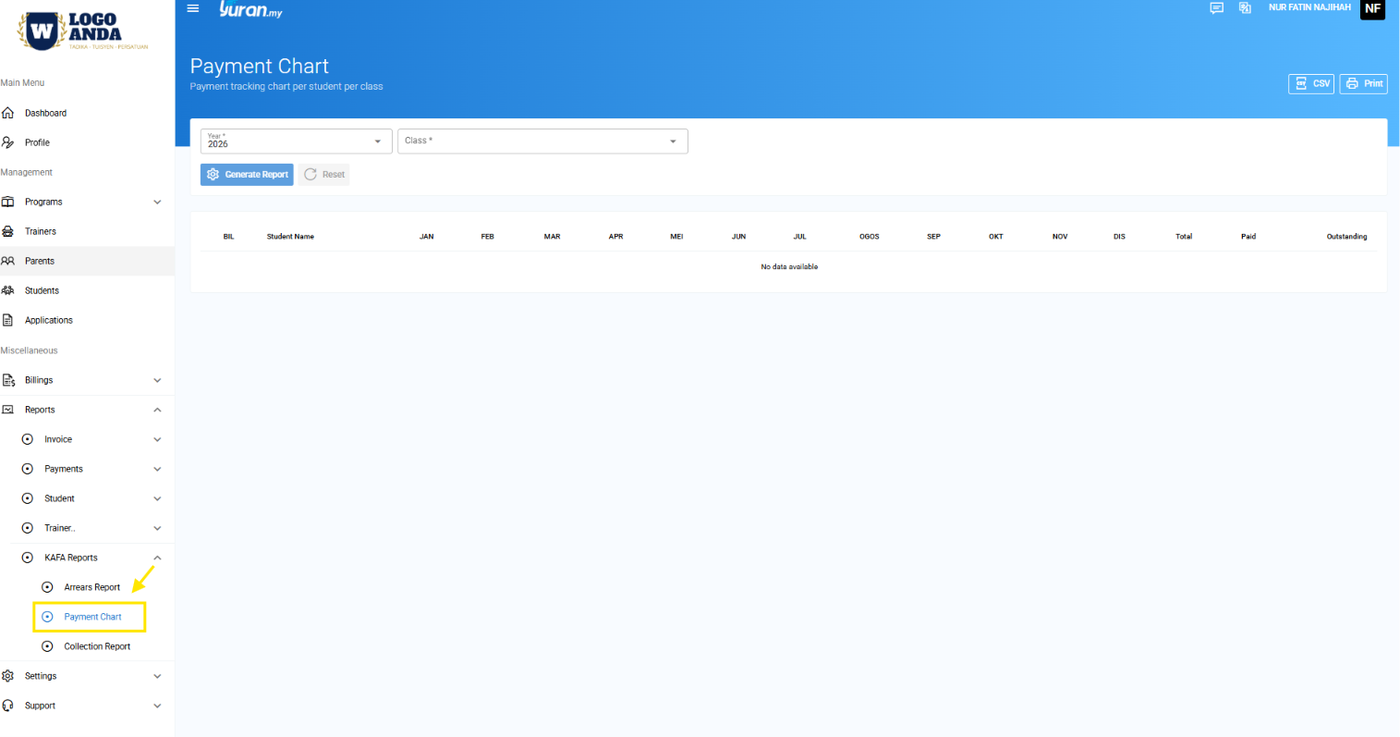
Step 1: Click menu Reports>KAFA Reports>Payment Chart
Step 2: Put on filter for Year and Class
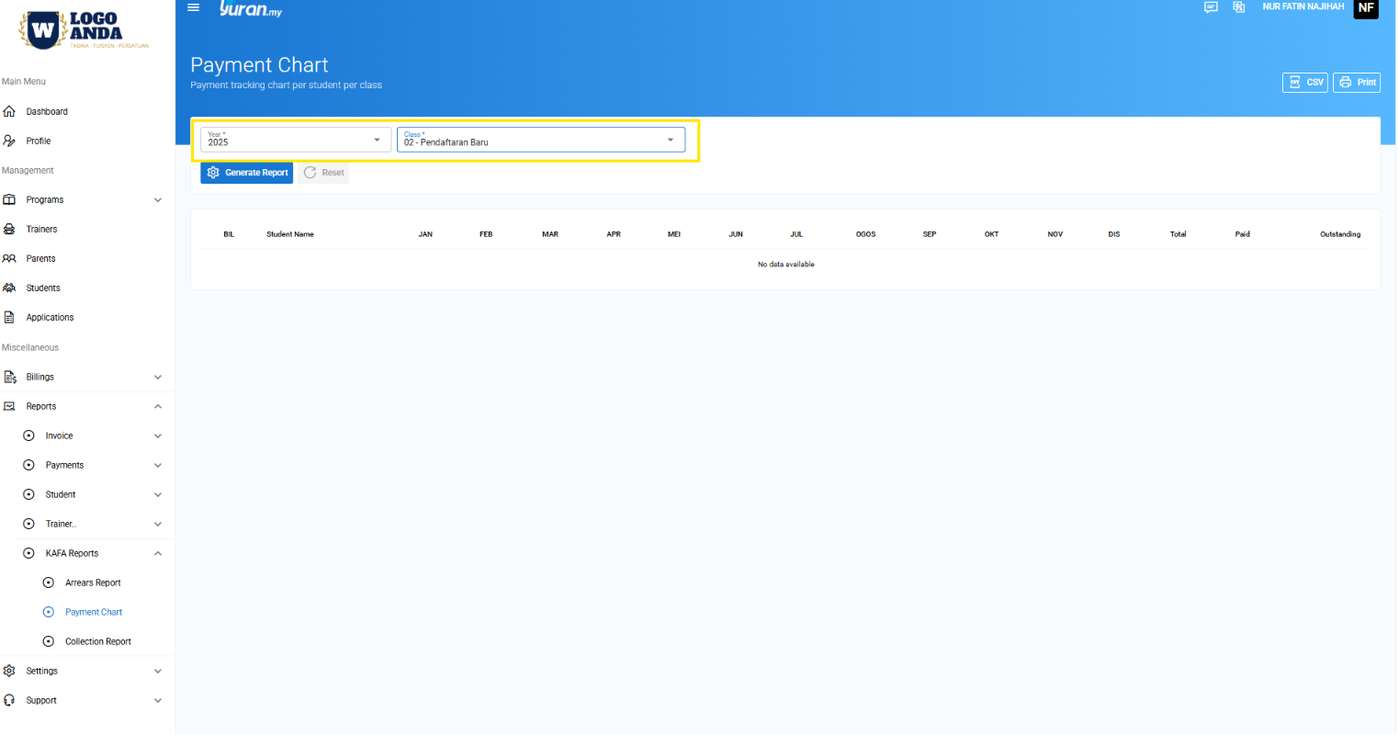
Step 3: Click Generate report button to generate the report.
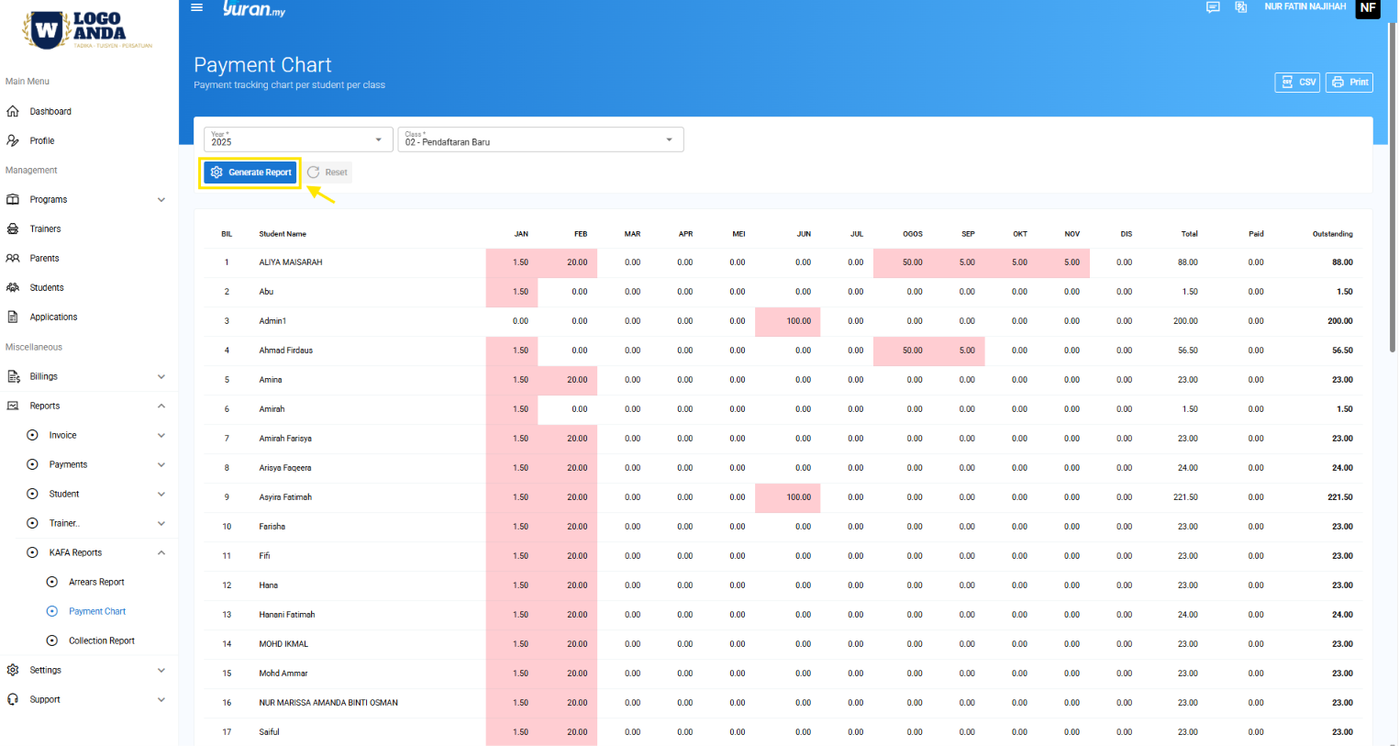
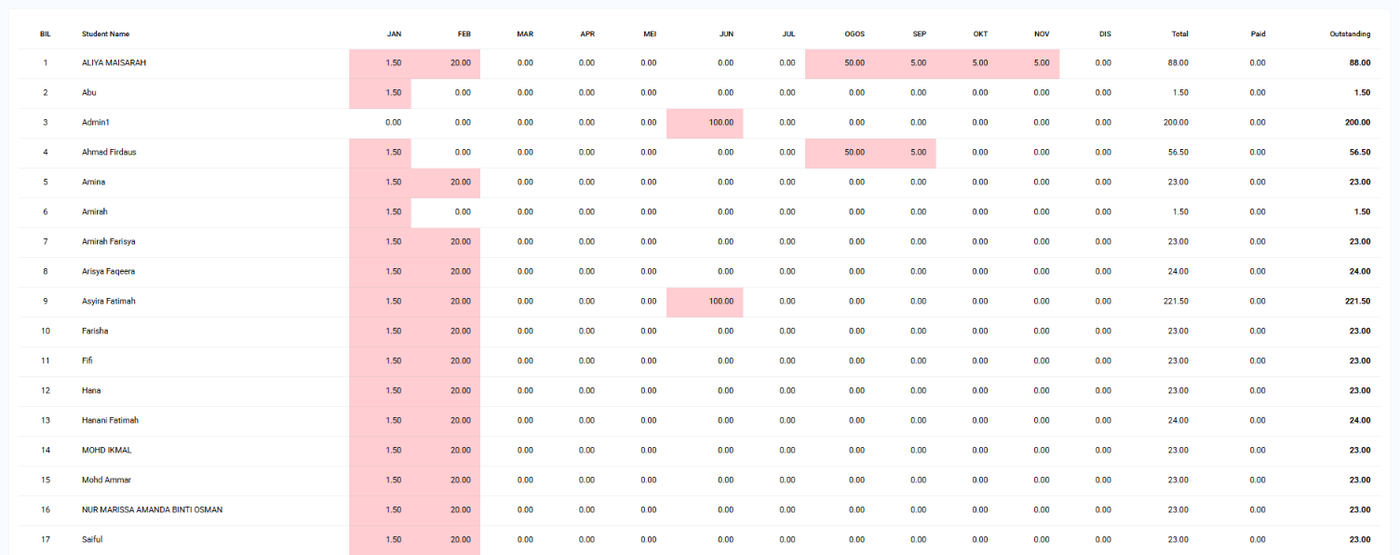
View of Payment Chart Report
Red highlighted - based on invoice status (Unpaid/Overdue)
Green highlighted - based on invoice status (Paid)
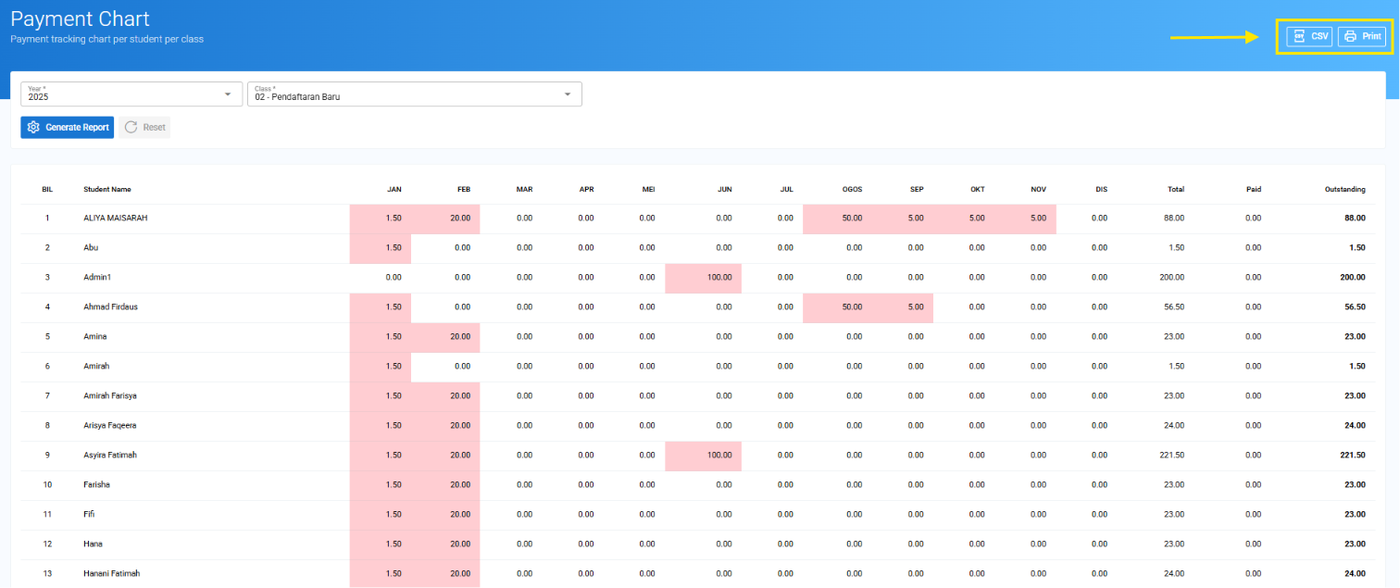
Step 4: Click CSV button to download in Excel/CVS file format or Print button to download as PDF file format.
8.4.3 How to Generate Collection Report?
Step 1: Click menu Reports>KAFA Reports>Collection Report
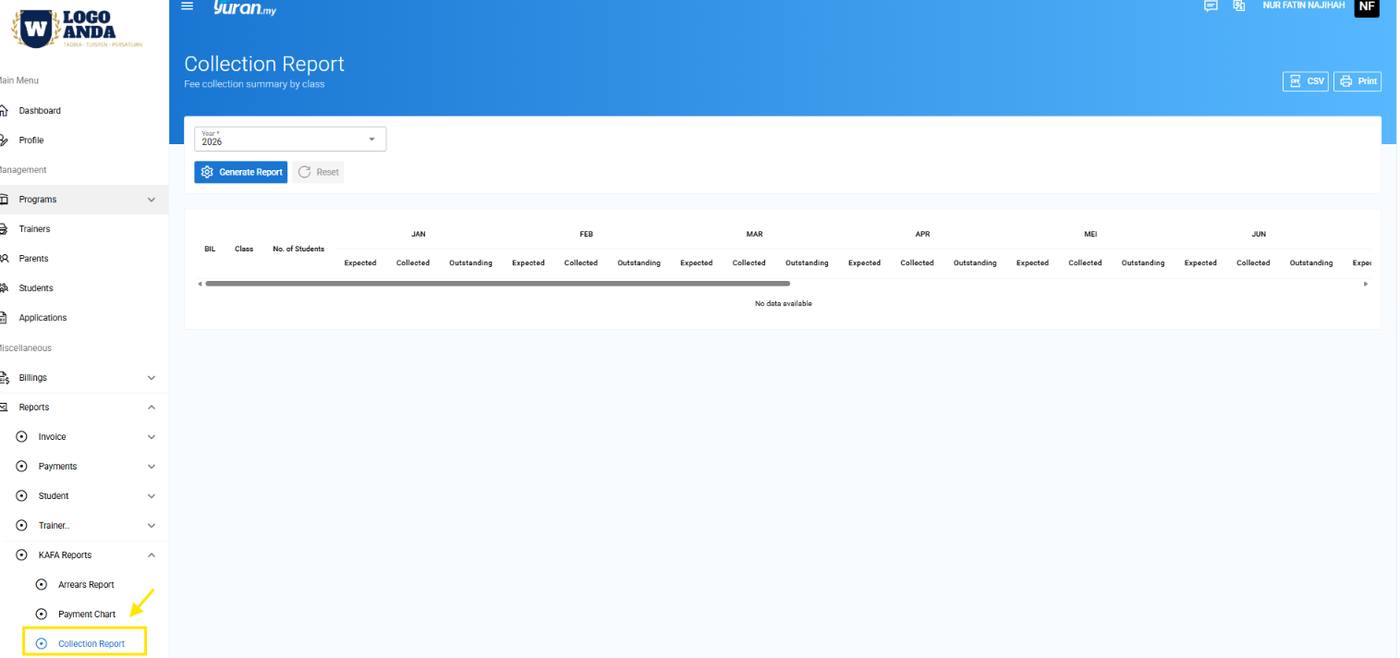
Step 2: Put on filter for Year and click Generate Report button.
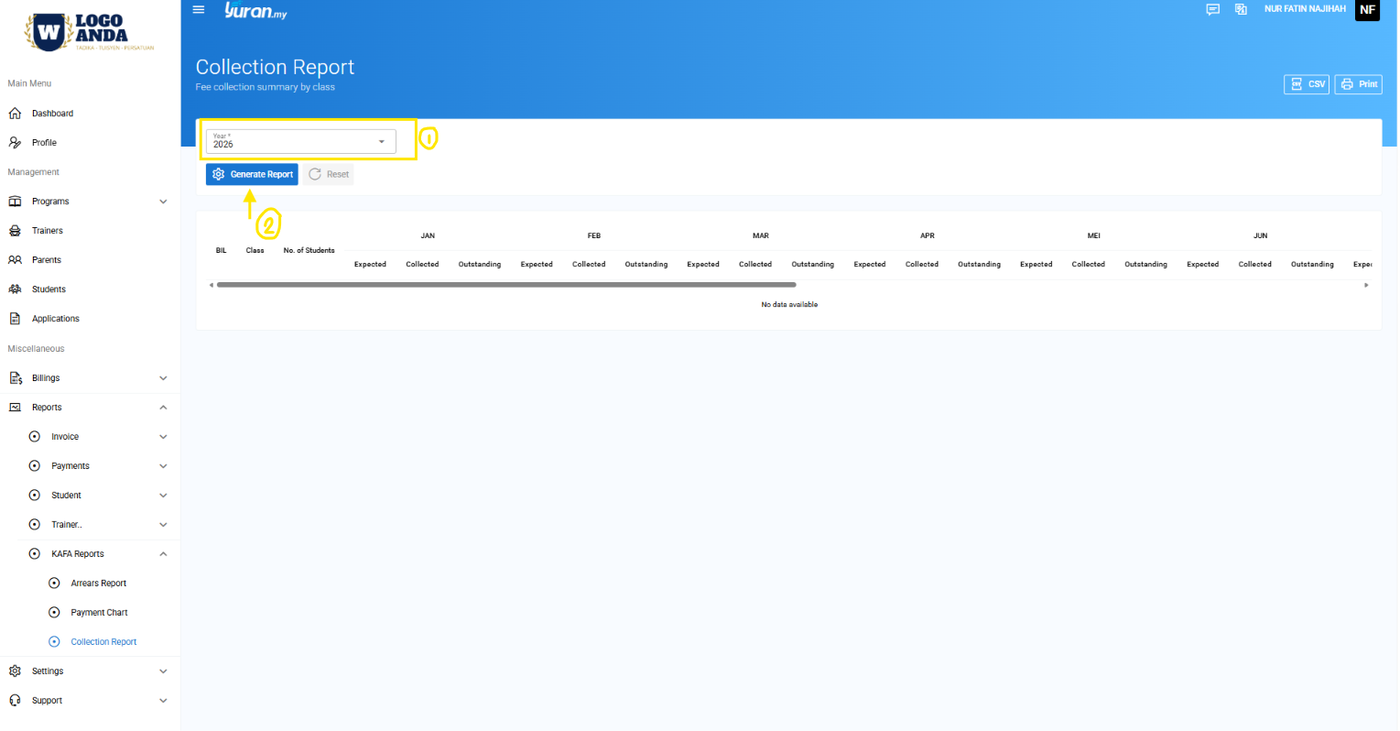
View of Collection Report
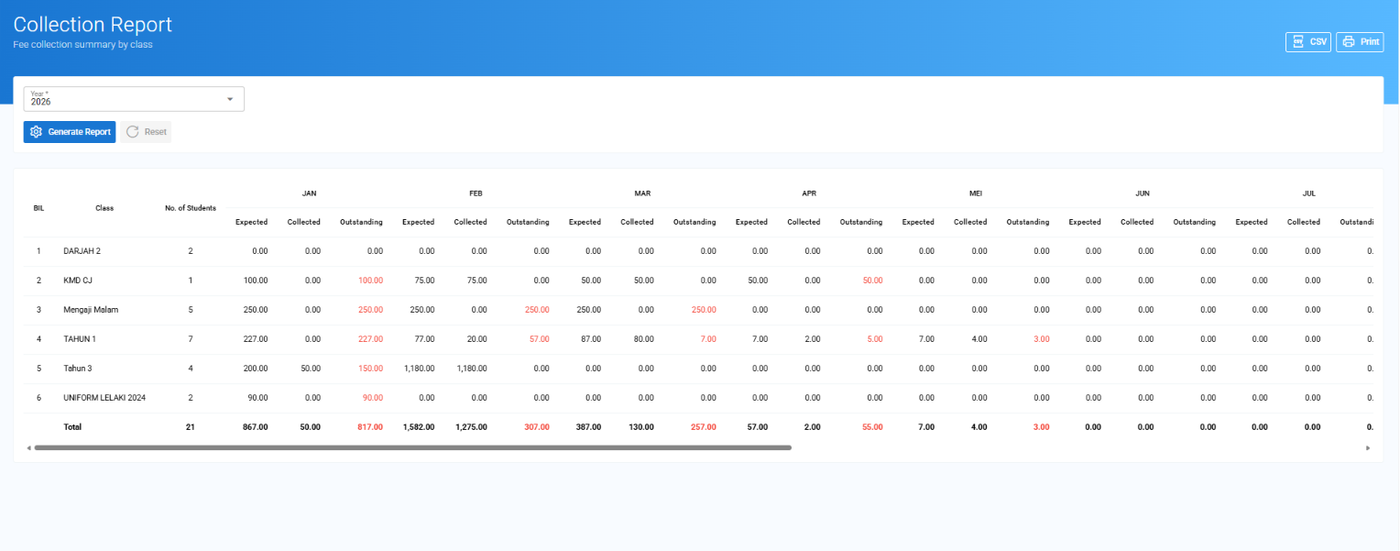
Step 3: Click CSV button to download in Excel/CVS file format or Print button to download as PDF file format.